Customer Ratings & Reviews
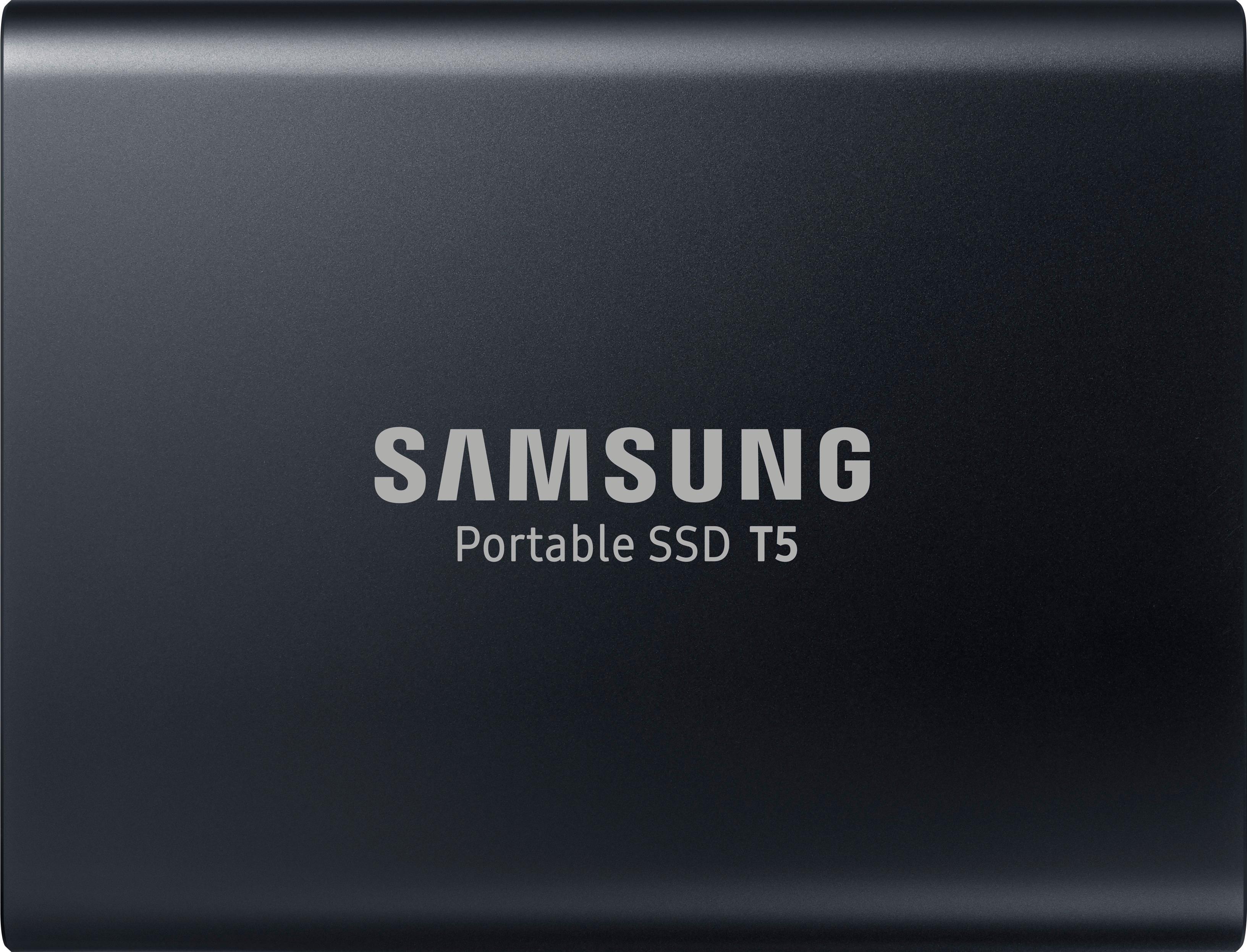
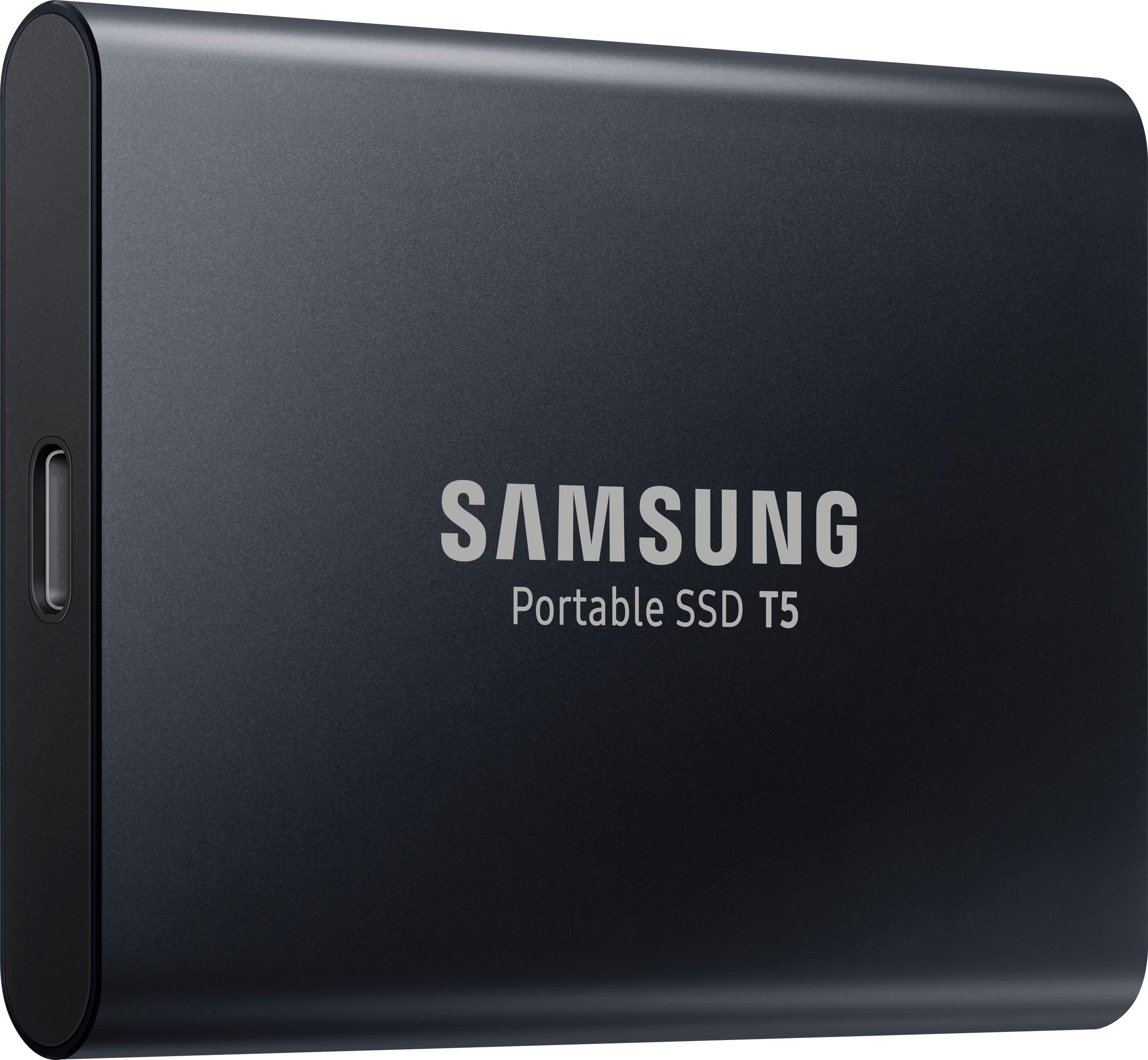
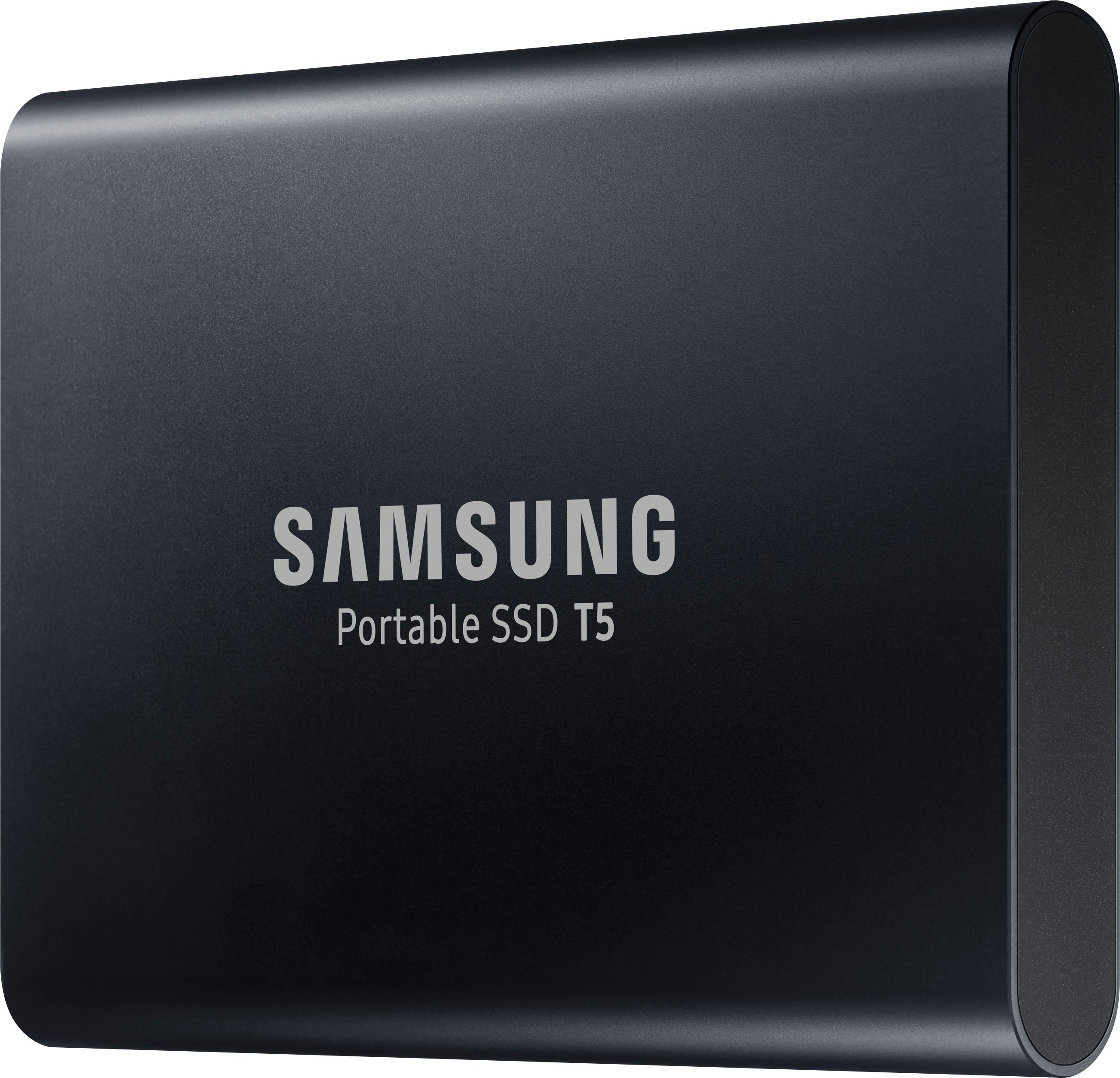
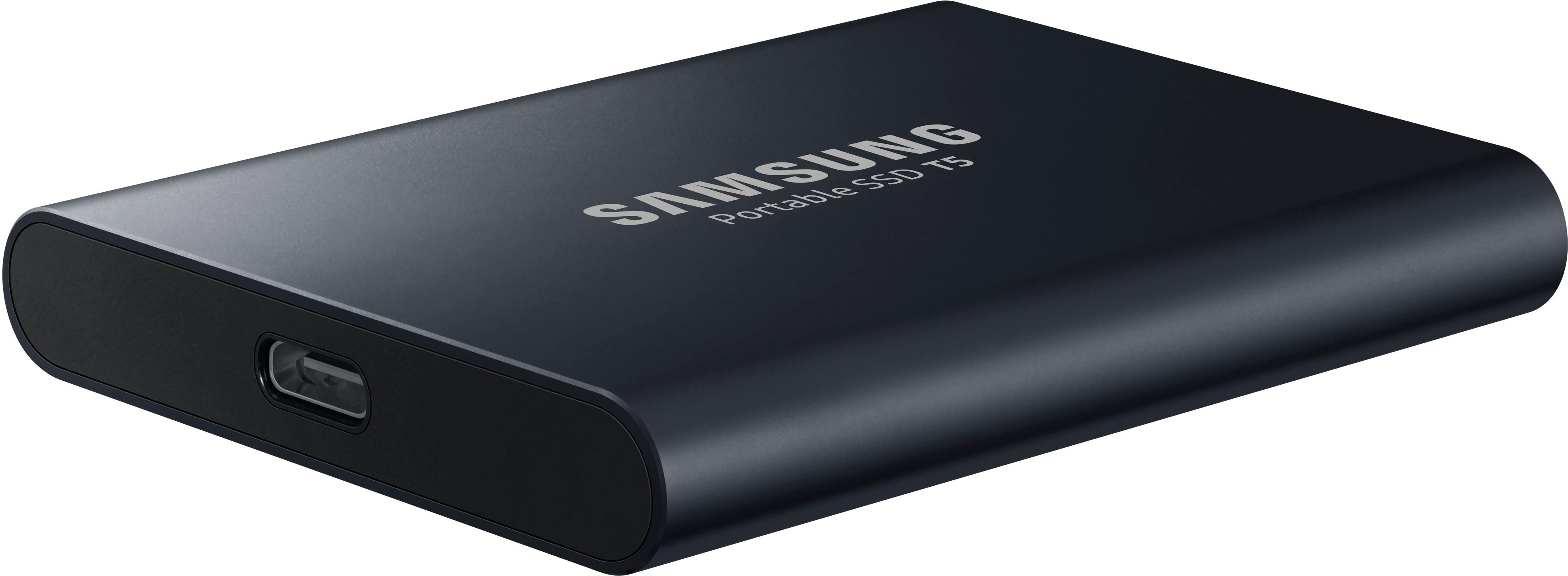
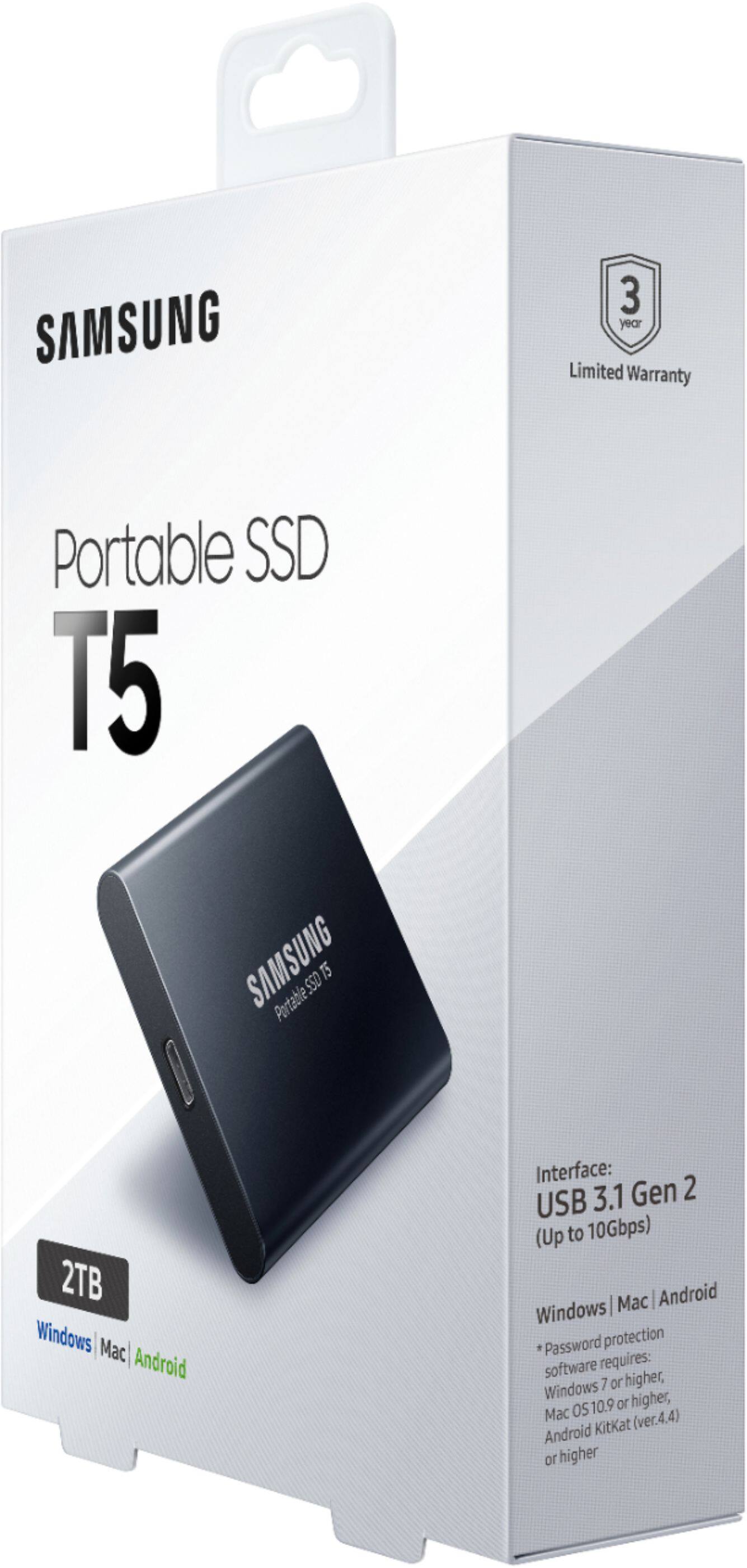
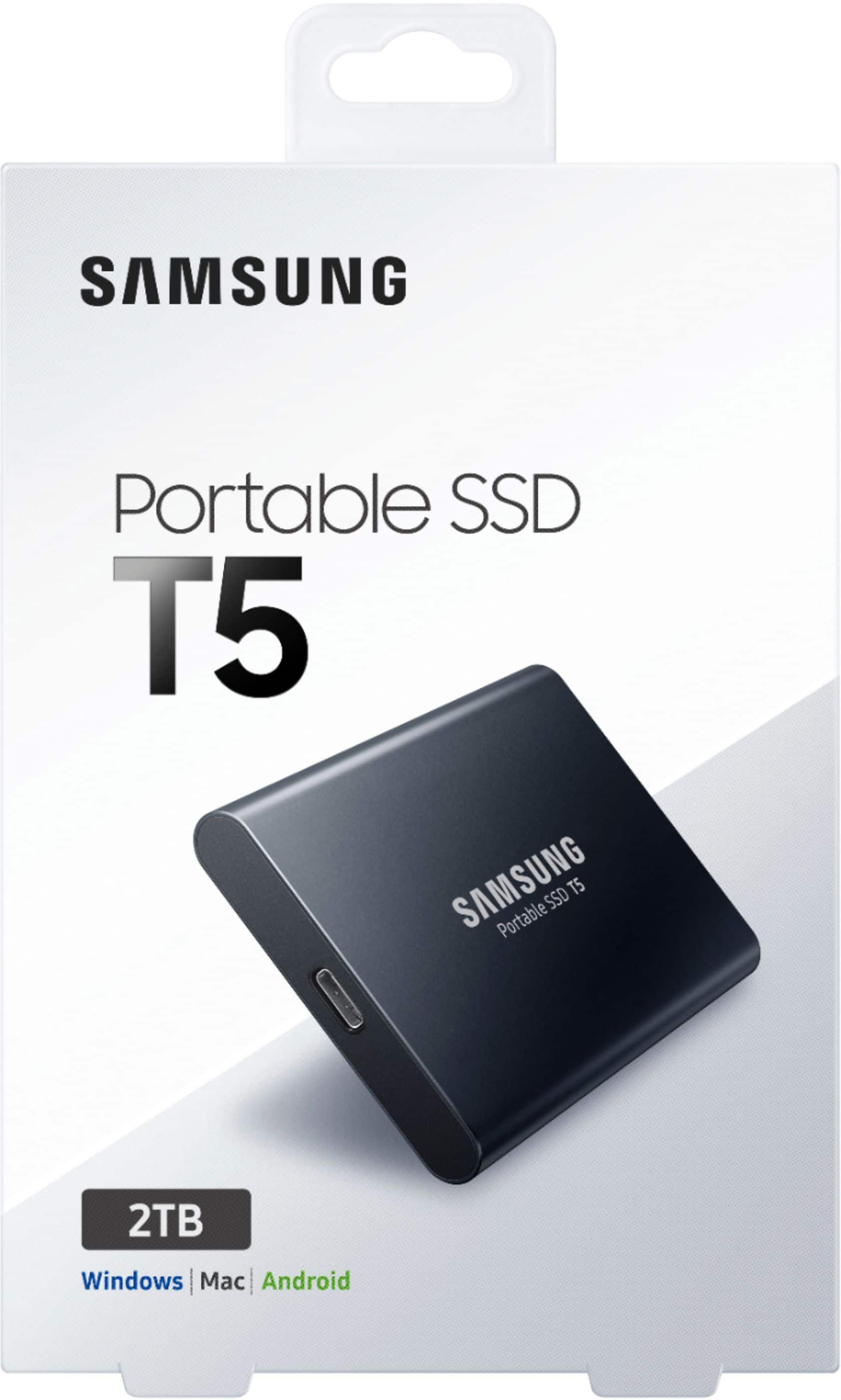
- Model:
- GSRF MU-PA1T0B
- |
- SKU:
- 6252145
Customer reviews
Rating 4.4 out of 5 stars with 120 reviews
(120 customer reviews)Rating by feature
- Value4.4
Rating 4.4 out of 5 stars
- Quality4.5
Rating 4.5 out of 5 stars
- Ease of Use4.5
Rating 4.5 out of 5 stars
Customers are saying
Customers are positive about the Geek Squad Certified Refurbished T5 1TB External USB Type C Portable Solid State Drive. Many appreciate its solid state drive functionality, noting its usefulness for supplementing internal storage and its reliable performance. The product is viewed as a worthwhile investment. There were no negative customer comments reported.
This summary was generated by AI based on customer reviews.
- Pros mentioned:Size, Speed
Rated 4 out of 5 stars
So far it's a good purchase that saved money.
||Posted . Owned for less than 1 week when reviewed.This reviewer received promo considerations or sweepstakes entry for writing a review.So far I had put 3 different games on this drive which is 218 gb in total( Battlefield 5, Apex legends, and Rainbow six extraction. The drive is quick, small, and computer games can be played off of it. While installing big titles with prolonged use this 1tb ssd gets hot. I've only had it for two days and everything seems ok. I got both type-c to type-c cords and the type-c to USB. Two of my concerns were 1.) It's a refurbished memory device-2.) That the type-c would easily be pulled out from the port on the t5 SSD but it doesn't and about the refirb I will see if this lasts and if so for how long. When I first plugged this device into my laptop it wasn't showing up as a usable memory device. I thought the ssd came faulty but a quick YouTube video later helped me enable my laptop to detect and use the t5 SSD as a storage device. So far things are good.
I would recommend this to a friend - Pros mentioned:Portability, Size, Speed
Rated 5 out of 5 stars
The best, honestly.
||Posted . Owned for 9 months when reviewed.This reviewer received promo considerations or sweepstakes entry for writing a review.This is SSD is compact, light, and perfect for what I needed. I was so surprised, honestly. It's easy to slip right into my laptop bag and go. And it's lightning fast.
I would recommend this to a friend Rated 3 out of 5 stars
Great SSD, Poor Cable Condition
||Posted . Owned for 2 months when reviewed.This reviewer received promo considerations or sweepstakes entry for writing a review.I bought this SSD as a Geek Squad refurbished product. The USB Type C to C cable gave me problems right away when plugging it into my 2017 MacBook Pro. It would give me different results no matter what end of the cable I was plugging in. The blue light indicator on the SSD would be blinking when it was working properly but it would usually either turn solid blue and not be detected by the computer or it would not turn on at all. The cable would also come out slightly if I was moving my MacBook for a more comfortable position and this would mark an error for not ejecting properly (this can cause file problems). The other cable that came with this was the USB Type C to A which worked fine but I needed to use my adapter (a.k.a dongle) which isn’t very convenient. I wish I made this review sooner or made a request for a new cable but my loss can be your gain. Check everything and don’t settle for something that works half the time.
I would recommend this to a friend- Pros mentioned:Speed
Rated 5 out of 5 stars
Best portable SSD
||Posted . Owned for 1 week when reviewed.This reviewer received promo considerations or sweepstakes entry for writing a review.I use this for editing video. It’s fast enough to edit my A7SIII footage in FCPX without any hiccups
I would recommend this to a friend - Pros mentioned:Portability, Size, Speed
Rated 5 out of 5 stars
Great SSD Hard Drive
||Posted . Owned for 1 month when reviewed.This reviewer received promo considerations or sweepstakes entry for writing a review.Great ssd hard drive. Small, fast, light, very portable, very durable. Works with both Windows and Mac. Extremely reliable- I use them in Alaska all year long to store photos and videos from drones and aerial mapping.
I would recommend this to a friend - Pros mentioned:Size, Speed
Rated 5 out of 5 stars
Small, fast... good value
||Posted . Owned for 2 months when reviewed.This reviewer received promo considerations or sweepstakes entry for writing a review.The product did not come in the original packaging, which is not a complaint. Rather, it's to say that otherwise, I would not have been able to tell that it was "refurbished". Just be careful taking it out of the box. Mine unexpectedly fell out of the packaging. Luckily, it was a short drop; so, no damage. I was surprised at how small the drive is. The speed is what I would expect from an SSD. I've had no problems with the drive generating excessive heat, etc.
I would recommend this to a friend - Pros mentioned:Overall performance, Speed
Rated 5 out of 5 stars
Went back for another one!
||Posted .This reviewer received promo considerations or sweepstakes entry for writing a review.These drives are great! I bought a second one, to run my Native Instruments Komplete library out of. It loads Kontakt instruments at least 3x as fast as the former LaCie Thunderbolt drive I was using. Amazing. I use the first one for library storage as I'm working in Final Cut Pro X. There is very little wait time to rendering - it has always been spot on. Best thing going so far.
I would recommend this to a friend - Pros mentioned:Portability, Speed, Storage capacity
Rated 5 out of 5 stars
Fits my need.
||Posted . Owned for 9 months when reviewed.This reviewer received promo considerations or sweepstakes entry for writing a review.Offers speed, mobility, and storage. I need it. They have it!
I would recommend this to a friend - Pros mentioned:Overall performance, Portability, Size
Rated 5 out of 5 stars
Good purchase
||Posted . Owned for 2 weeks when reviewed.This reviewer received promo considerations or sweepstakes entry for writing a review.Small compact and works well. Easy-to-use interface and programming.
I would recommend this to a friend - Pros mentioned:Size, Speed
Rated 5 out of 5 stars
Excellent Speedy External SSD
||Posted . Owned for 3 weeks when reviewed.This reviewer received promo considerations or sweepstakes entry for writing a review.Ooh. This little guy is fast! I bought this external SSD to share large videos with my wife, who uses a MacBook Air M1. The external SSD is compact in size and transferring video files to it happened extremely quickly. The videos were on my iPad Pro, and I used the included USB-C cable for the file transfer. The unit itself feels sturdy; I'm sure it'd survive a small drop. survive a small drop.
I would recommend this to a friend - Pros mentioned:Overall performance, Portability, Speed
Rated 5 out of 5 stars
great backup drive
||Posted . Owned for 3 weeks when reviewed.This reviewer received promo considerations or sweepstakes entry for writing a review.Works as advertised - fast, sleek, reliable! Easy to use.
I would recommend this to a friend - Pros mentioned:Overall performance, Speed
Rated 5 out of 5 stars
Best USB 3 SSD I've ever used
||Posted . Owned for 1 month when reviewed.This reviewer received promo considerations or sweepstakes entry for writing a review.This USB SSD is fast, reliable, and comp[atible with most everything I throw at it from a PC to a Raspberry Pi 4B. I also have a PNY 1 TB SSD and it seems to have trouble when run too long while this Samsung can take as much use as I can throw at it.
I would recommend this to a friend - Pros mentioned:Size, Speed
Rated 5 out of 5 stars
Tiny but fast
||Posted . Owned for 1 week when reviewed.This reviewer received promo considerations or sweepstakes entry for writing a review.Needed an external storage device for my ps5 since the internal storage wasn’t close enough for the games I have. This works amazing fast with transfers and the device itself is tiny and slick.
I would recommend this to a friend - Pros mentioned:Portability, Speed
Rated 5 out of 5 stars
Small, portable, fast
||Posted .This reviewer received promo considerations or sweepstakes entry for writing a review.This drive is exactly what we needed. It's small, portable, and fast, and it doesn't need an external power source, so it's perfect for laptop computers.
I would recommend this to a friend - Pros mentioned:Portability, Storage capacity
Rated 5 out of 5 stars
Nice Compact SSD
||Posted .This reviewer received promo considerations or sweepstakes entry for writing a review.I purchased this to backup photos and videos and it has worked very well for me. It is compact and has a lot of storage space. Couldn’t tell it was refurbished other than not coming with retail packaging.
I would recommend this to a friend - Pros mentioned:Portability, Size
Rated 5 out of 5 stars
Refurb SSD works like new
||Posted . Owned for 1 year when reviewed.This reviewer received promo considerations or sweepstakes entry for writing a review.Great compact external USB-C drive. Convenient size for back ups or off loading data.
I would recommend this to a friend - Pros mentioned:Portability, Speed
Rated 5 out of 5 stars
Fast & Portable
||Posted . Owned for 1 year when reviewed.This reviewer received promo considerations or sweepstakes entry for writing a review.Extremely fast and portable size. I use this for my Sony camera, pretty easy to carry around with minimal extra space.
I would recommend this to a friend - Pros mentioned:Overall performance, Speed
Rated 5 out of 5 stars
great product
||Posted . Owned for 3 weeks when reviewed.This reviewer received promo considerations or sweepstakes entry for writing a review.i have used these hard drives before and they have always worked well. i use this hard drive for fast access of data for work. these units have never failed me.
I would recommend this to a friend - Pros mentioned:Portability, Speed
Rated 4 out of 5 stars
Works very well
||Posted . Owned for 3 weeks when reviewed.This reviewer received promo considerations or sweepstakes entry for writing a review.Needed something to backup my MacBook Pro and this fits the bill perfectly. It's small, fast and portable. Love it.
I would recommend this to a friend - Pros mentioned:Size, Speed
Rated 5 out of 5 stars
Great SSD
||Posted . Owned for 3 weeks when reviewed.This reviewer received promo considerations or sweepstakes entry for writing a review.Great small compact ssd. Very fast speeds and works great with MacBook. Got it used for cheap
I would recommend this to a friend
People also viewed
- $89.99Your price for this item is $89.99
- Presidents' Day Deal$104.99Your price for this item is $104.99
- $149.99Your price for this item is $149.99
- $199.99Your price for this item is $199.99$252.99The comparable value for this item is $252.99
- $79.99Your price for this item is $79.99
- $319.99Your price for this item is $319.99$459.99The comparable value for this item is $459.99
- $89.99Your price for this item is $89.99
- $189.99Your price for this item is $189.99
- $349.99Your price for this item is $349.99
- $169.99Your price for this item is $169.99$179.99The comparable value for this item is $179.99
- $159.99Your price for this item is $159.99$174.99The comparable value for this item is $174.99
- $259.99Your price for this item is $259.99
- $179.99Your price for this item is $179.99
- $339.99Your price for this item is $339.99
- $84.99Your price for this item is $84.99$94.99The comparable value for this item is $94.99
- $159.99Your price for this item is $159.99
- $265.20Your price for this item is $265.20
- $209.99Your price for this item is $209.99$263.99The comparable value for this item is $263.99
- Presidents' Day Deal$304.99Your price for this item is $304.99