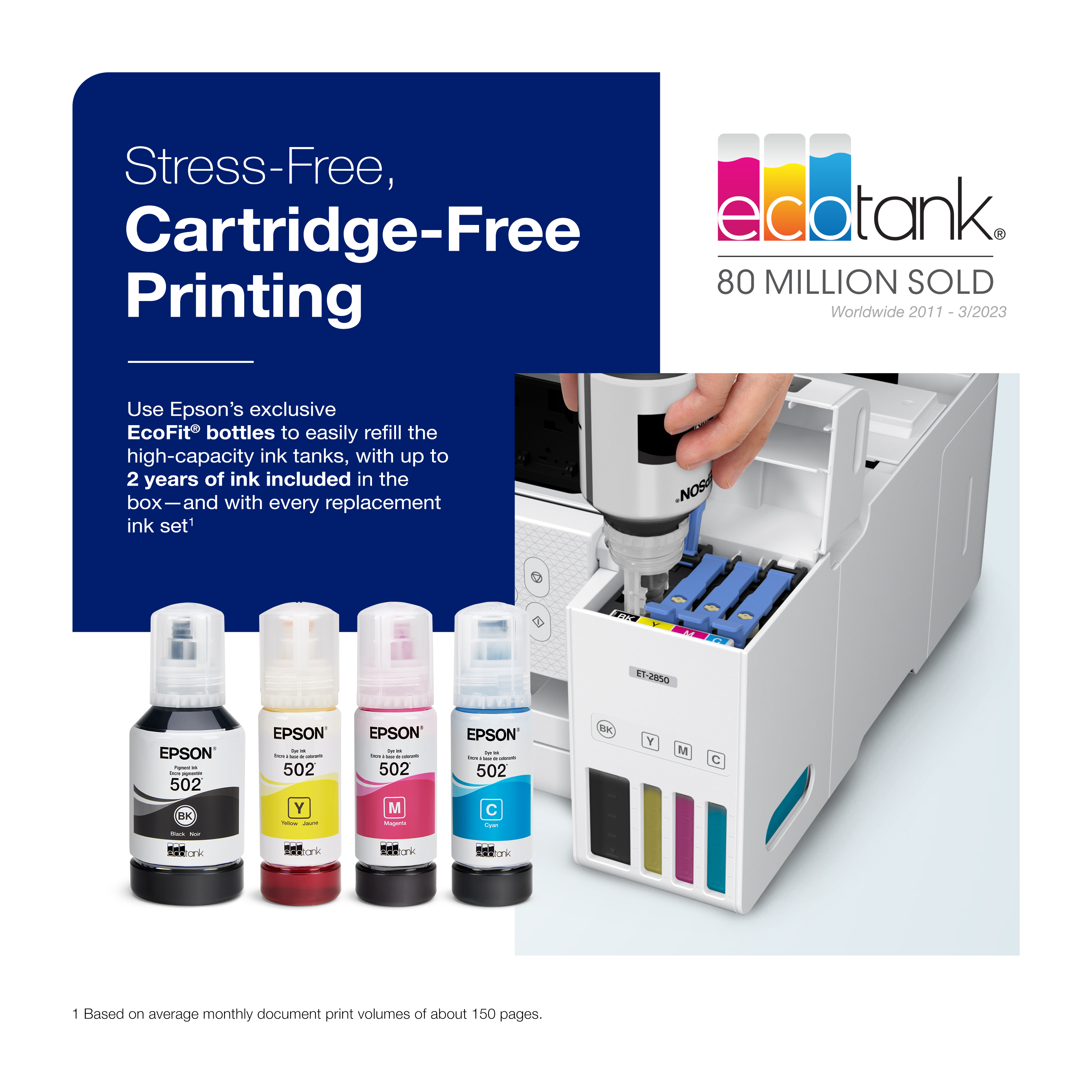
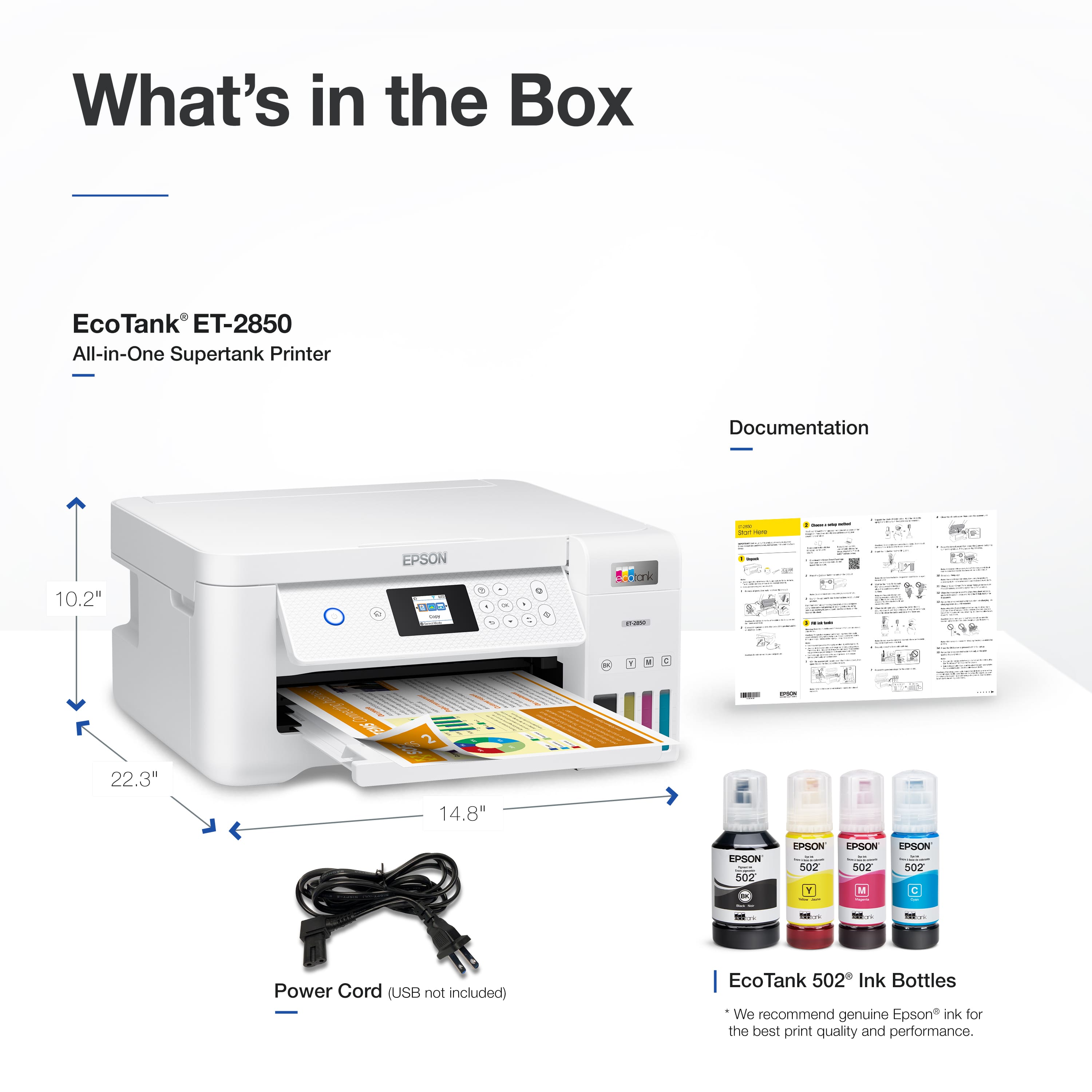
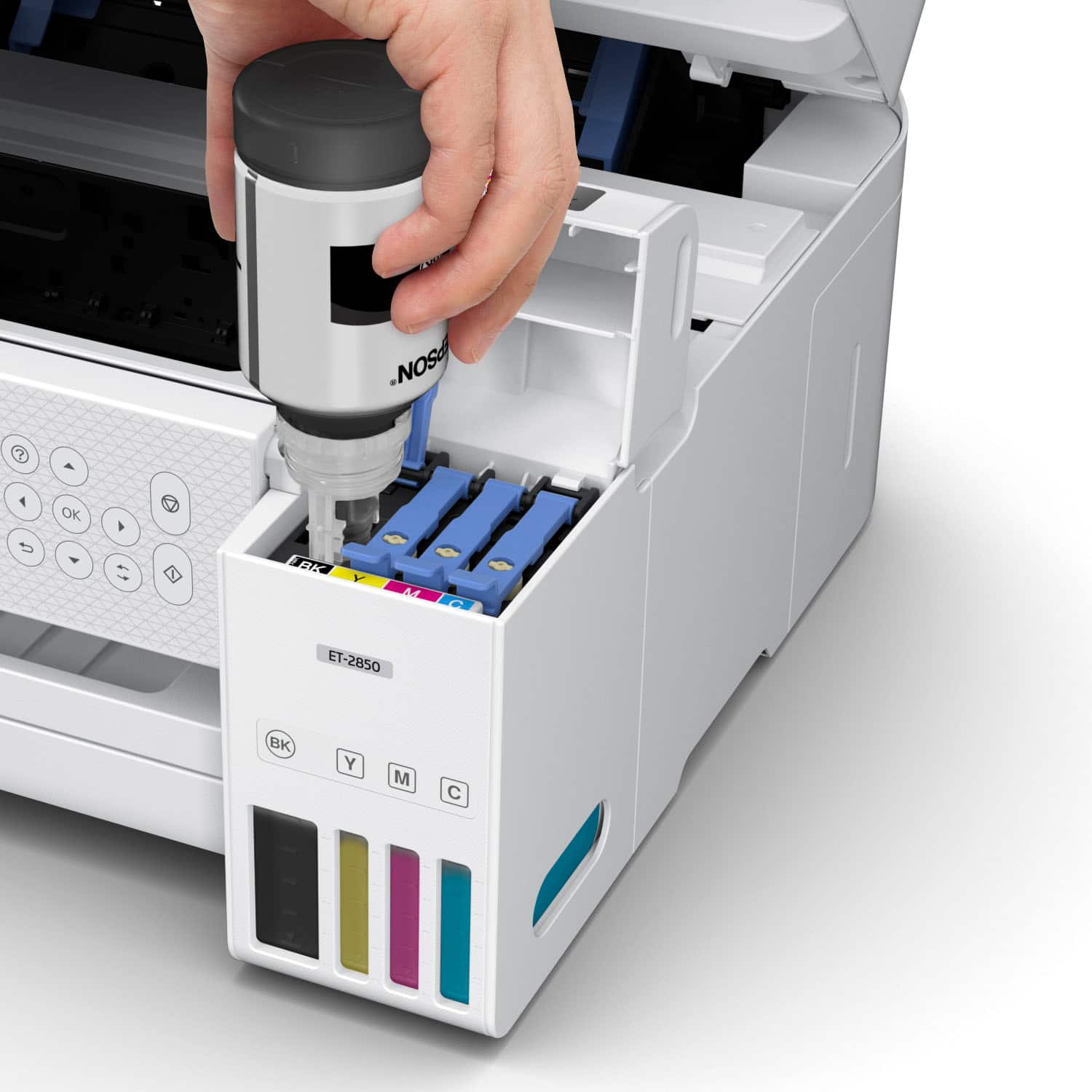
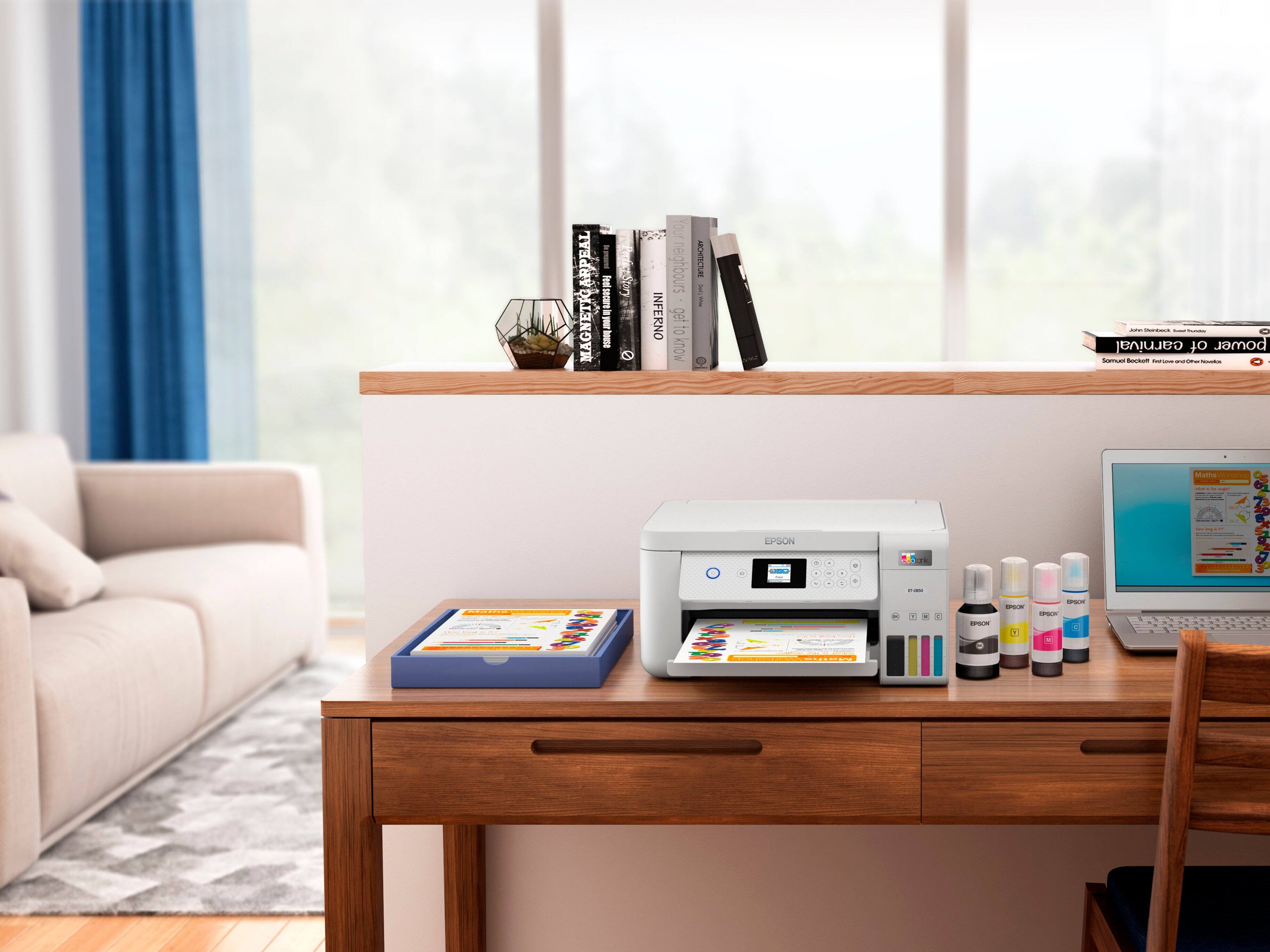
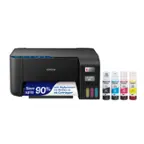
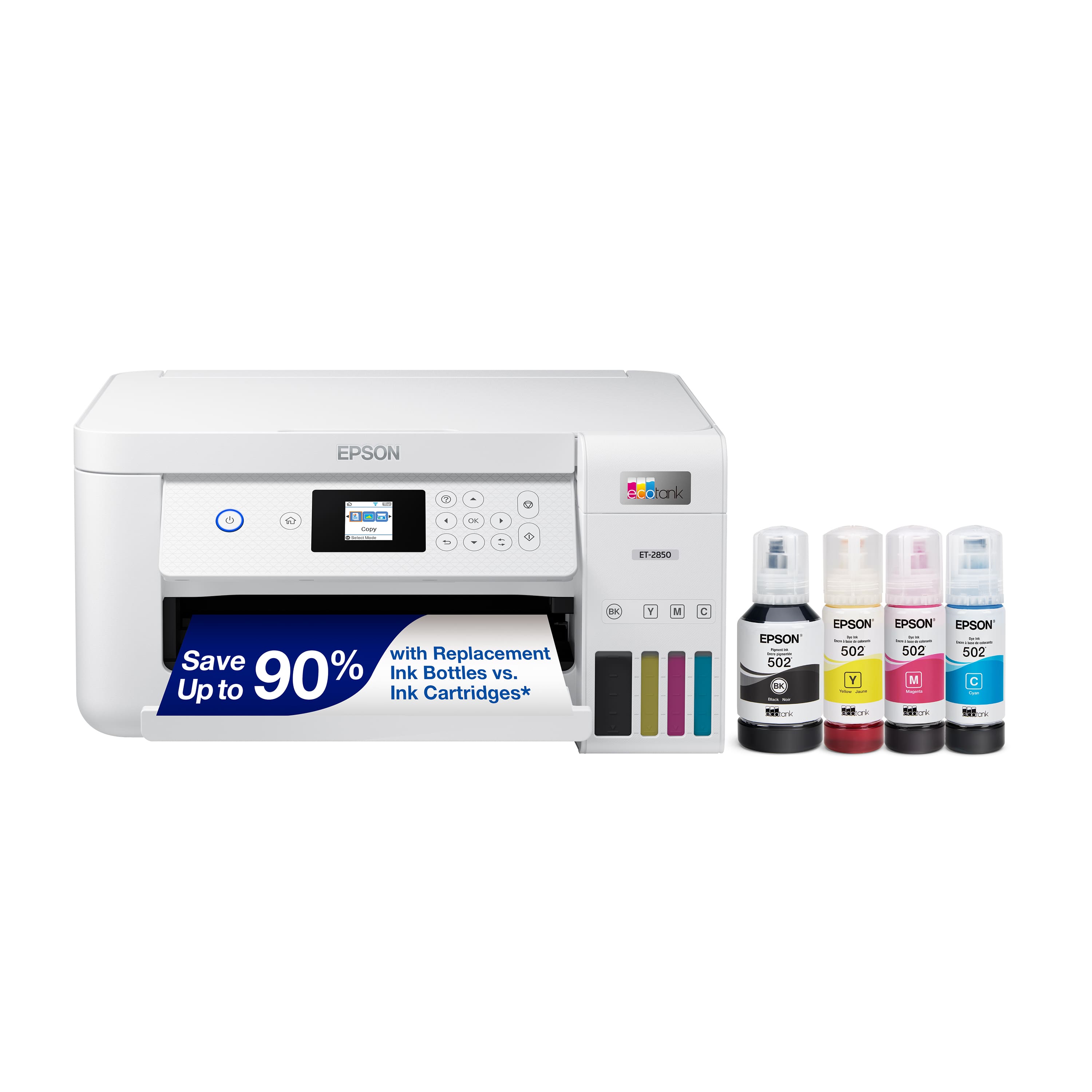
A:AnswerIt includes one full fill of ink and the power cable. If you want a USB cable to connect to the computer, you’ll need to buy one of those separately.
A:AnswerHello Cher. Yes, all of those sizes are supported. The ET-2850 can print on custom paper sizes ranging from 3.5" x 5.5" to 8.5" x 47.2". Regards, Kevin - The Epson Team.
A:AnswerHello. Please inspect the top of the printer to ensure nothing is obstructing the hinges. Also, ensure there is no damage in that area as well. If everything looks good, please contact our Technical Support team by phone for assistance. Regards, Kevin - The Epson Team.
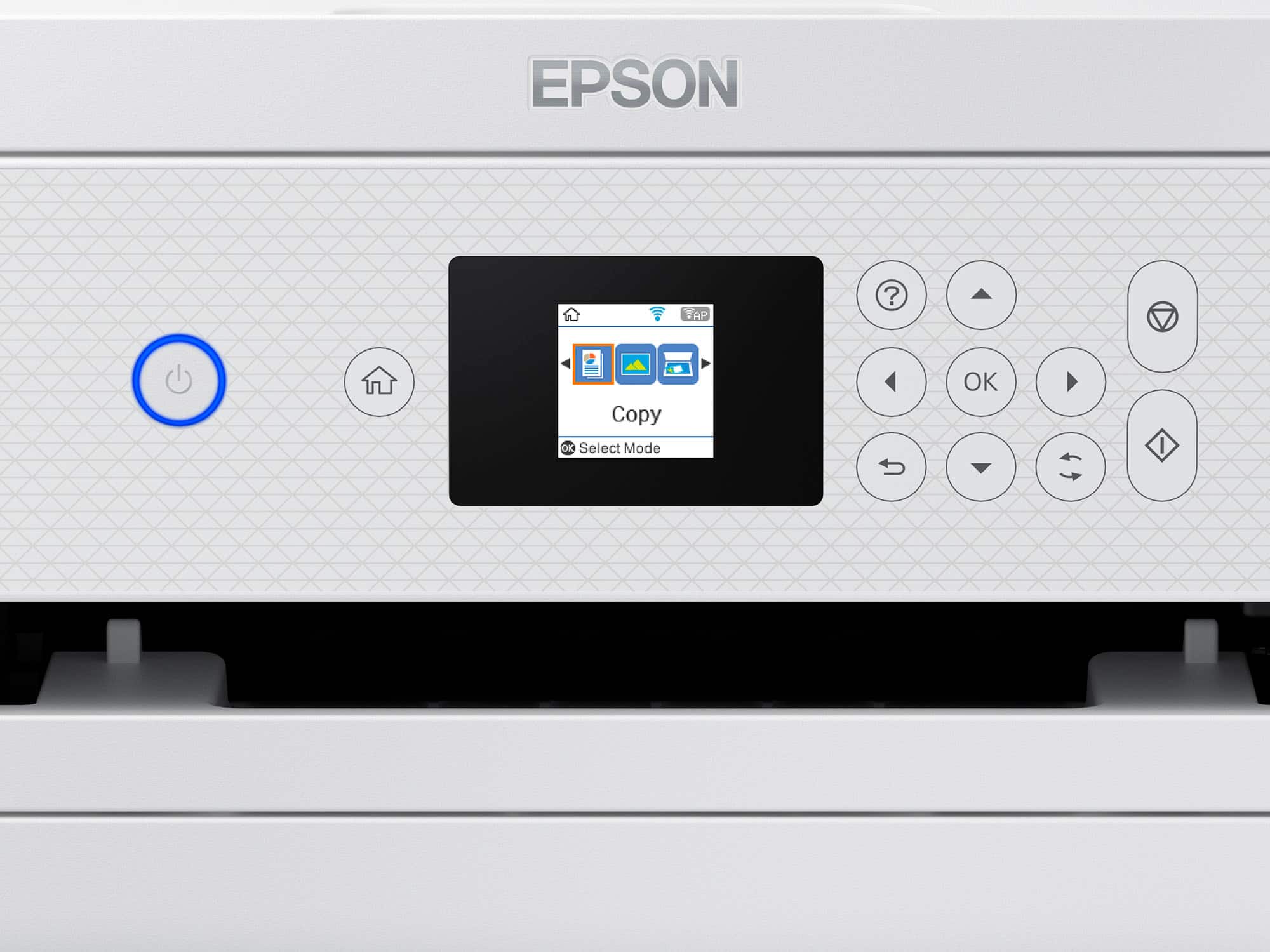
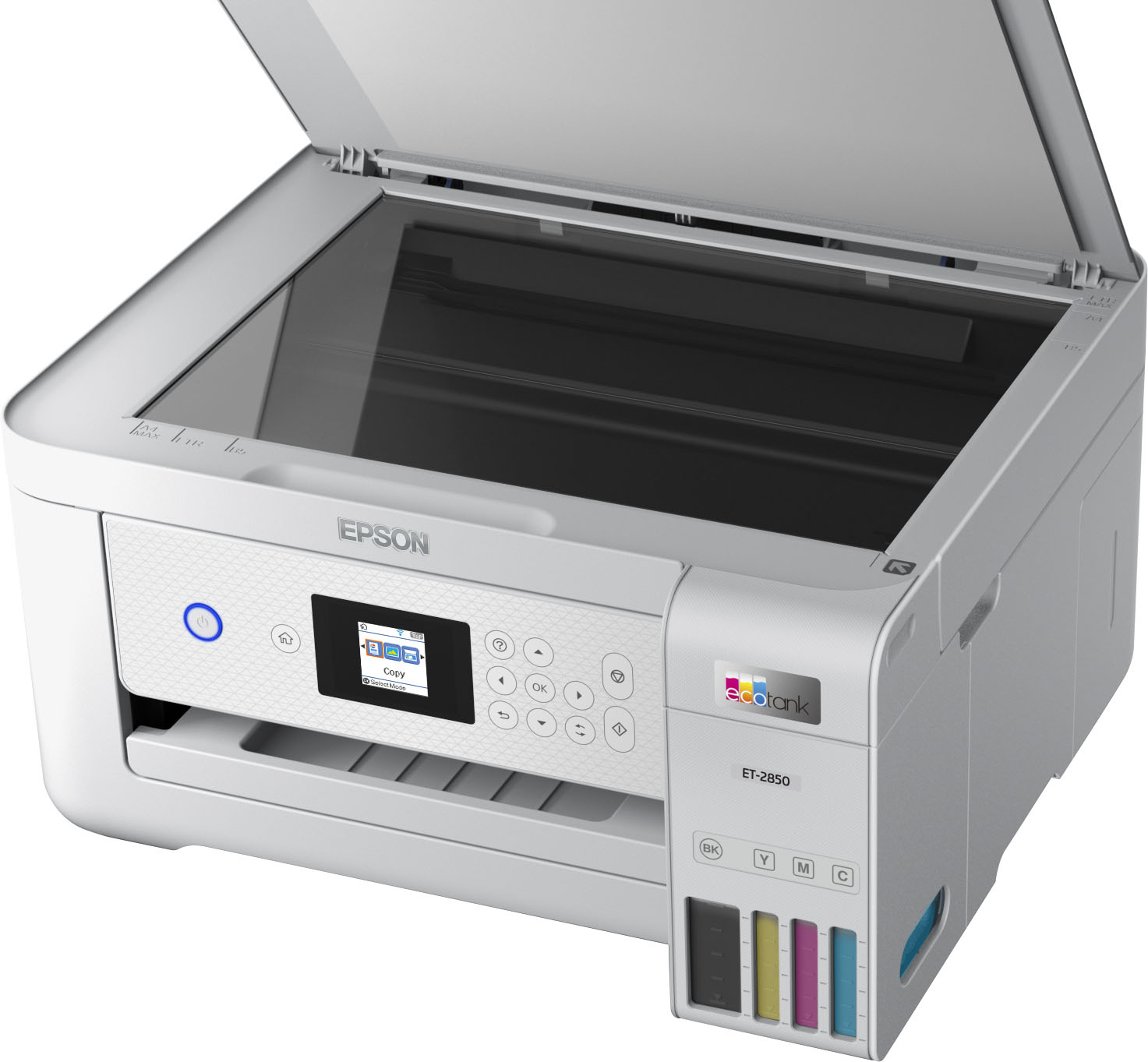
A:AnswerHello Dee. The copy function can be used without a computer or Wi-Fi connection. However, if you want to print or scan, the printer must be connected to a computer, smartphone, or tablet. Regards, Kevin - The Epson Team.
A:AnswerHello Chrissy. The ET-2850 can only load paper from the rear paper feed, located towards the back side on top of the printer. Regards, Kevin - The Epson Team.
A:AnswerHello Nancy. Yes, you can make copies directly from the printer's control panel without using a computer. The ET-2850 can only print on No.10-sized envelopes. Regards, Kevin - The Epson Team.
A:AnswerHello Bud2024. Yes, you can select to preview a scanned image and can make adjustments from the Epson software. Regards, Kevin - The Epson Team.
A:AnswerHello Rich. The Wi-Fi feature on the ET-2850 is reliable. Please be aware that different variables can affect your connection, such as network traffic, router distance, signal interference. Regards, Kevin - The Epson Team.
A:AnswerHello Diane. We recommend setting up the scanner driver again. Depending on the operating system that you are using, that process can vary. Please contact our Technical Support team by phone if you need additional assistance. Regards, Kevin - The Epson Team.
A:AnswerHello Chris. Yes, the ET-2850 is compatible with Windows 7. You can find the latest driver on our official Epson Support page. Regards, Kevin - The Epson Team.
A:AnswerAbsolutely! Installation for your Chromebook should be all but automatic. Go to "add printers" and find the Epson (by name and model, no less!) and just click on it.
A:AnswerHello Mar4. We recommend printing a nozzle check from the maintenance menu. If you have any missing segments, you can complete cleanings as necessary. If you need additional assistance, don't hesitate to contact our Technical Support team. Regards, Kevin - The Epson Team.
A:AnswerHello eldercop. To confirm compatibility with your Eero Wi-Fi system, please ensure it is compatible with WEP (64/128 bit), WPA2-PSK (AES), WPA/WPA2 Personal, or WPA3-SAE. Also, while the ET-2850 can work with a 5 GHz router, it can only connect to a 2.4 GHz band. So you also want to make sure your Wi-Fi system can operate in dual-band (2.4 GHz and 5 GHz) mode. Regards, Kevin - The Epson Team.
A:AnswerHello. We recommend checking the inside areas of the paper path that are accessible. If you are not able to see or clear the paper jam, we recommend contacting our Technical Support team by phone for further assistance. Regards, Kevin - The Epson Team.