A:AnswerThere could be a number of reasons. Things to look at would be:
- where is the router located in your house? Is it at one end, in the center? etc. Try to get it as close to center as possible.
- what style house do you have? If you have a ranch, 1800 sq. ft. on the main level is a lot, and that usually means a large basement. A colonial or tri/quad level is more boxy so you won't have as far to reach. Again, try to get the router near the middle.
- what is near the router, the extender or your end device? Do you have any other wireless devices nearby such as a printer with wireless, a 2.4 GHz cordless phone, a microwave, or anything else similar that may be emitting interference?
- is there anything in between it and where you are having issues? such as structural beams or heating/cooling duct work between the router and the problem area? If so, move the router.
- how do you have the antennas oriented? If the router is on a flat surface they should be straight up and down. The usual pattern for these types of antenna is a doughnut shape around the antenna.
- you mention an extender in your question. What kind of extender is it? Is it 2.4 GHz only or dual band (2.4 and 5) and what is its max speed for each band? If you use an extender, you will greatly impact the speed at which an end device will communicate as it basically cuts your overall throughput to the router in half for each extender between you and router, in this case probably one quarter the max speed. On average your device connected to the router or the extender connected to the router will get about half the throughput that it says it's connected at. A budget extender will connect at 150 mbps which is shared up and down so about 75 up and 75 down. This doesn't factor in any performance decrease from interference, range, etc. When you connect to the extender you're going to get about half of that available throughput so now you're looking at 30'ish up and 30'ish down, again not factoring any performance decrease from other factors.
Placement of the router is key. Place it so your high demand devices have the best chance to connect to it directly and use extenders where needed for low demand devices.
I hope that helps.
A:AnswerIt will work with any ISP provider. It will require a separate v3.0 or higher modem connected to your ISP. Contact AT&T for their list of recommended modems. I would recommend purchasing one instead of renting one (typically $5-6 a month) as they only cost around +/-$60.
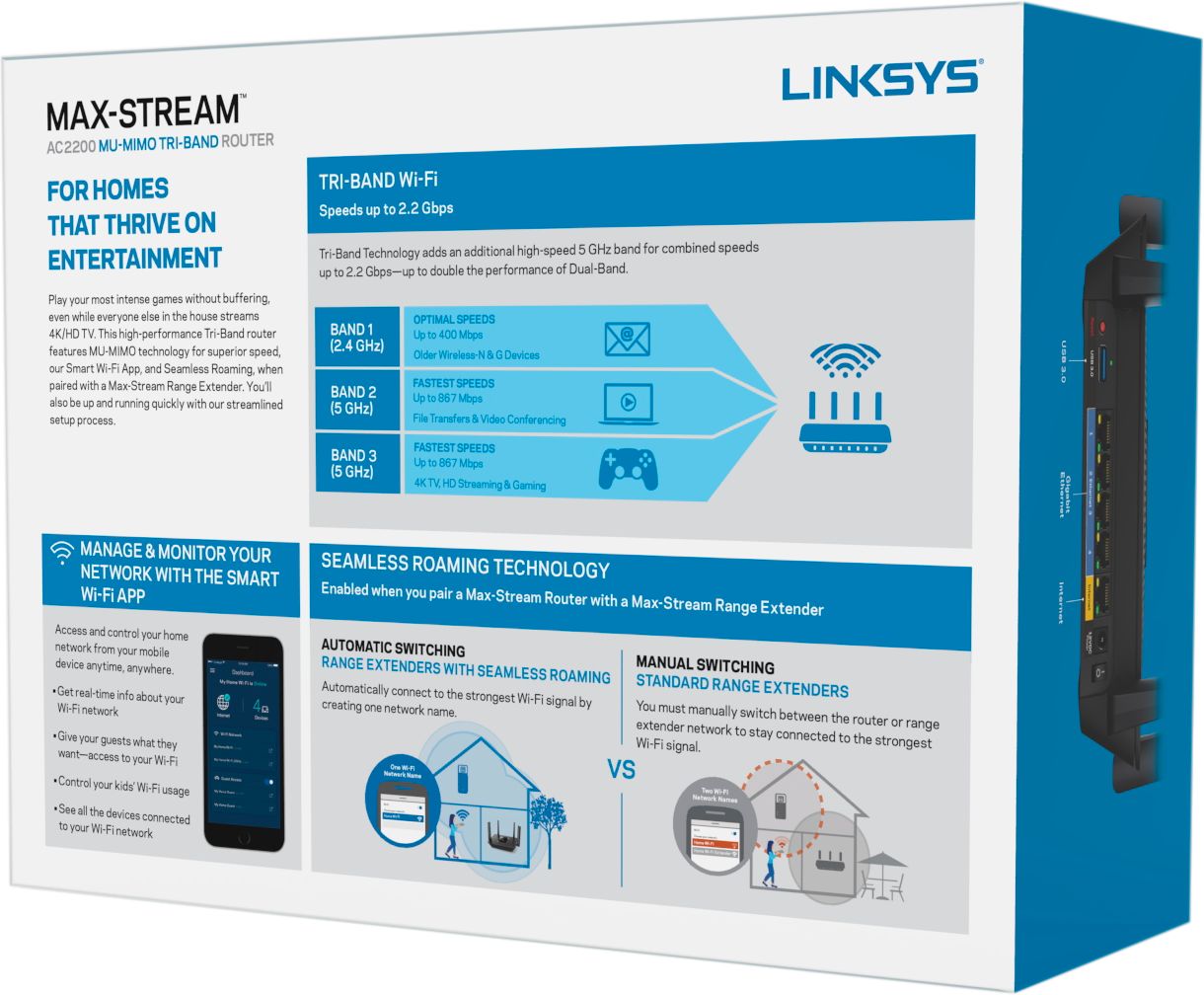
A:AnswerI think you will have no problem with the number of devices - this router handles all 28 devices in my home network without a hiccup. It's very fast and responsive. WRT signal interference in a club environment, I don't have any direct experience. But 1) this router allows you to select any one of 11 channes for 2.4 GHz 802.11 b/g/n. 2) it supports two separate channels (bands) for 5 GHz 802.11 ac, and it will automatically select the channel that is the least crowded. So with three separate frequency bands (channels) and the ability to manually or automacially select the best channel (at least for 802.11 b/g/n), I'm guessing you won't have any problem with drop out in a club. I've also noticed (qualitatively) that the signal from this router appears to be very stong. The most remote devices in my house show "all bars". HTH.
A:AnswerYes it will work with Charter or Cox. The main thing if your using their equipment just have them give you the cable modem only not the cable modem with built in wifi. I bought my own cable modem Arris Model SB6190. Make sure also the cable modem is DOCSIS 3.0. I refuse to pay $7 plus every month for their equipment. Basically it pays for itself.
A:AnswerI would HIGHLY recommend ditching the ISP's modem and pick up a modem and seperate router, unless you have voice, in which case you are kin of stuck. It definitly beats paying $10 a month to rent one.
A:AnswerMany devices like that can’t use the 5 GHz frequency band. I had to go into the router software and turn that frequency off so the devices could only see the 2.4 GHz band. You can turn it back in after the smart plugs are connected. Some devices can find the lower frequency band on their own but not all do. I use Koogeek smart plugs. As I recall I had to have my iPhone on the 2.4 band to set up the smart plugs. After they are all connected you can turn the 5 GHz band back on. Dyson air purifiers work in a similar way so I’m sure a lot of devices do.
A:AnswerIt will not increase your download speeds as that is regulated by CL based on the plan your purchased. It does have a setting for gaming that will prioritize bandwidth when you are playing games. You can download the manual from Linksys and get more info before purchasing.
A:AnswerYes, this thing is amazing. We installed in our home, metal roof and all, and pick up everywhere full signal strength, even outside. It's seriously the best range I've ever seen on a wireless router