Customer Ratings & Reviews



- Model:
- PA279CV
- SKU:
- 10315646
Rating by feature
- Display Quality
Rating 4.9 out of 5 stars
- Ease of Use
Rating 4.5 out of 5 stars
- Features
Rating 4.8 out of 5 stars
Excellent monitor
||Posted . Owned for 3 months when reviewed.This reviewer received promo considerations or sweepstakes entry for writing a review.It's a little pricey, but very easy to put everything together! The screen is very bright. It's perfect for daily work and entertaining
I would recommend this to a friendBest monitor ever according to my kid
||Posted . Owned for 1 month when reviewed.This reviewer received promo considerations or sweepstakes entry for writing a review.Got it for my daughter she loves it!!...uses it all the time
I would recommend this to a friendDid not live up to expectations/
||Posted . Owned for 4 months when reviewed.This reviewer received promo considerations or sweepstakes entry for writing a review.The hertz on the monitor is not that great. Not only that, the color calibration is a pain and just not worth the time and money. I will be reselling.
No, I would not recommend this to a friendBrand response from ASUS Answers
Posted .Dear Valued Customer,
It's unfortunate to hear that it didn't meet your expectations. This is absolutely not the kind of experience we want any of our customers to have. I will be letting the related department know about this concern for continuous improvements to the product line. If you have any concerns, feel free to send us a tweet or direct message to our Official ASUS North America Support Twitter at AsusHelpUS. We’ll do our best to provide a quick resolution to your case. Your feedback is important as it helps with improvements to ASUS Support channels. Please copy a link to this post for reference.
Thank you for choosing ASUS!
Best Regards,
Jamalie,
ASUS Customer Loyalty US Support
great monitor
||Posted . Owned for 1 month when reviewed.This reviewer received promo considerations or sweepstakes entry for writing a review.works right out of the box. set up was easy, really like the way the stand allows for adjustable viewing.
I would recommend this to a friendGreat Picture but Needs work
||Posted . Owned for 1 month when reviewed.This reviewer received promo considerations or sweepstakes entry for writing a review.Got this monitor because my old Asus Designo Series Usb c input broke. Was pleased by the picture quality and brightness but my only use for this was with my Mac Mini. However as you'll notice in other reviews the usb c port fails to display mac devices. Even with their firmware update for the Monitor the issue still persisted.
No, I would not recommend this to a friendBrand response from ASUS Answers
Posted .Dear Nfvsa1,
Undoubtedly, the monitor has great picture or image quality.
To successfully use this monitor on a Mac Mini, please ensure the correct USB-C video adapter cable is being used and working properly. Also, verify your Mac has the latest OS update.
If you need further assistance with the monitor, please email me at [email protected] and I will be more than happy to help. Or, you are most welcome to call Product Support Hotline at: 1(888) 678-3688. Also, you can chat with an ASUS live support agent at: http://bit.ly/AsusLiveChat.
Thank you for choosing an ASUS product.
Regards,
Rodel
ASUS Customer Loyalty
Very nice monitor for the price
||Posted . Owned for 2 months when reviewed.This reviewer received promo considerations or sweepstakes entry for writing a review.Bought this monitor for my son. Ended up getting a second monitor because it performed so well. No dead pixels. Great quality.
I would recommend this to a friendSkeptical
||Posted . Owned for 3 weeks when reviewed.This reviewer received promo considerations or sweepstakes entry for writing a review.Skeptical about buying a non-mac monitor, I am pleasantly surprised with the quality & performance of this ASUS monitor
I would recommend this to a friendGreat monitor
||Posted . Owned for 3 weeks when reviewed.This reviewer received promo considerations or sweepstakes entry for writing a review.Great color rendition for working on photo editing. Works well with the Mac Mini M1 and second monitor.
I would recommend this to a friendASUS - ProArt 27" IPS 4K
||Posted . Owned for 3 months when reviewed.This reviewer received promo considerations or sweepstakes entry for writing a review.ASUS - ProArt 27" IPS 4K is a high-quality monitor and I am very happy with my purchase!!!
I would recommend this to a friendSuper clear
||Posted . Owned for 2 weeks when reviewed.This reviewer received promo considerations or sweepstakes entry for writing a review.Super clear screen & easy set up with my MacBook Pro. Looks as clear as my iMac screen.
I would recommend this to a friendEpif fail for a Mac
||Posted . Owned for 1 week when reviewed.This reviewer received promo considerations or sweepstakes entry for writing a review.I read so many great reviews about this monitor, specifically about its compatability with a Mac. What an epic fail. The “default” screeb size is tiny, and if I used a “scaled” size, the screen image would bounce. I tried different connections, outlets…finally packed it up and took it back. Color and clarity are good, but that’s about it.
No, I would not recommend this to a friendBrand response from ASUS Answers
Posted .Dear GirlwaHammer, we are truly sorry for the inconvenience and we value your feedback and concerns as this will aid in any improvements that need to be made. I will be letting the related department know about this concern for continuous improvements to the product line. Feel free to reach out to me at [email protected] and provide this link for reference. I'll do my best to provide a quick resolution to your case. Your feedback is important as it helps with improvements to ASUS Support channels. Thank you for choosing ASUS! Best Regards, Jonelle, ASUS Customer Loyalty US Support
So far so good
||Posted . Owned for 2 weeks when reviewed.This reviewer received promo considerations or sweepstakes entry for writing a review.I use for video and pic editing. The color clarity is great.
I would recommend this to a friendsatisfactory
||Posted . Owned for 1 month when reviewed.This reviewer received promo considerations or sweepstakes entry for writing a review.reliable, as advertised. instructions were a bit nebulous to assemble.
I would recommend this to a friendProArt
||Posted . Owned for 1 month when reviewed.This reviewer received promo considerations or sweepstakes entry for writing a review.Great! Better than what I expected I love it and the ergonomics are amazing
I would recommend this to a friend
A beautiful display, with some caveats
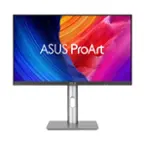
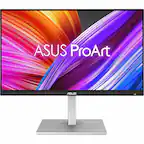
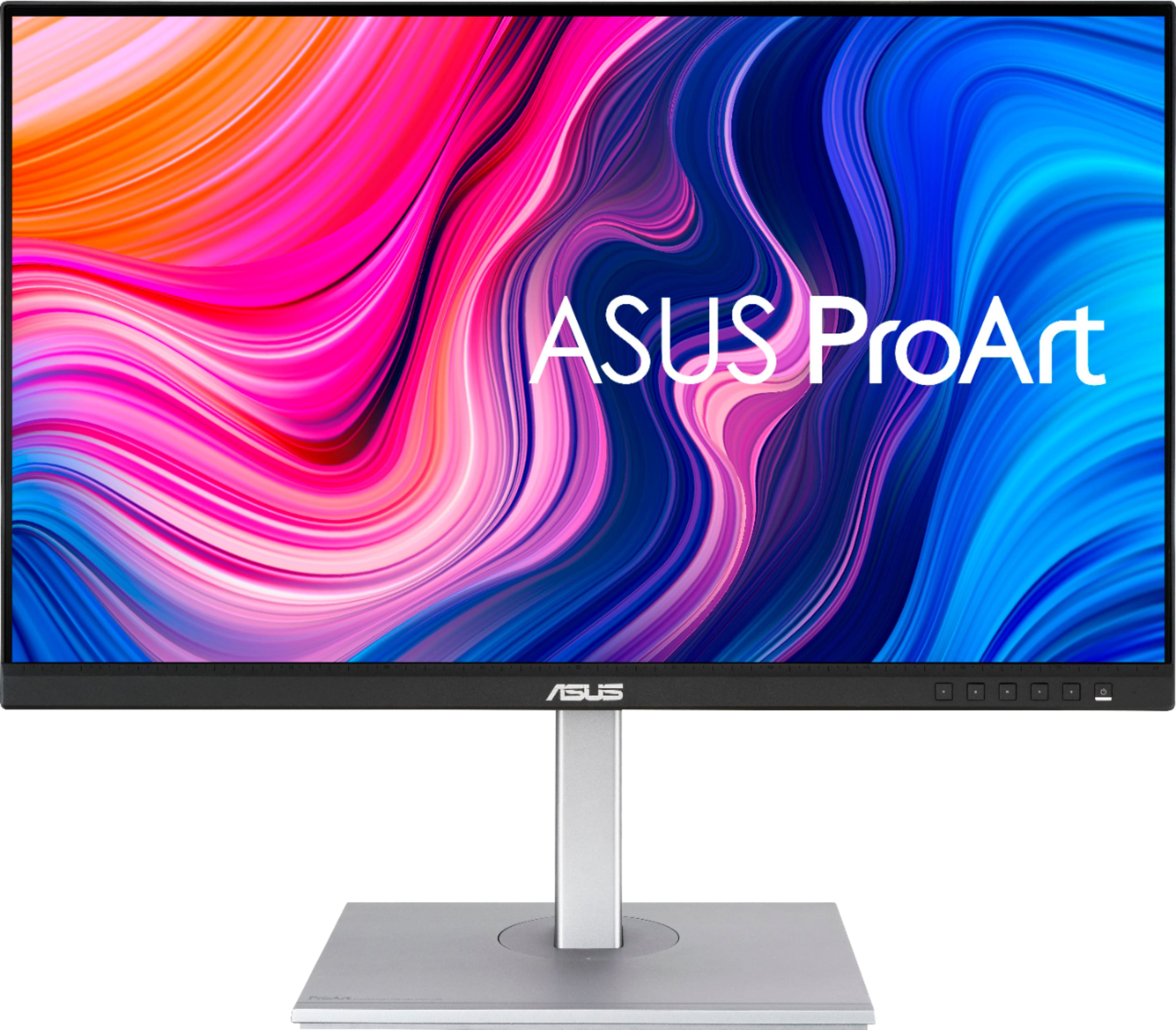
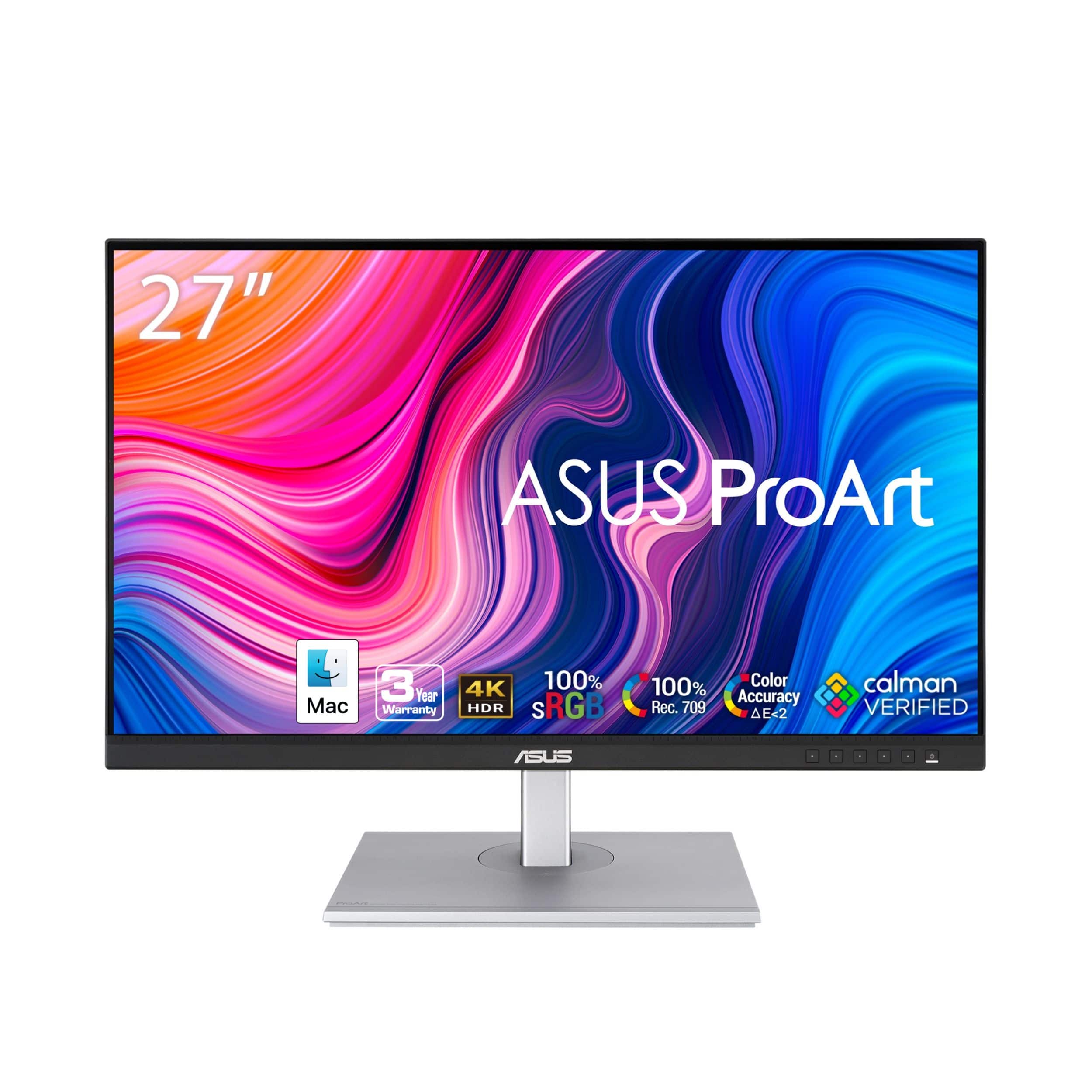
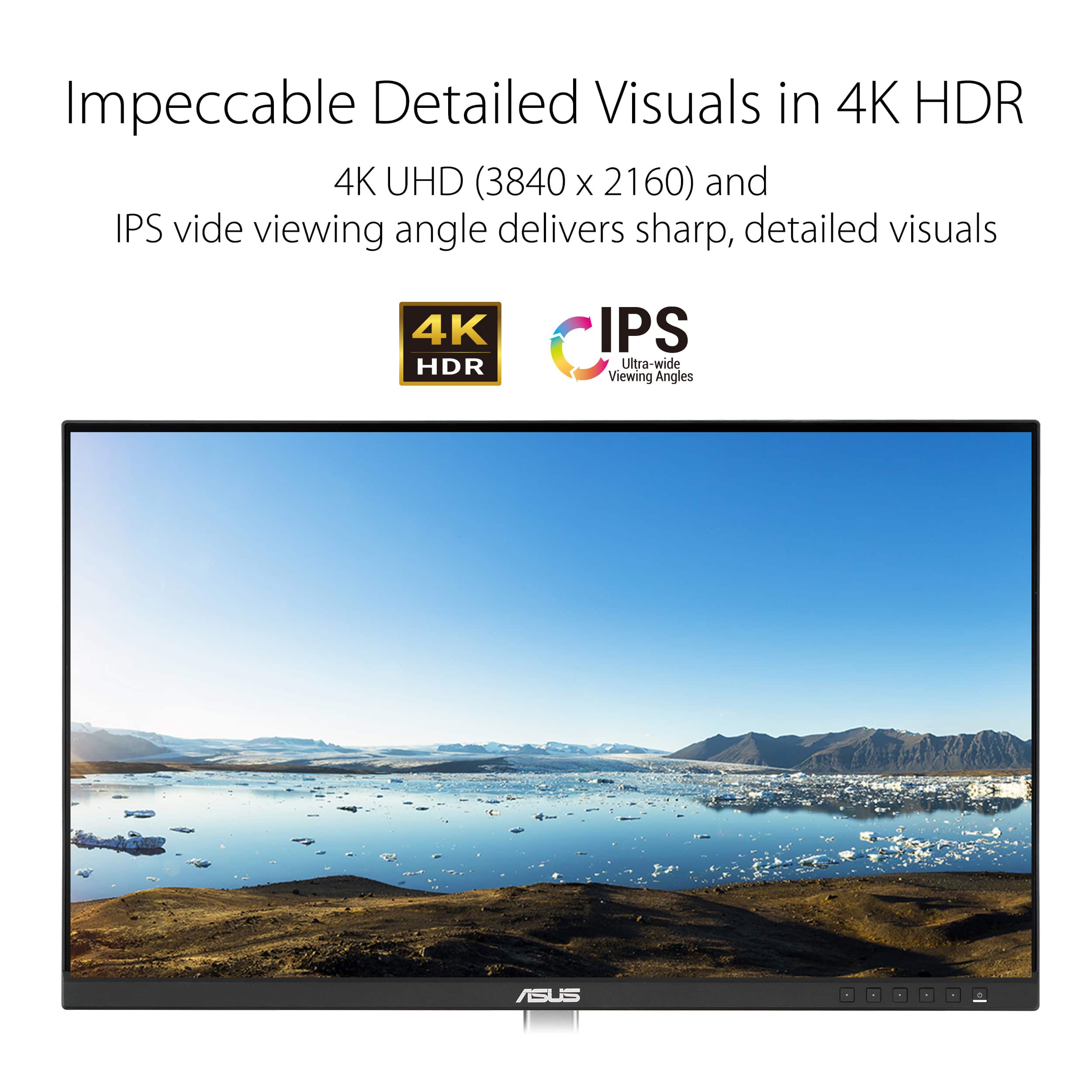
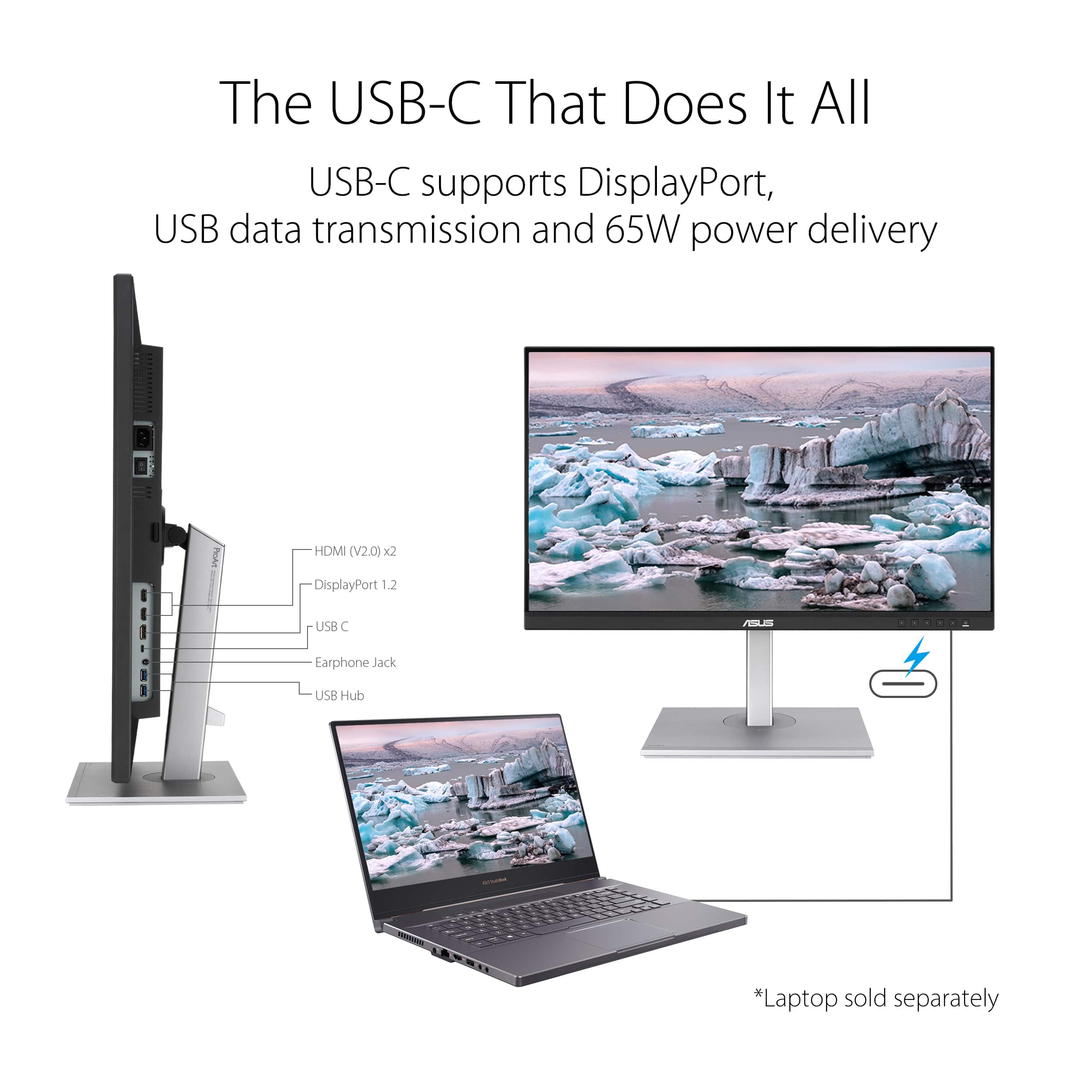
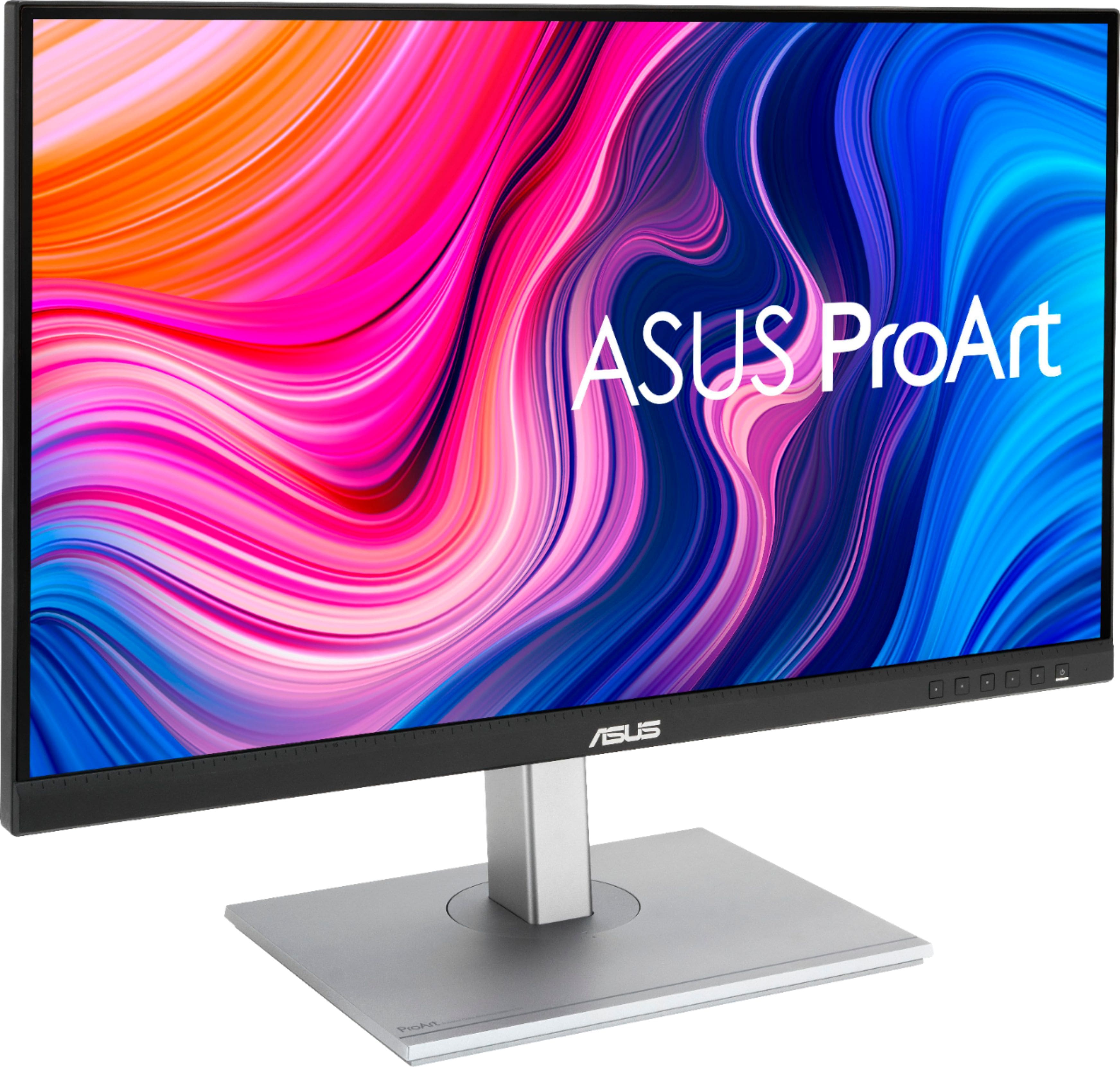
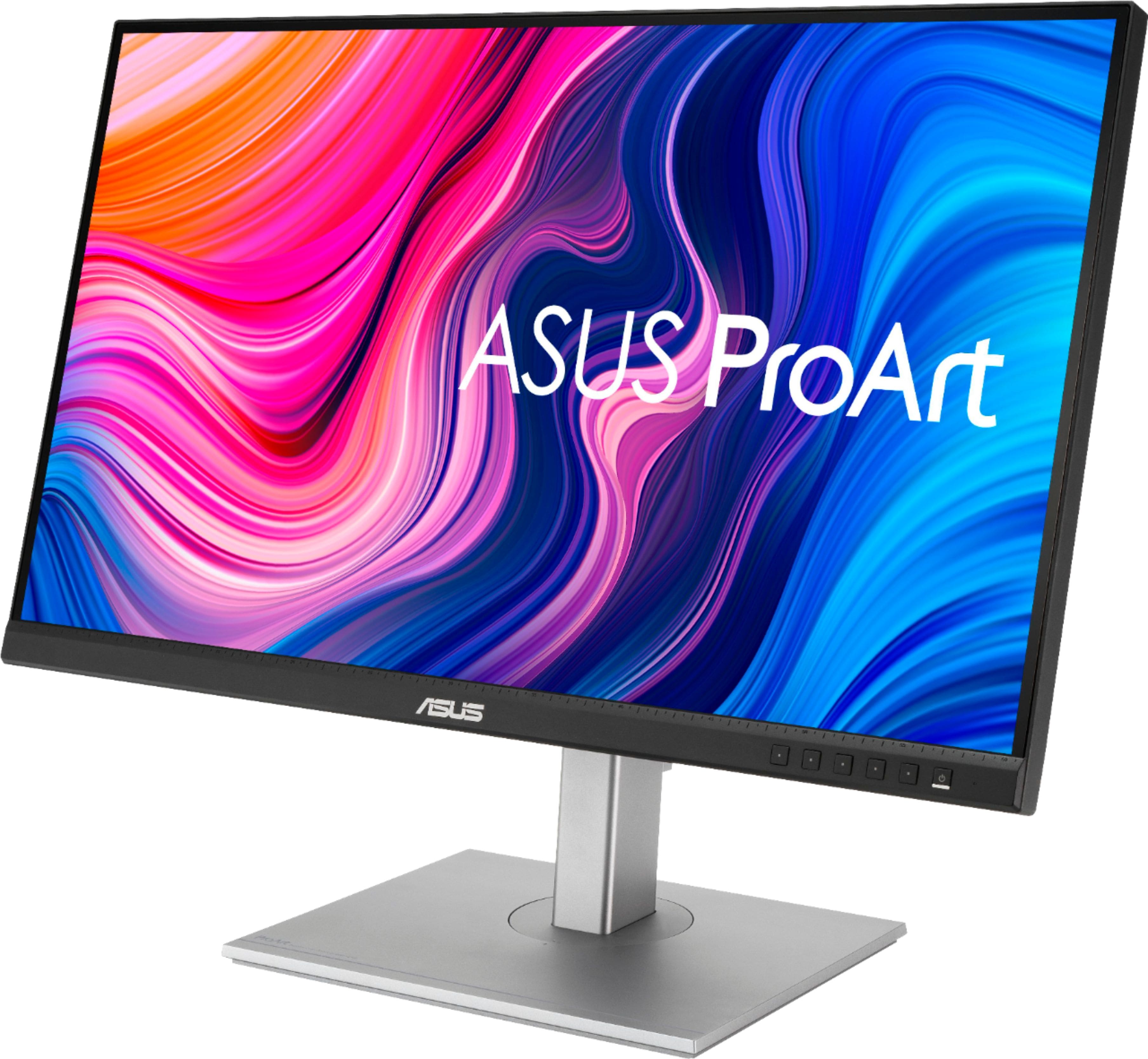
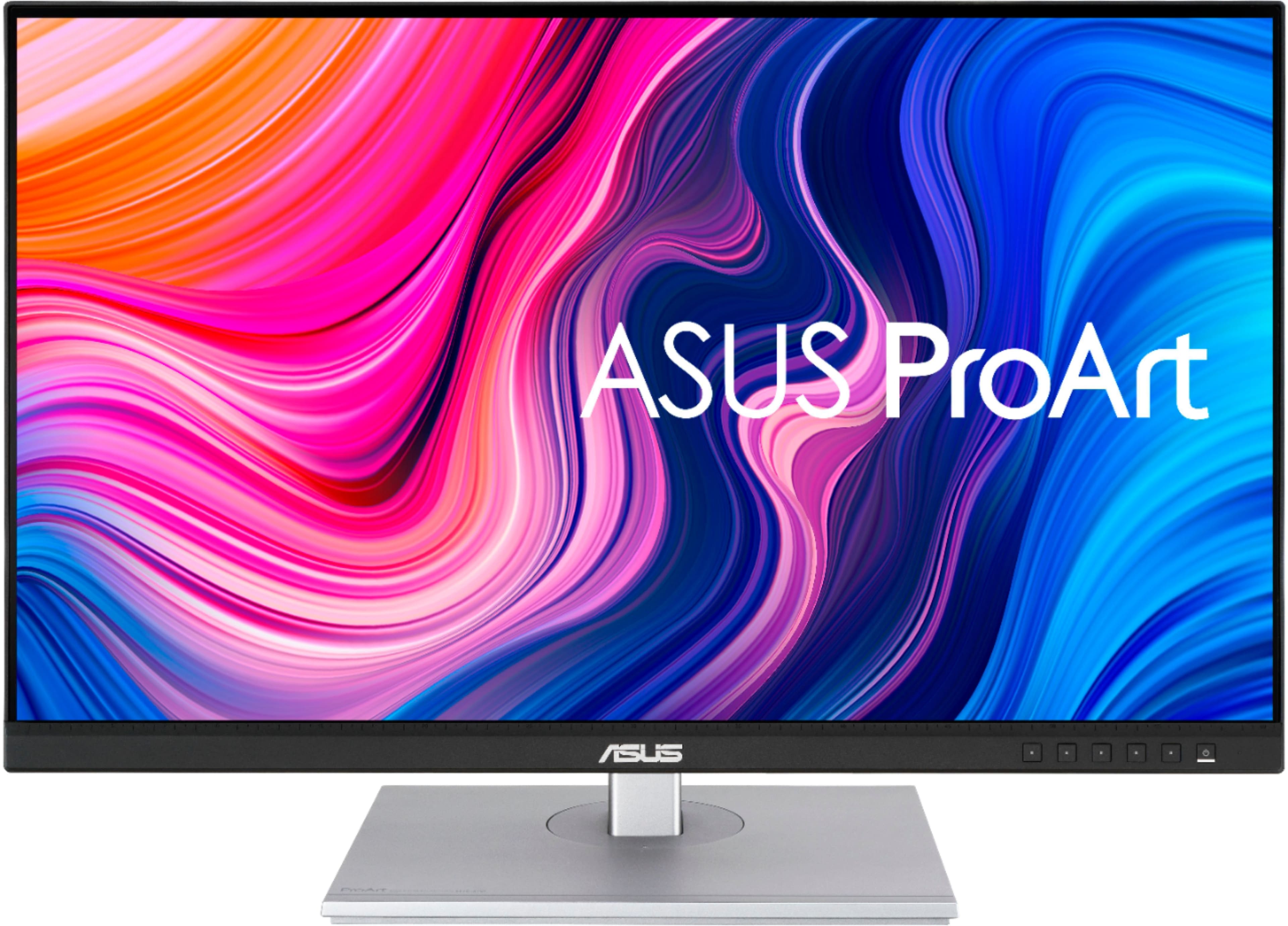
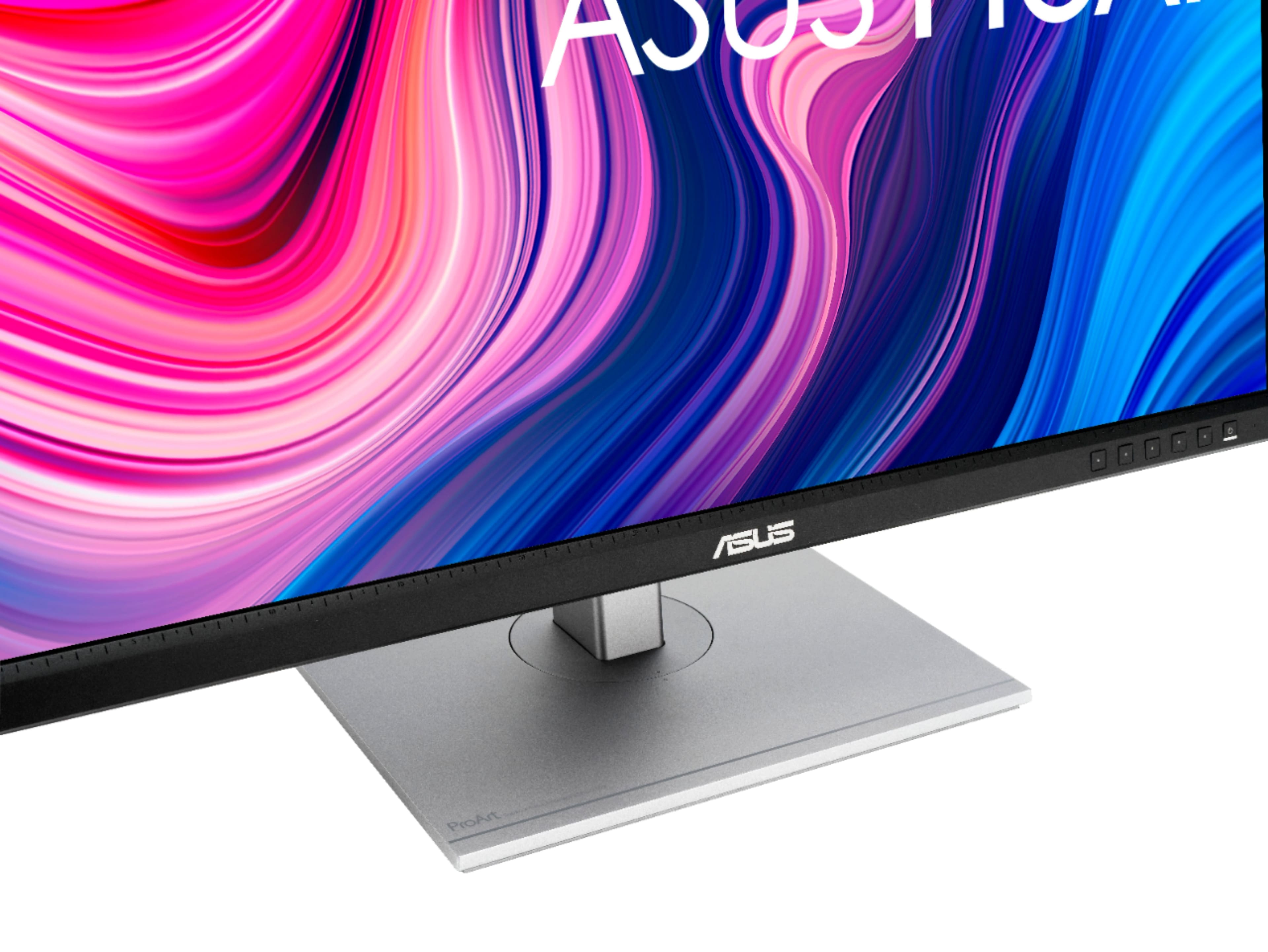
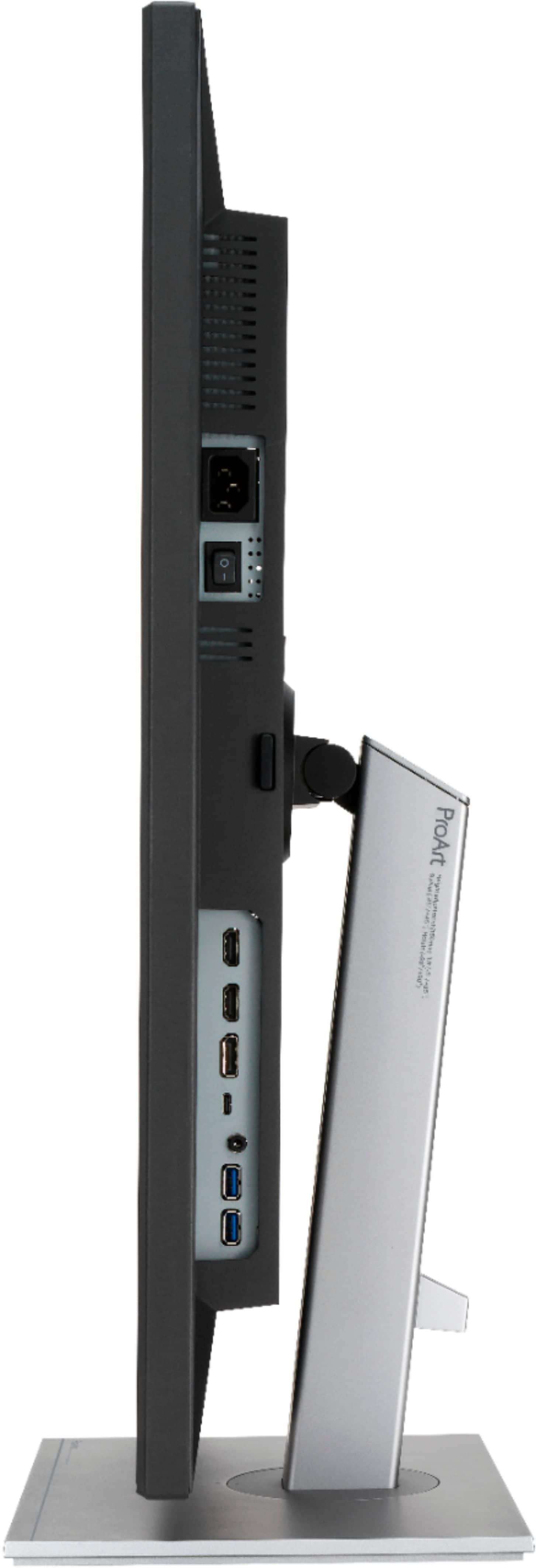
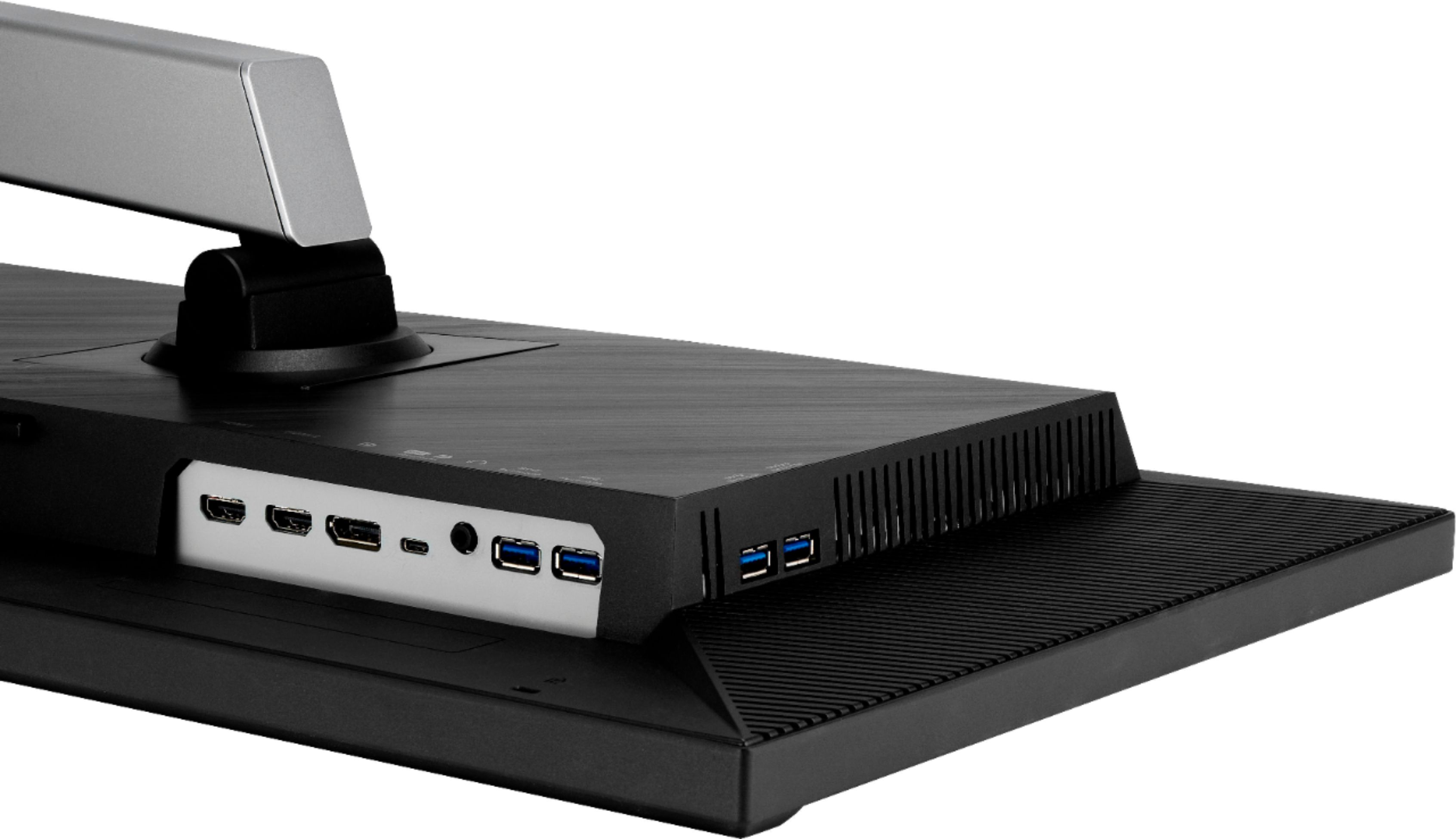
|Posted .This reviewer received promo considerations or sweepstakes entry for writing a review.The Asus 27" IPS 4K ProArt Monitor is one of the most color-accurate and brilliant displays I have ever witnessed and it lives up to its promise in delivering a quality of picture seeked by graphics designer amateurs and professionals alike. It's well made, has plenty of connectivity options and offers several features to ensure you are seeing exactly what you should be seeing when working with digital media. It's 27-inch diagonal screen size and resolution support up to 4K at 60Hz refresh rate will satisfy the target demographic of whom these monitors were made for, so if you're looking to use this display for higher frame rate activities, such as gaming, you may want to look at Asus other line of gaming monitors, from the likes of TUF Gaming and Republic of Gamers (ROG). Connectivity is good, with the ability to use DisplayPort, HDMI, or even USB-C for newer hardware that supports that display output, as well as a USB 3 hub to provide you more connection ports for your peripherals, and comes in handy if your machine has limited port availability. You do not have support for DVI/VGA however, so keep that in mind if you're needing to connect the monitor to an older graphics card or computer. I am using HDMI for my setup, and I would rather prefer using DisplayPort like I already do on my other monitor... however, this is where the problem begins. Because of the way DisplayPort works with "hot plugging", when my computer goes into a sleep state, it tends to keep this monitor's LED backlight powered on while my other monitor is completely in standby mode. None of the options or settings in the monitor's menu or on my computer's Windows settings or graphics card settings was able to remedy this issue, my only other choice was to plug it in using HDMI while keeping my other display using DisplayPort to allow it to fully go into standby mode when locking my computer or putting it to sleep. While this may not seem like an issue in the short-term, it's probably important to preserve the lifespan of your monitor's LED backlight and ensure it's only on when it needs to be. That's just my two cents on that, but if such a nuisance isn't a problem for you, then you can happily connect two or more displays using DisplayPort to your liking. So, besides that minor issue with this monitor staying on when my computer goes into sleep mode, and the refresh rate being limited to 60Hz when I don't see why it can be higher, especially on resolutions lower than 4K, this monitor is a fantastic choice for all other uses and most especially graphics design. It was pretty interesting to see that the monitor had it's own calibration certification out of the box and was thoroughly tested to ensure a color-accurate picture in the factory prior to packaging. In the end, you can't go wrong with the Asus ProArt 4K display, but what's keeping me from giving it a true 5 star rating is the issue with the display not entering a low-power/standby state when my machine is clearly in a locked state or in sleep mode. It also doesn't seem apparent that Asus can address this issue with a software/firmware update, as the ability to do so within the monitor's menu controls, or the ability to perform a firmware update via USB, seems to be absent. I might be mistaken about this and maybe Asus will be able to provide an effective solution in the future, but it is an issue I have seen been discussed on various forum platforms across the Web and also affecting other similar Asus monitor models besides this one. I also wish Asus would make ProArt displays with higher refresh rates - video content creators would be very excited about this too, especially those that double as gamers.
I would recommend this to a friendiMac Love
||Posted . Owned for 2 weeks when reviewed.This reviewer received promo considerations or sweepstakes entry for writing a review.Perfect colors and size. Perfect next to another iMac.
I would recommend this to a friendAsus prodisplay
||Posted . Owned for 1 month when reviewed.This reviewer received promo considerations or sweepstakes entry for writing a review.Very Good monitor good display working very well foe video editing
I would recommend this to a friendgreat monitor
||Posted . Owned for 2 months when reviewed.This reviewer received promo considerations or sweepstakes entry for writing a review.beautiful monitor! great height. no issues with it
I would recommend this to a friendEasy Set Up
||Posted . Owned for 1 month when reviewed.This reviewer received promo considerations or sweepstakes entry for writing a review.This is my second Asus monitor. They are easy to set up, everything is included and picture and colors are very good.
I would recommend this to a friendStunning 4K Monitor
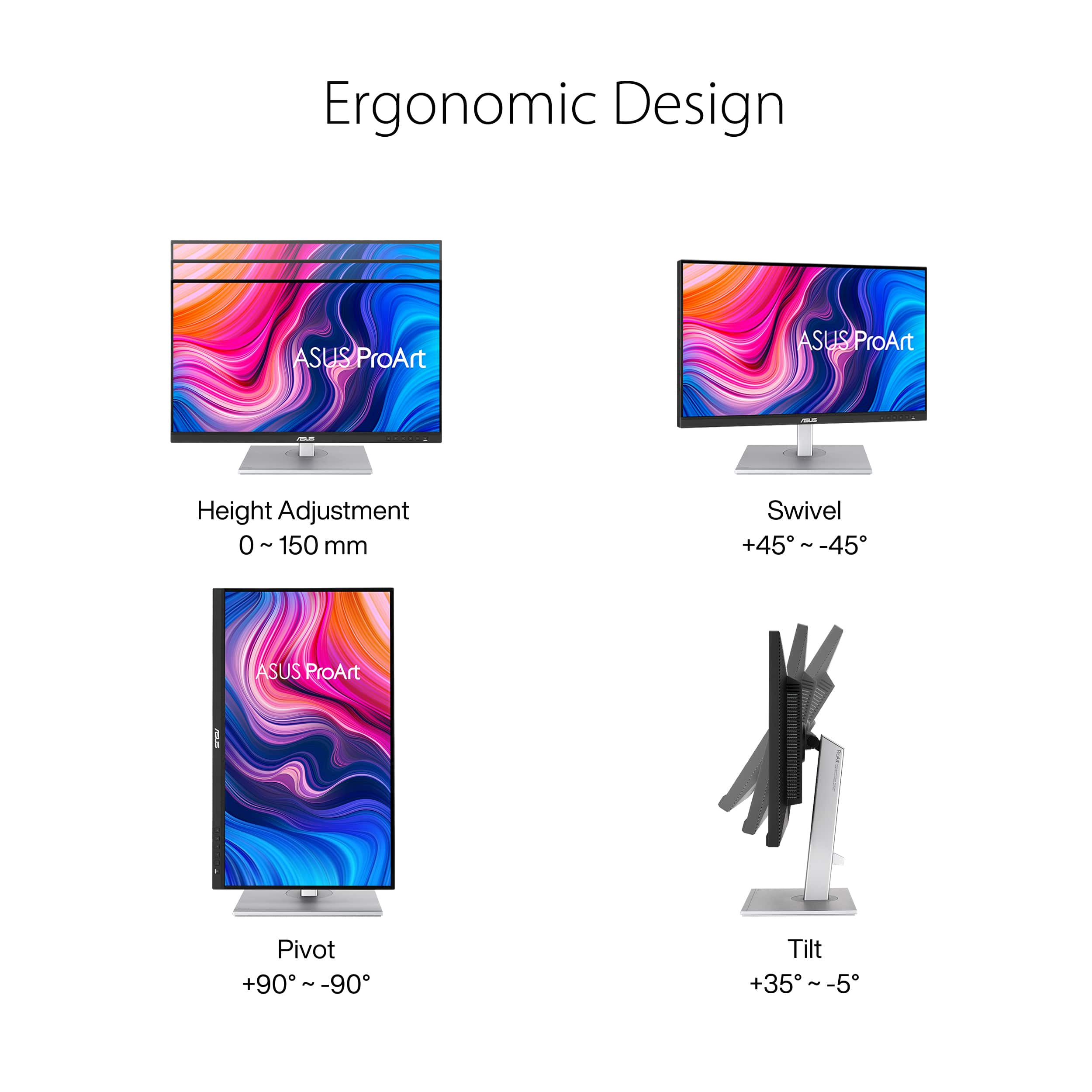
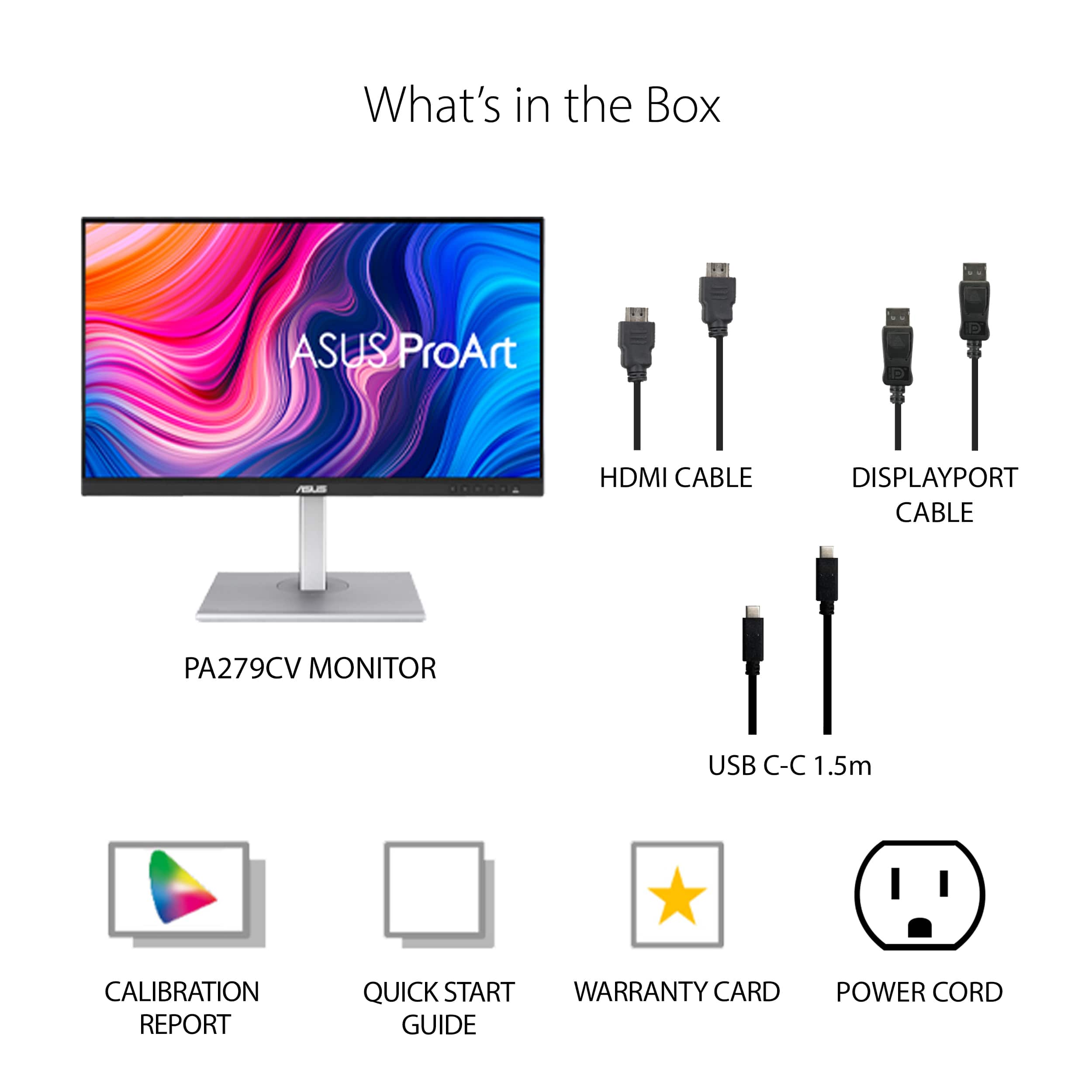
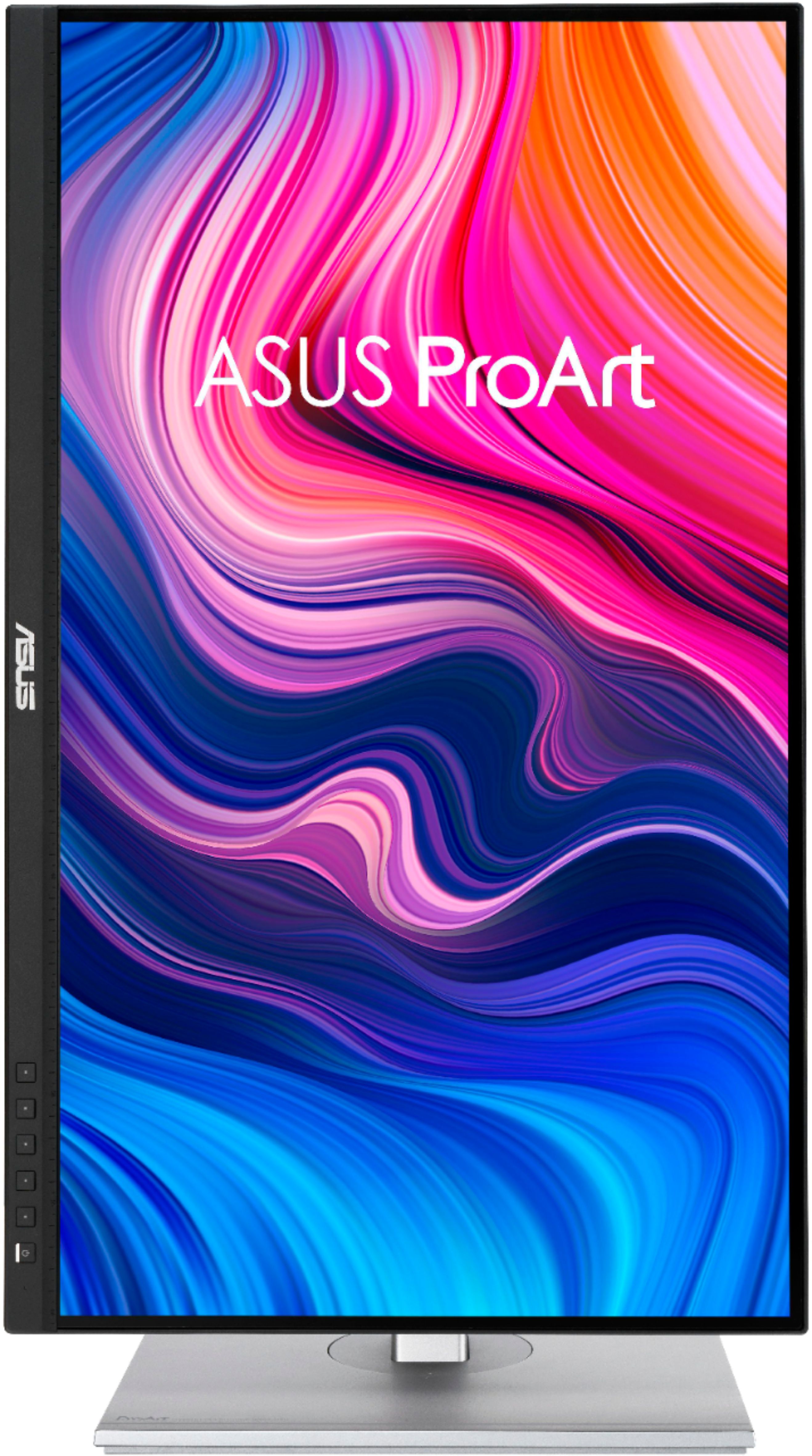
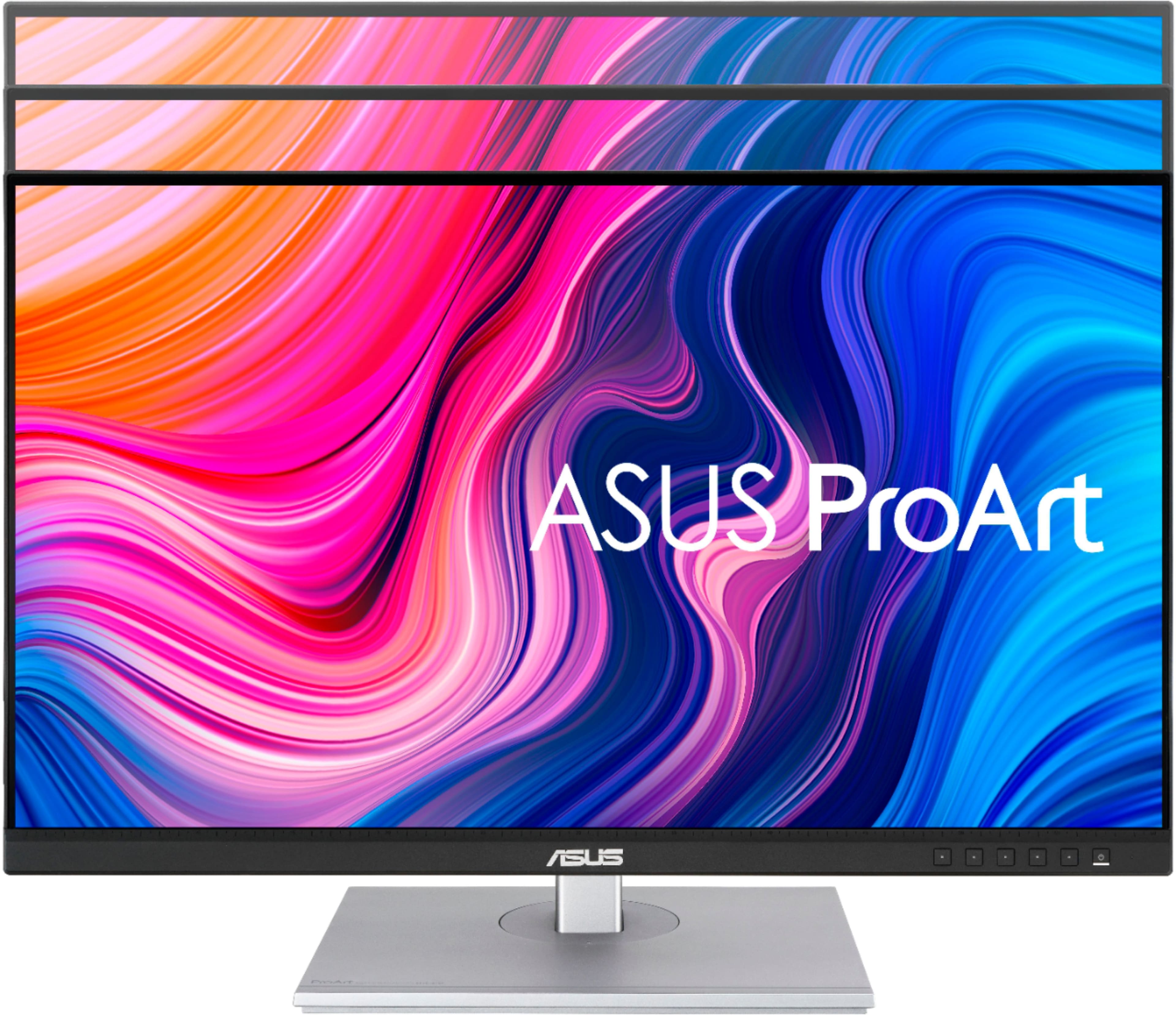
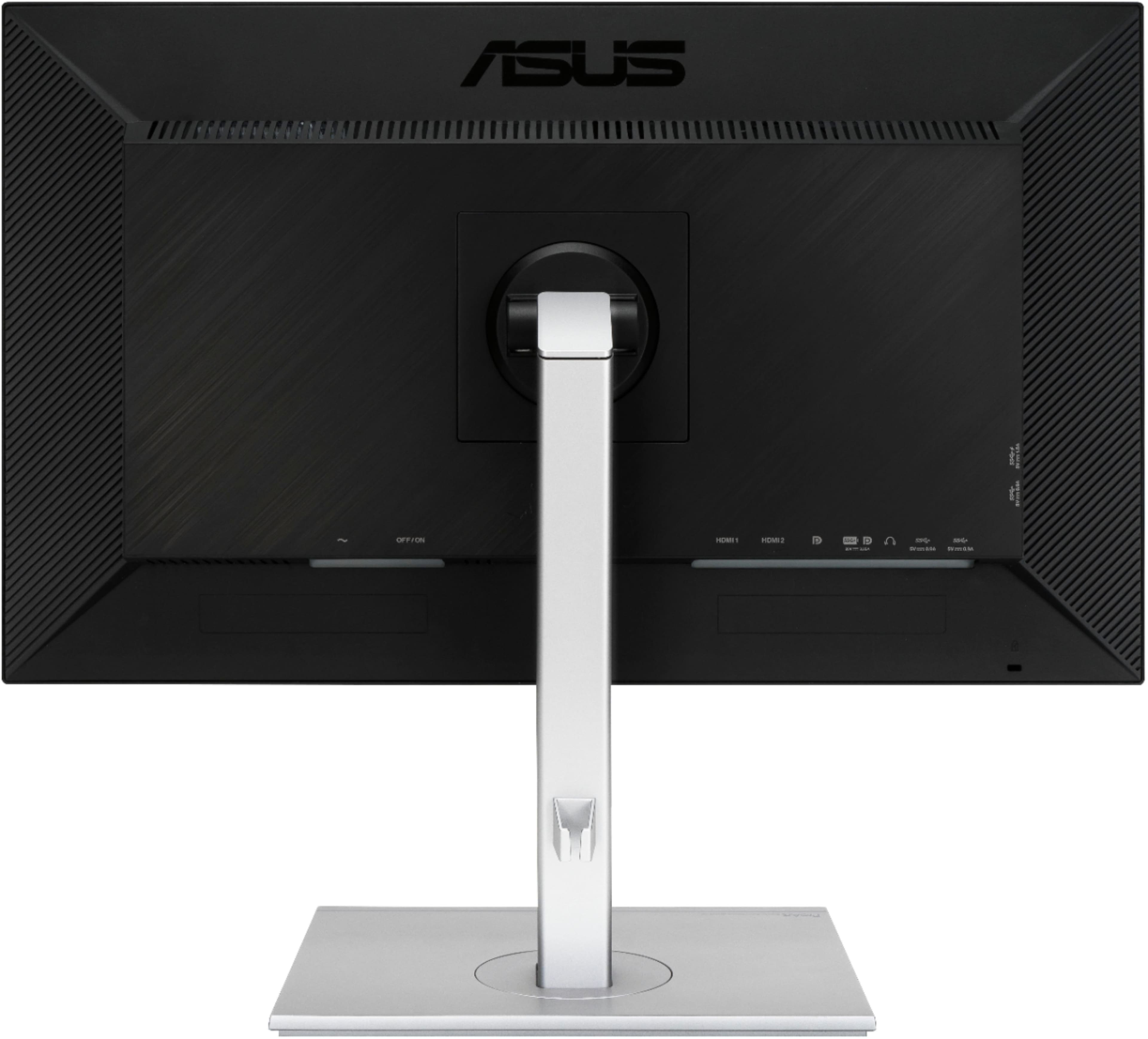
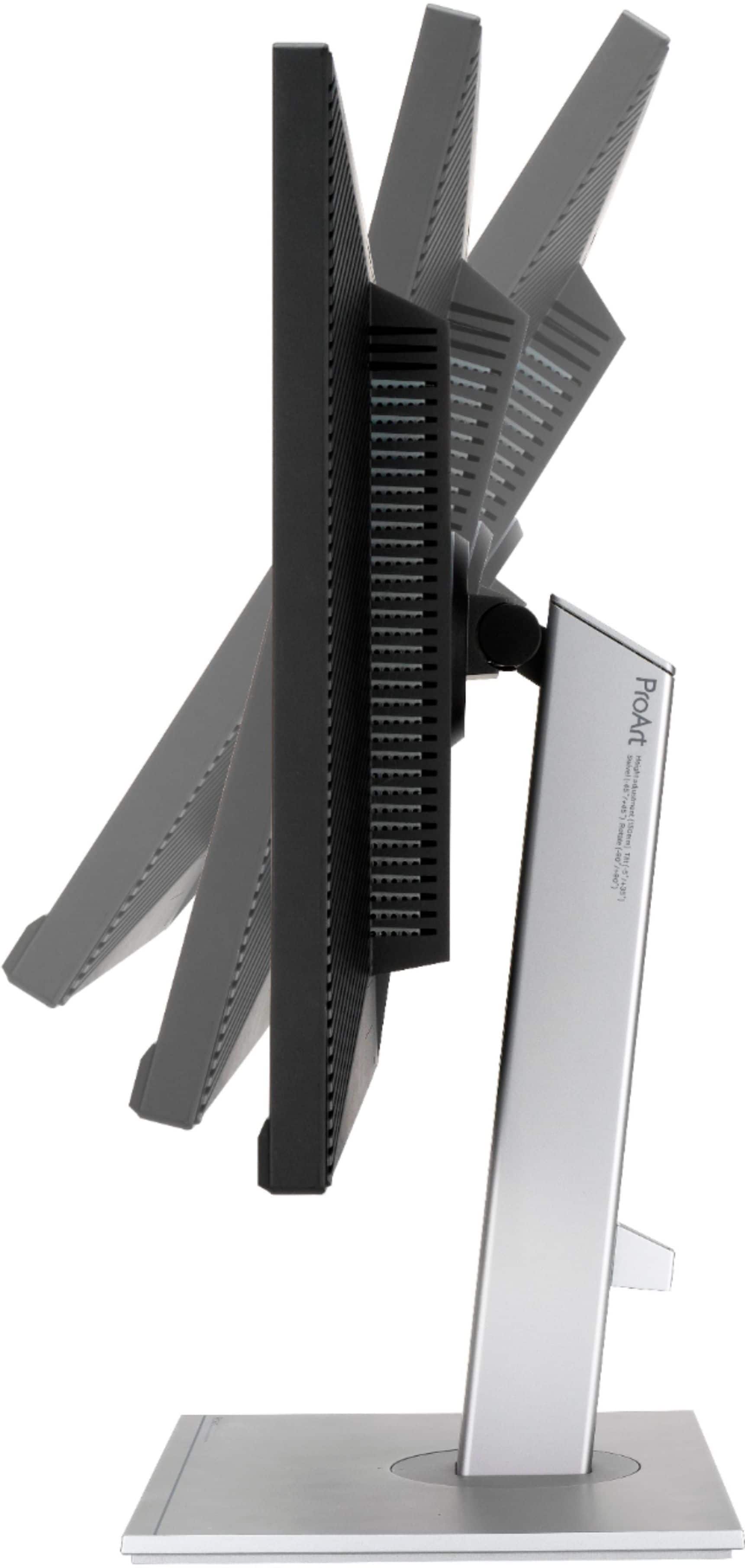
|Posted .This reviewer received promo considerations or sweepstakes entry for writing a review.I am replacing a very good 1080P monitor with this 27” 4K monitor. The monitor comes Calman calibrated and includes the Calman report. The monitor came very will packaged and double boxed. The monitor provides connections for HDMI (2), Display Port and USB C and can serve as a USB hub for powering other devices when connected via USB C. It is also includes all of the various cables that you would need to make these connections which include the HDMI, DP and USB C cable. The monitor was very easy to assemble and is extremely well made. It weighs in at close to 20lbs. The stand allows you to raise and lower the monitor as well as tilt and swivel. You can also change the orientation from horizontal to vertical. The monitor has a very slim bezel and what I like most is the fact that it is black on all sides. A lot of monitors, including my previous one is that they are black on the top and sides but silver on the bottom which can be distracting at times. With this one having the entire surround in black it is a very clean look. Out of the box I had to make a couple of picture adjustments as the monitor came with the Blue Light filter set to max which made the monitor very dark. After figuring out how to make changes (I’ll get to this in a second) I set the filter to 3 and lowered the brightness to 35 and the monitor just pops. My point of reference is my 75” Sony Z9D 4K TV. The colors on this monitor are outstanding and the 4K performance is on par with my TV. I connected the monitor to my computer via HDMI and loaded several 4K videos available on the internet and they look almost 3D. This is an absolutely stunning monitor and although I am not a graphic designer, I can certainly see how this monitor would be an excellent choice for that use. I have a large collection of 4K movies and have watched several on this monitor and the only thing I can say is I wish this monitor was bigger now. Now back to my comment about having to figure out how to make changes to the settings. If there was one issue I have with this monitor and a lot of electronics these days is the manual that comes with it. It does a good job of telling you how to assemble the monitor but offers virtually nothing in the way of telling the user how to do anything else including turning it on. Luckily, I have experience with these types of electronics and was able to figure it out but for someone that is not as familiar they could have a challenge. After I got my monitor set up, I decided to check the Asus site and sure enough there is a very detailed manual for this monitor which provides instructions on how to access the menu and what options are available. I highly recommend reviewing the online manual before receiving your monitor. One thing that I noticed buried deep in the menu is the ability to turn off the power on LED. I always find these LED’s distracting so being able to turn it off was really a bonus. Overall, I am thrilled with this monitor and would highly recommend it to anyone looking for an upgrade to an existing 1080P monitor.
I would recommend this to a friend