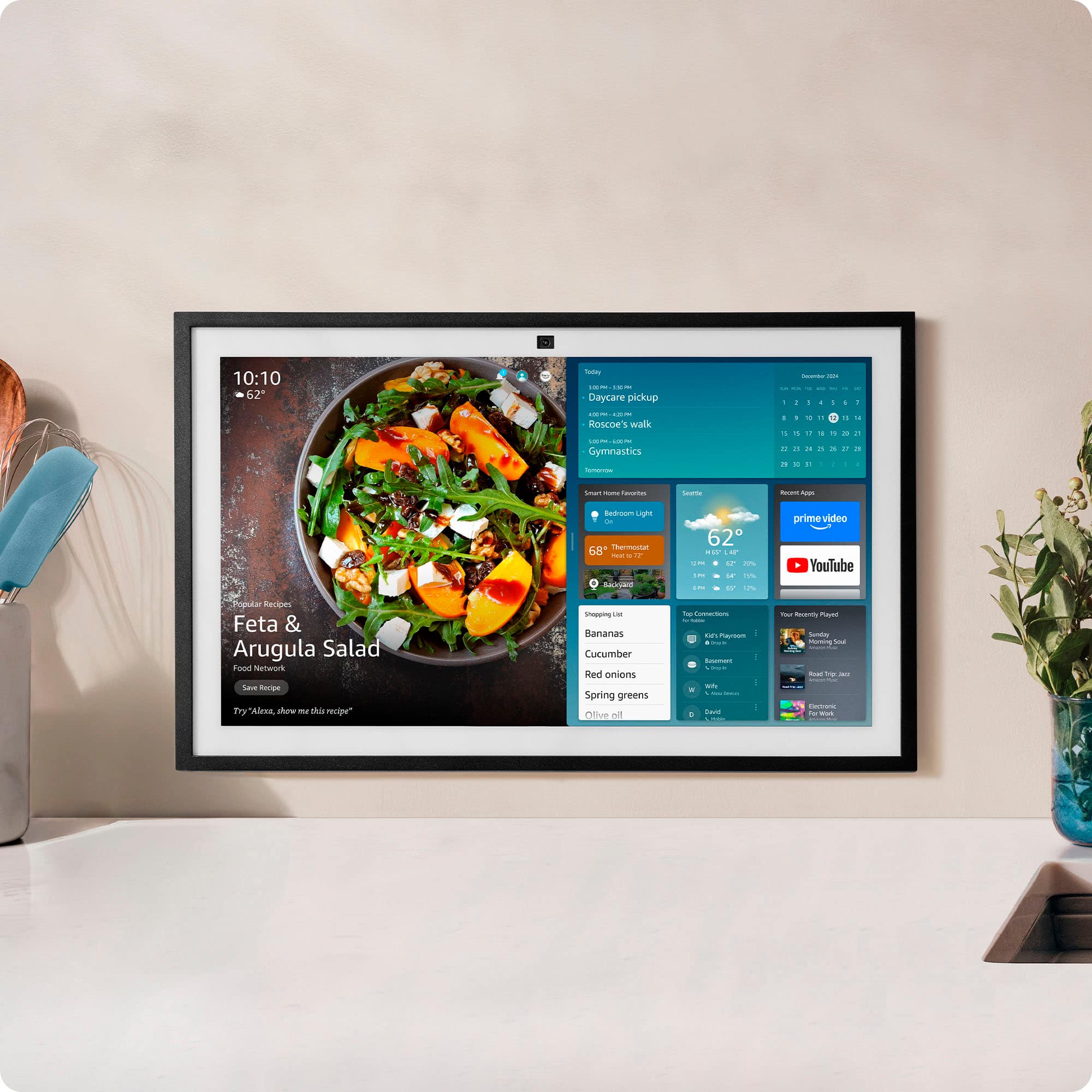
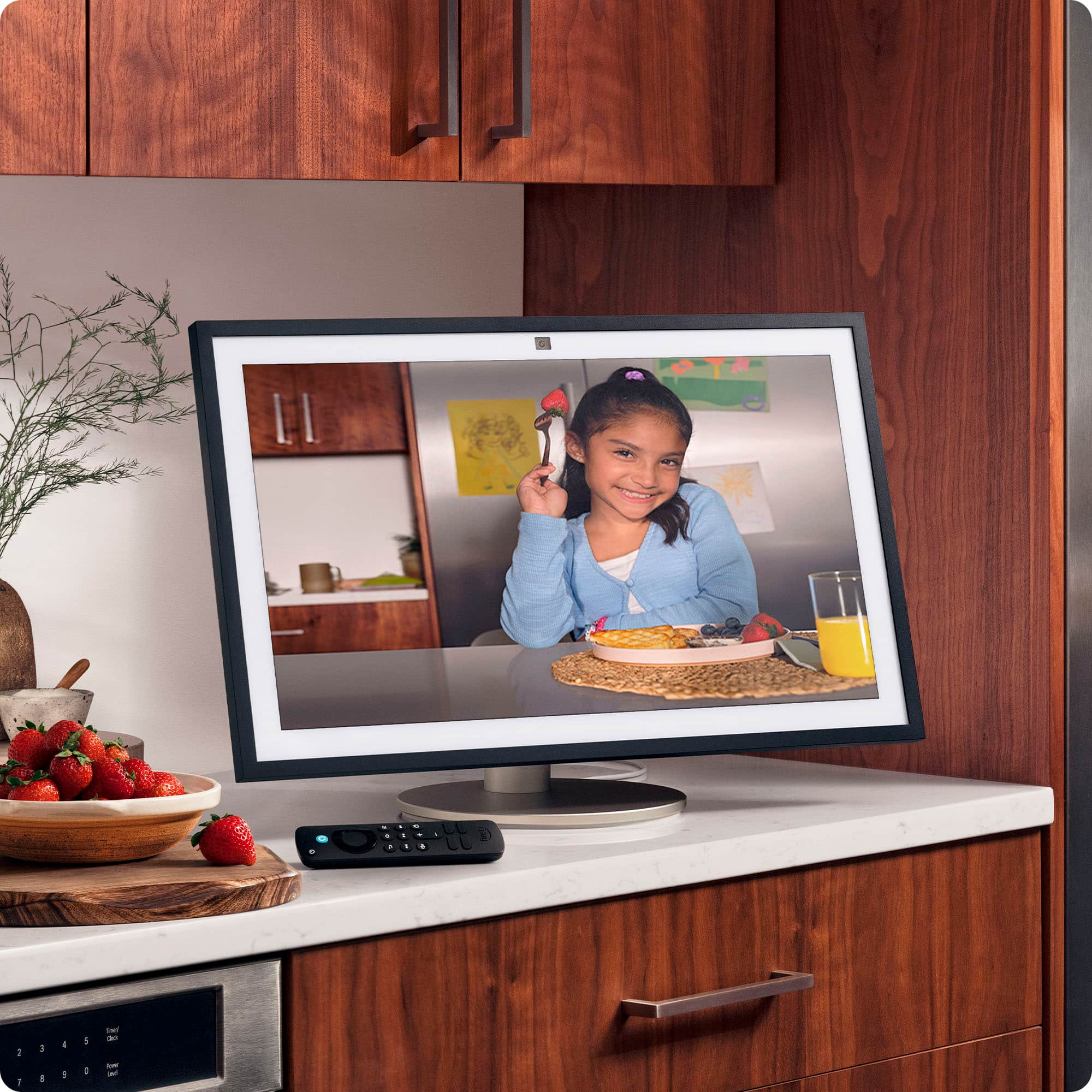
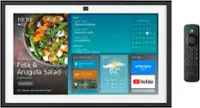
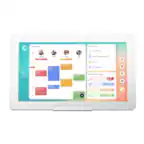
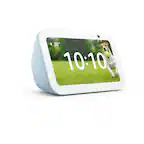
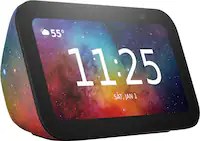
A:AnswerThe Echo Show monitor can be mounted just like a PC monitor is mounted. It uses the same bolt pattern as monitors. Or you can purchase the Echo Show stand designed specifically for the device.
A:AnswerHello, from the Home Screen of the Fire TV on your Echo Show 21 you can go to the "Find" tab and search for "Xfinity". It will then prompt you to download it to the device.
Have a great day!
A:AnswerHi Nana,
The Amazon Echo Show 21 Smart Display is only officially offered in black by Amazon right now. You can get third-party frame accessories in other colors (like white or light brown) that snap on to change the look, but the device itself doesn’t come in different color options.
Hope this helps!
A:AnswerHi Tony!
No, the micro USB port on the show 21 is only for an ethernet adapter when WIFI isn't available or has a weak signal for a customer and wants his show 21 to be wired.
Hope this answers your question!
A:AnswerHello Junior, the Amazon Echo Show 21 cannot be used as a computer monitor. There are no inputs on the device. It does have a Fire TV interface built in so you can stream movies and TV shows via your favorite streaming services.
Have a great day!
A:AnswerHello Dee and thank you for your question! First, I would like to troubleshoot the remote for your Amazon Echo Show 21. Make sure you have fresh batteries in the remote. In the settings of the Amazon Echo Show 21, under the FireTV options, you can select the FireTV remote. Check to see if it is connected. If not, perform a remote reset by holding Back, Menu, and Left for 12 seconds. Then re-pair by holding the Home button for approx 10 seconds. This should pair the remote to the device. If not, you will need to reach out directly to the retailers (Best Buy) customer service for next steps. Hope this helps! Have a great day!
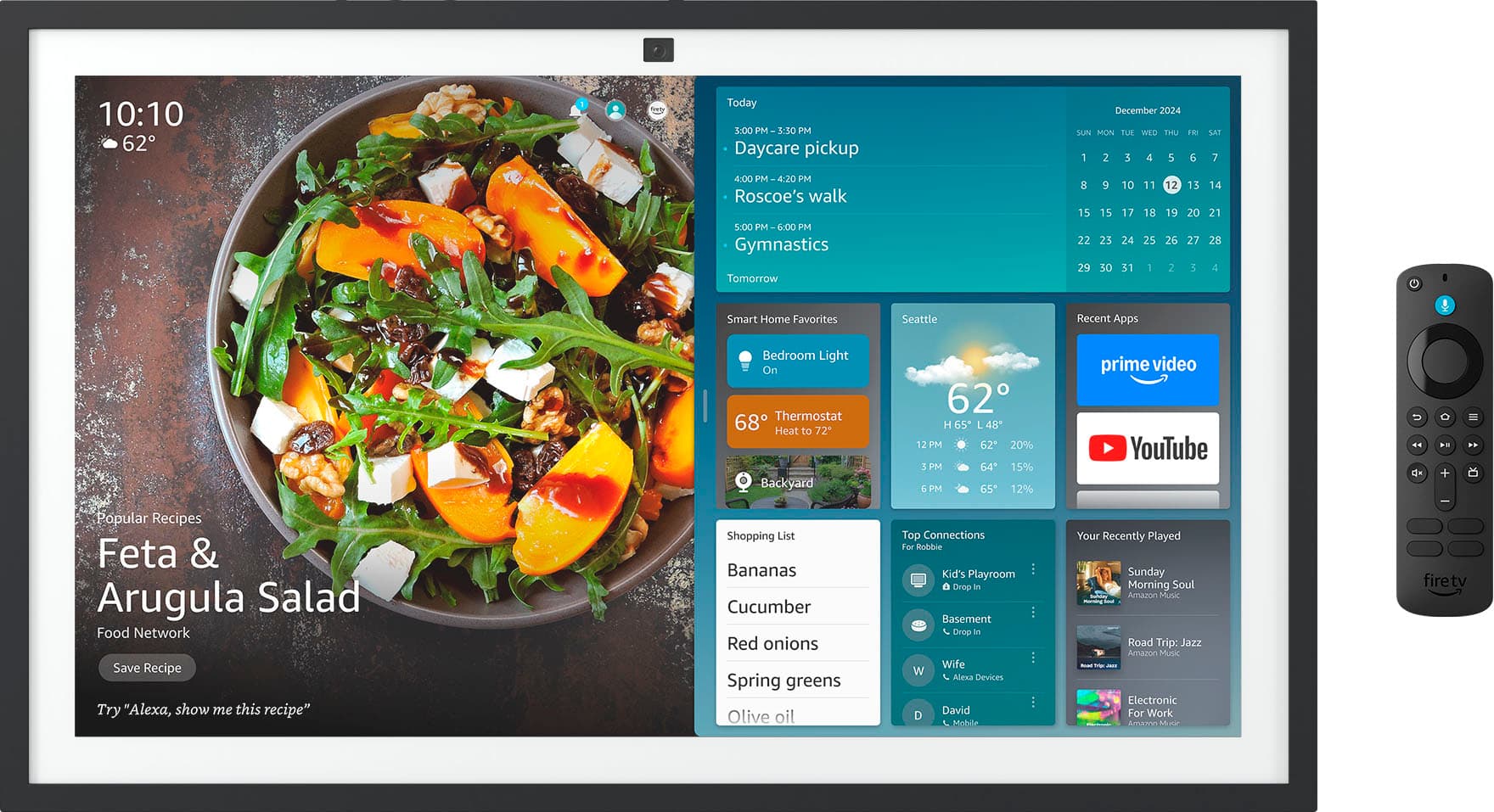
A:AnswerHello Jessie and thank you for your question! Yes, you can either display the Amazon Echo Show 21" in portrait landscape. Hope this helps! Have a great day!
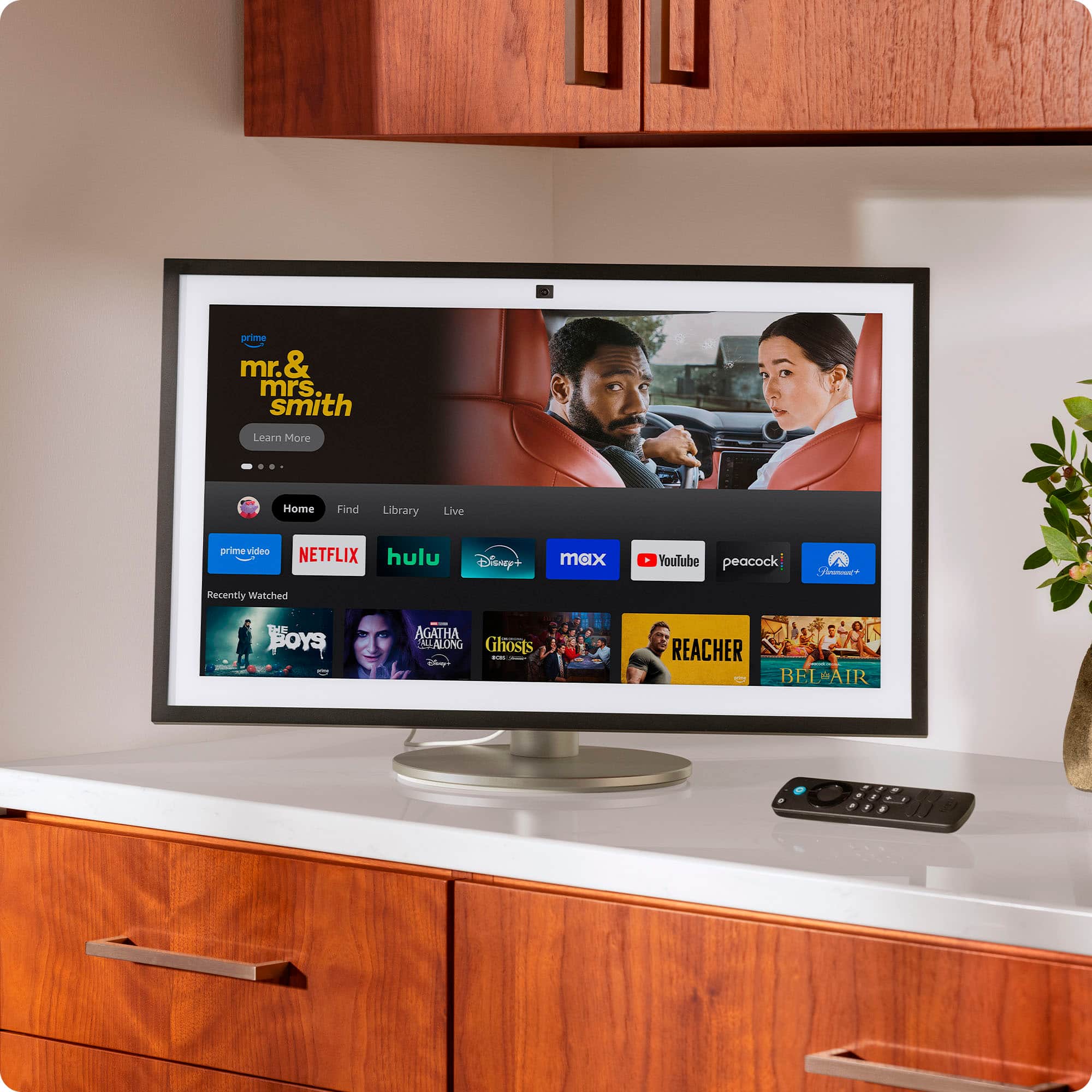
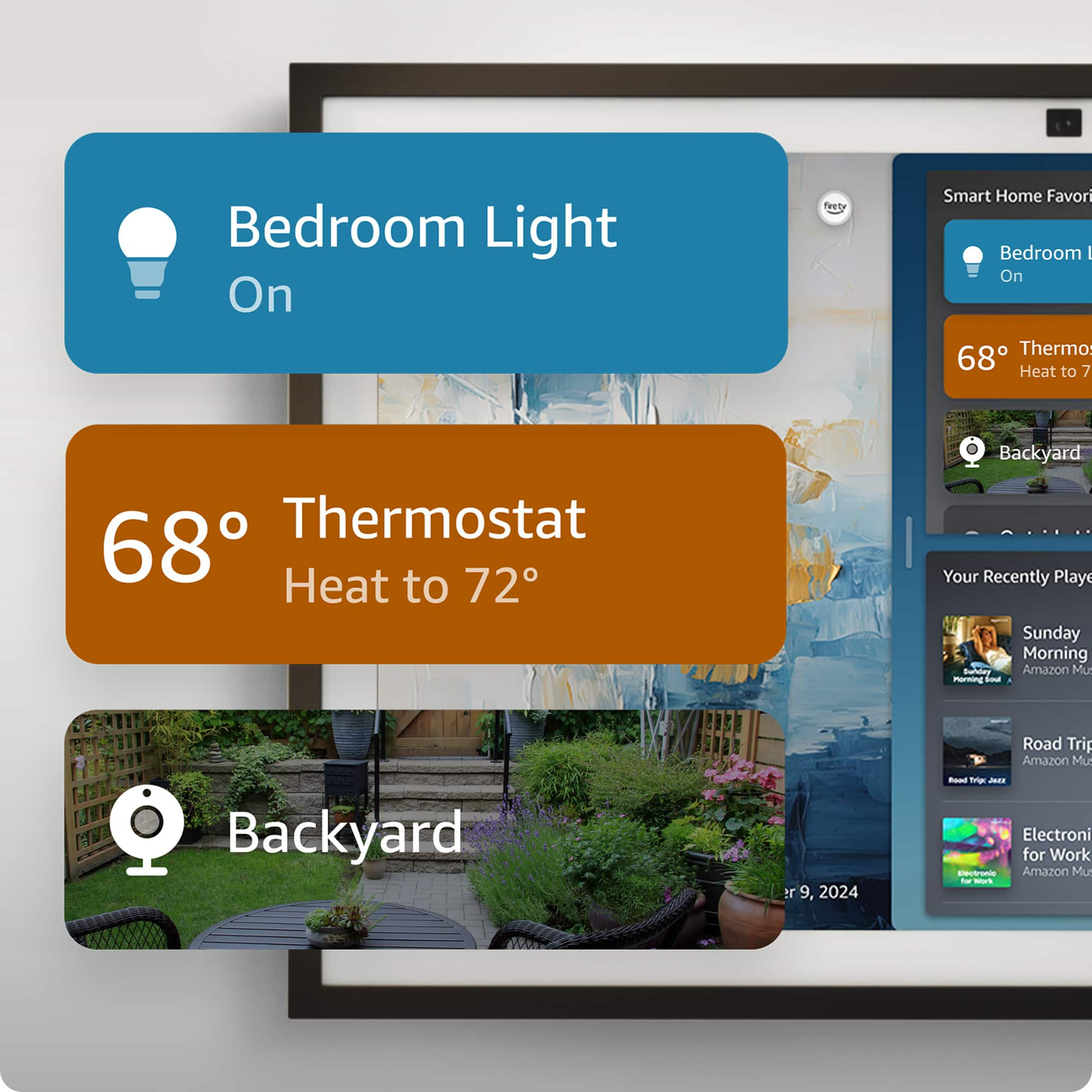
A:Answer"Hello! You can use Drop In to instantly check-in with others in your household. Drop In is an optional feature that lets you connect instantly to supported Alexa-enabled devices, like an intercom. Use Drop In to open an instant conversation between your devices or with your Alexa contacts. When you receive a Drop In, the light indicator on your Echo pulses green and you connect to your contact automatically. You can use Drop In to:
1. Have a two-way conversation by connecting to one of your Alexa-enabled devices (""drop in on Kitchen"").
2. Connect to a specific device group (""drop in on living room""). Only one Alexa-enabled device from the device group connects.
3. Have a group conversation with all supported Alexa-enabled devices under your Amazon household, which are not set to do not disturb. To start a group conversation ask Alexa to Drop In everywhere. All supported Alexa-enabled devices under your Amazon household account will connect regardless of their physical location.
4. Drop In on a contact who granted you Drop In permissions.
5. Receive Drop In from a contact whom you granted Drop In permissions.
Have a great day!
"
A:AnswerHi Sorney,
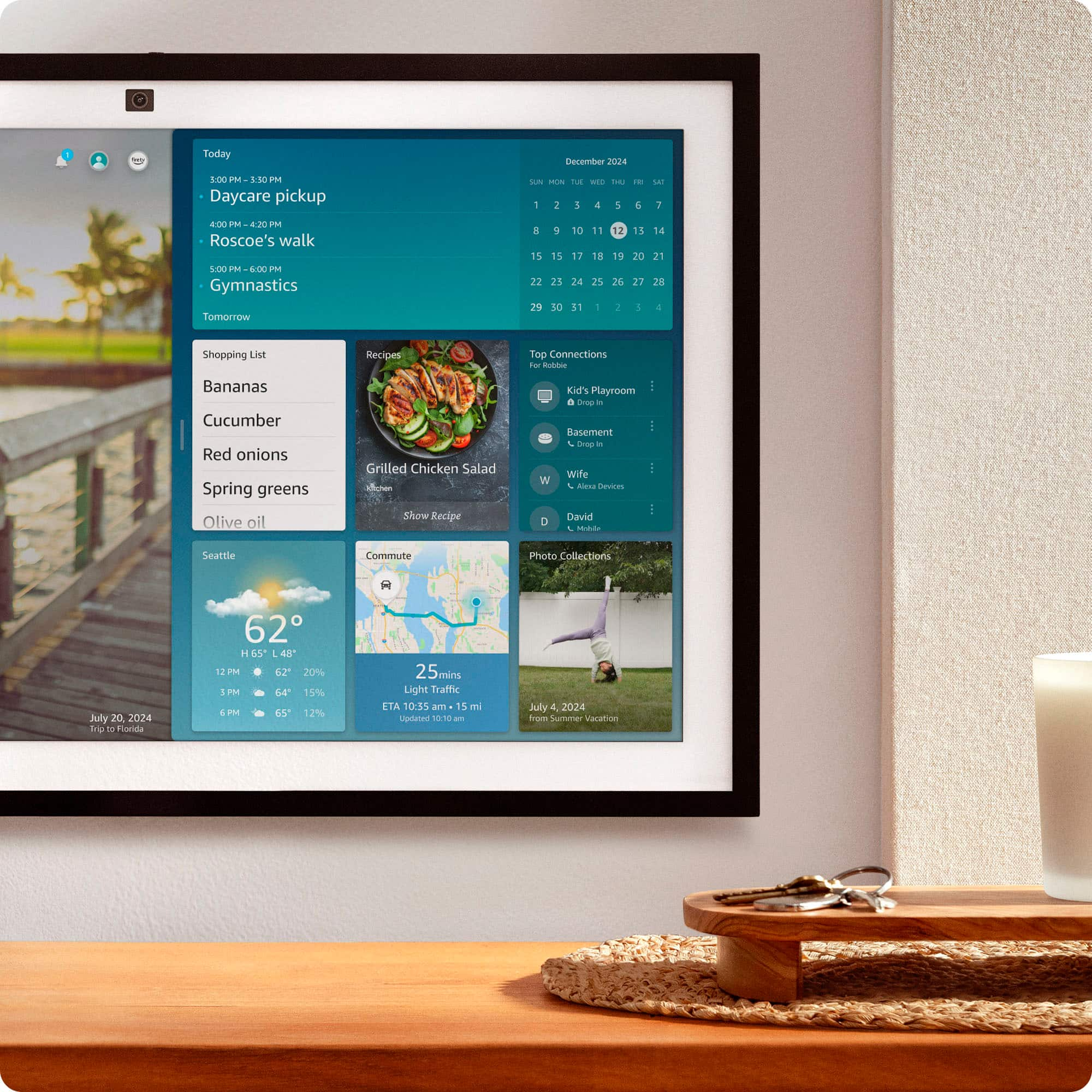
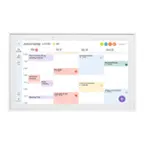
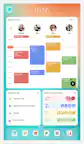
Yes - this works as long as you link your Apple Calendar to Alexa. Once linked, the same events will show on the Echo Show 21, your iPad, and your Apple Watch.
Hope this helps!
A:AnswerHi RMcK!
Yes, the Amazon Echo Show 21 comes with a wall mounting bracket and all the necessary hardware (screws, anchors, template) to hang it on your wall in either portrait or landscape orientation.
I hope this answers your question!
A:AnswerHi JPB! All Amazon customers automatically have 5GB of photo storage available for free, which upgrades to an unlimited photo storage for Prime members. While the Show 21 isn't primarily a photo frame, you can enable shared folders and sync them to your device via Amazon Photos. This also includes the ability to easily share a link that allows your family members to quickly and easily join! You can use Amazon Photos to combine multiple different shared folders so that they'll all show on your device, giving you better control over exactly what photos show where. Uploading photos is easy as well with the Amazon Photos app! I hope that helps, have a great rest of your day!
A:AnswerHello and thank you for asking this question. Echo speakers and displays have one primary user, and up to six additional household members can be added. I hope this answers your question and that you have a wonderful day.
A:AnswerYes as long as it’s tied into your personal account or if his show is part of a family account. You can simply drop in on the device from your own show, phone or pc.
A:AnswerHi Tee,
No, FaceTime calls from iPhones won’t come through on Echo Show 21. Echo Show doesn’t support FaceTime.
You can get video calls on the Echo Show — but only from people who use Alexa Calling. Either from another Echo, or the Alexa app on a phone/tablet.
Hope this helps!
A:AnswerHello. Thank you for your question. The Echo Show can be used internationally, but there are some important limitations to consider. While the device will work for basic functions like video streaming and Alexa interactions, you'll need to ensure you have a power adapter compatible with your destination country's voltage (the Echo Show uses a 100-240V power supply) and a stable internet connection. Additionally, Amazon services must be available in your destination country. Keep in mind that some features may be limited or unavailable depending on your location, as certain Alexa services, content, and skills vary by country. You'll also need to update your Amazon account settings to reflect your new location for optimal functionality. I hope that helps and have a great day!