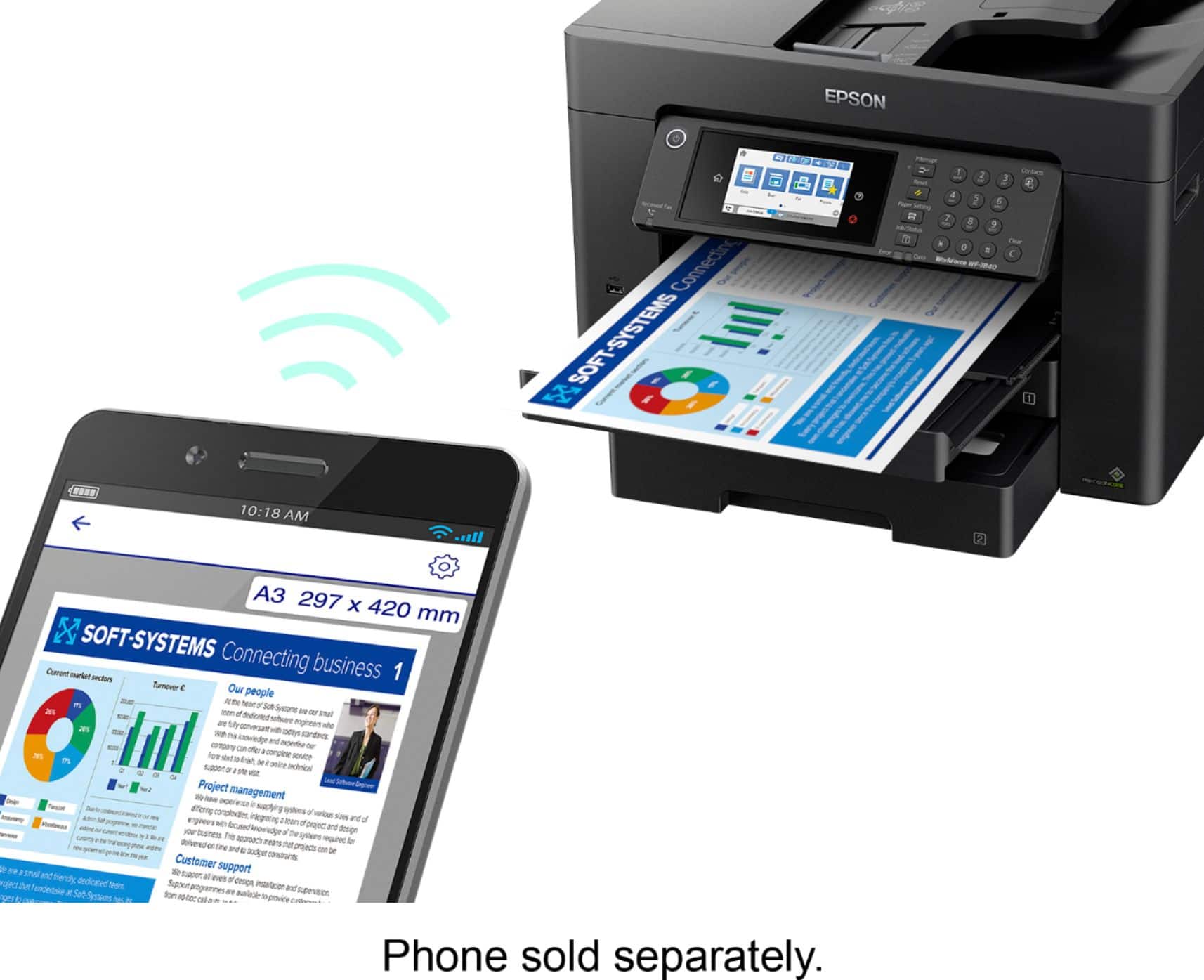
A:AnswerNo — those are not the correct names for the printer. It should appear simply as “WF-7820” or “Epson WF-7820 Series.” Names like 4E513C or Direct-4X-Epson-WF-7820 are not standard model names and may show up only in certain network or temporary connection modes.
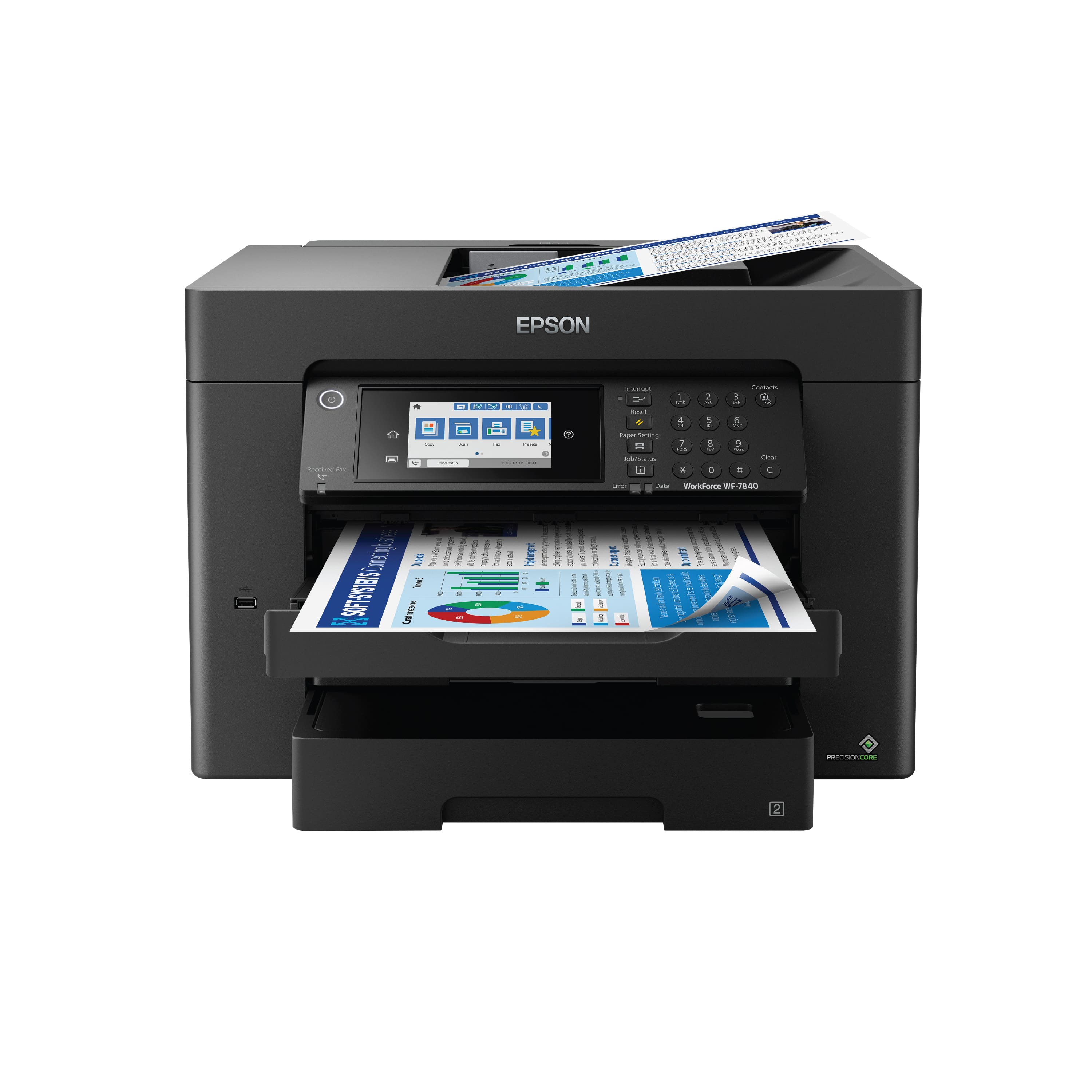
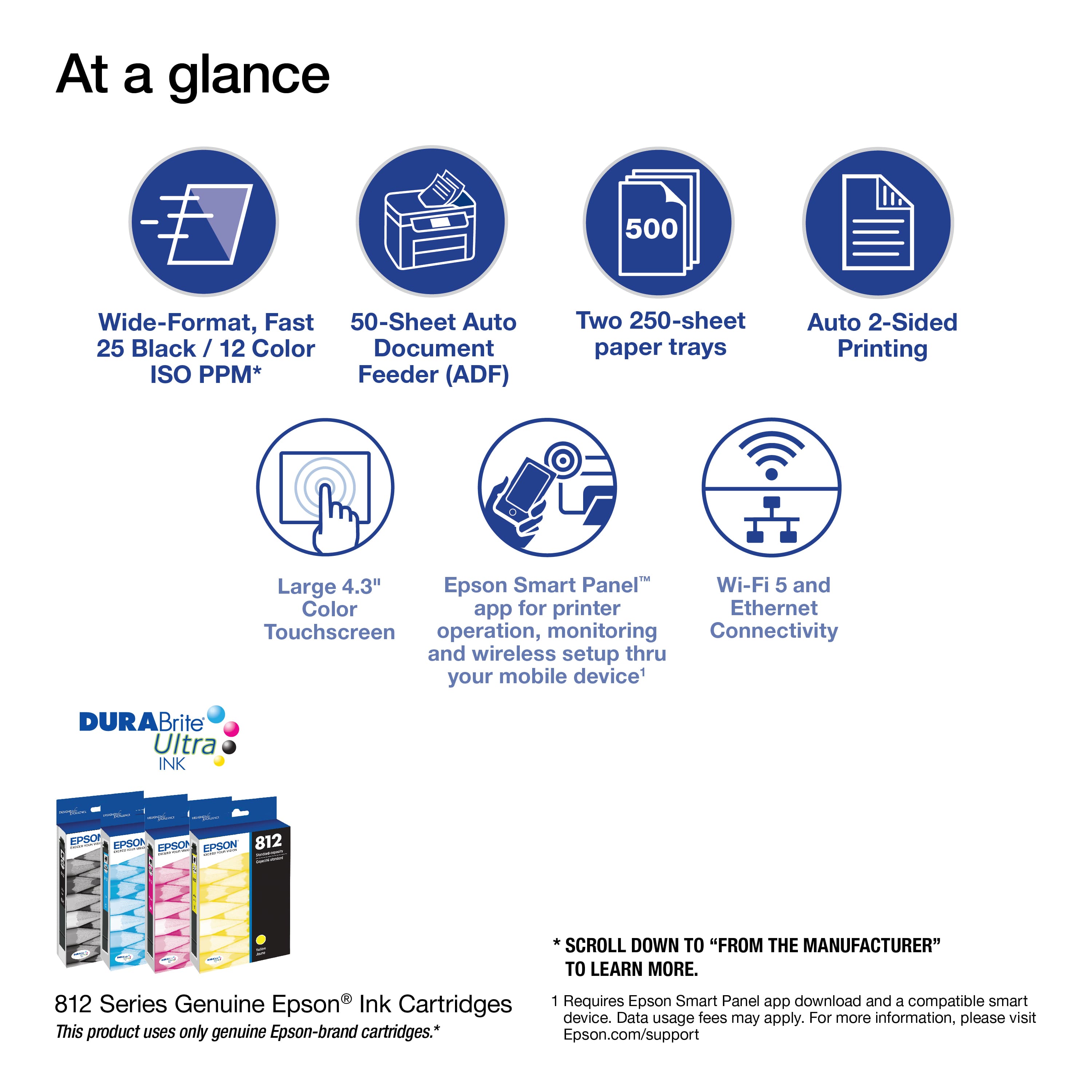
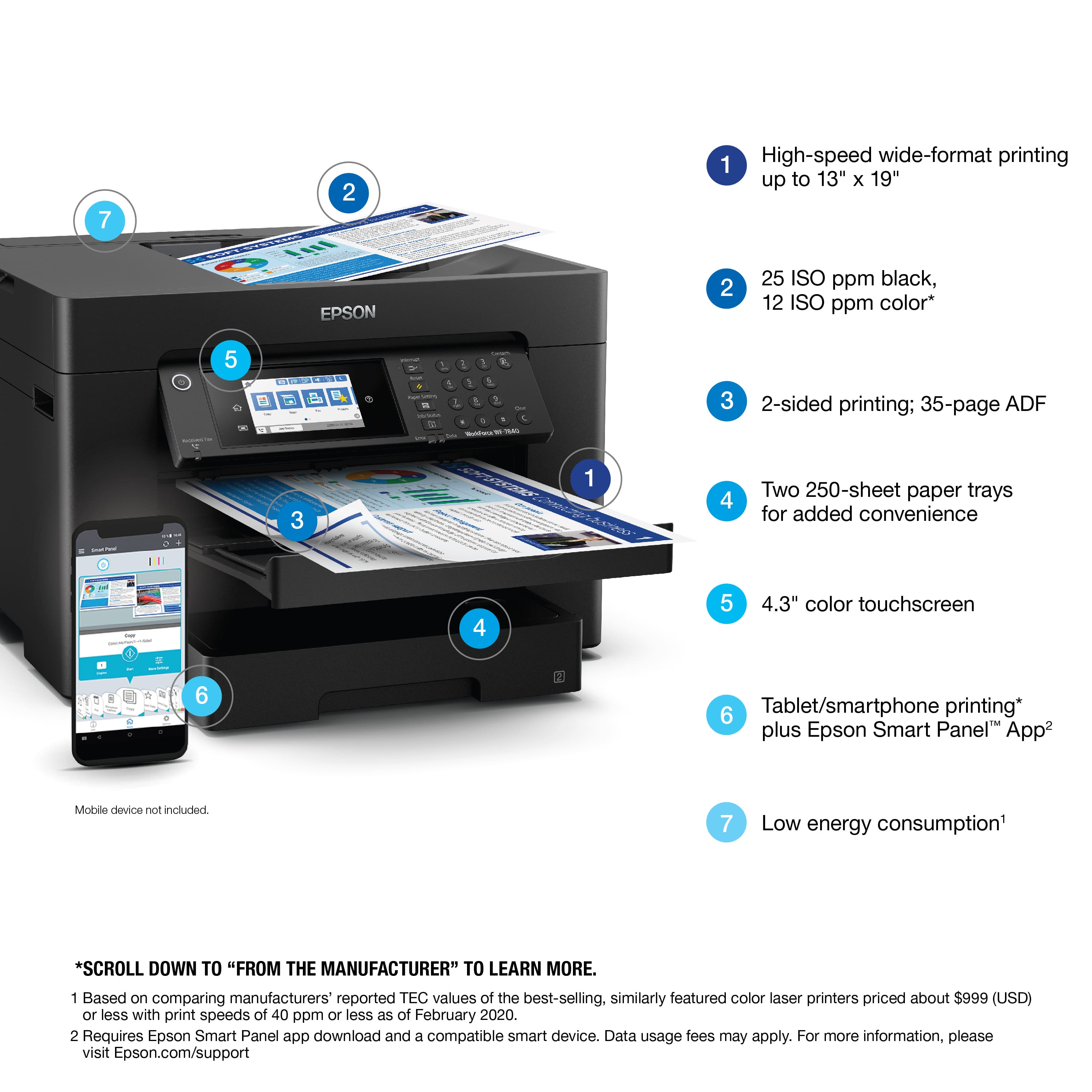
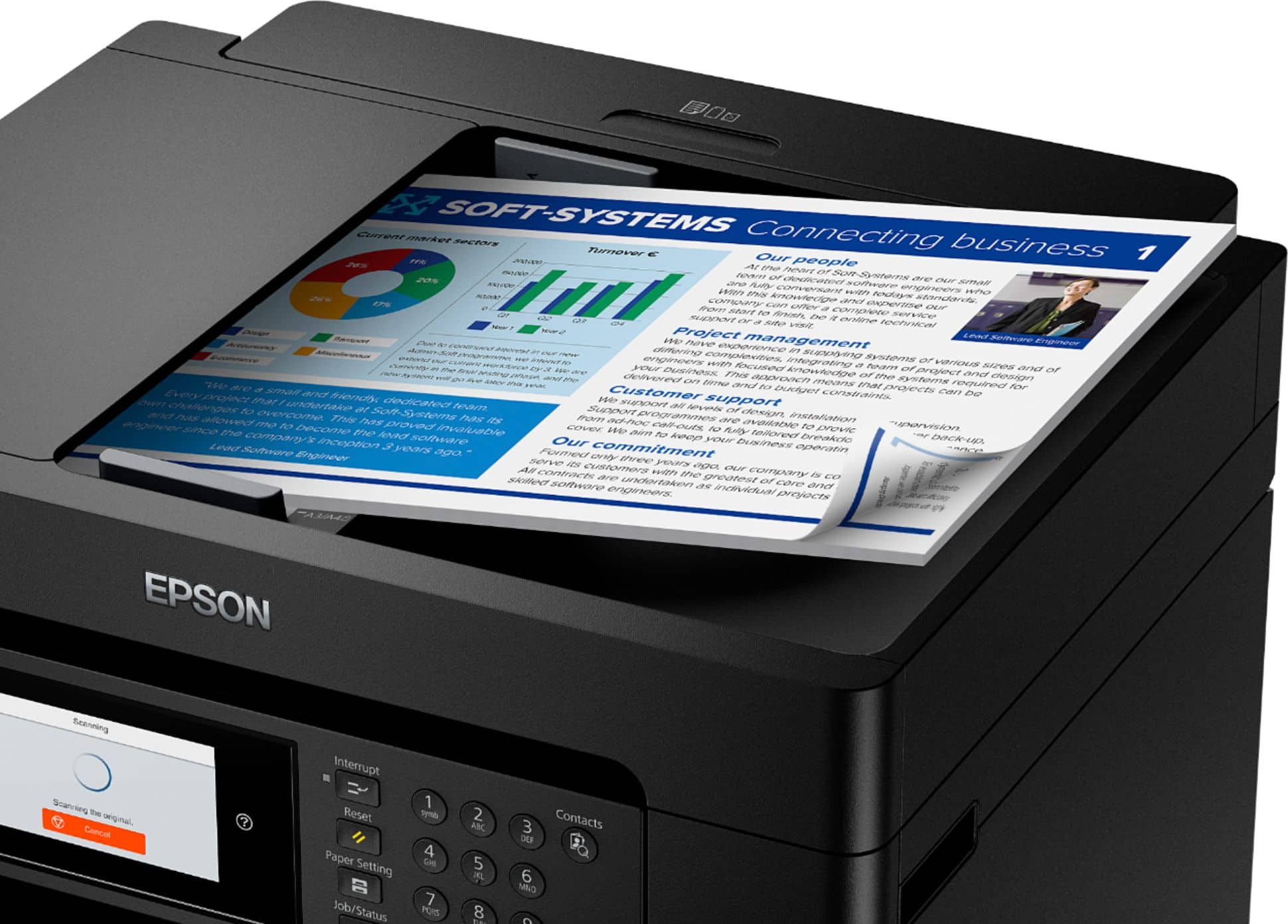
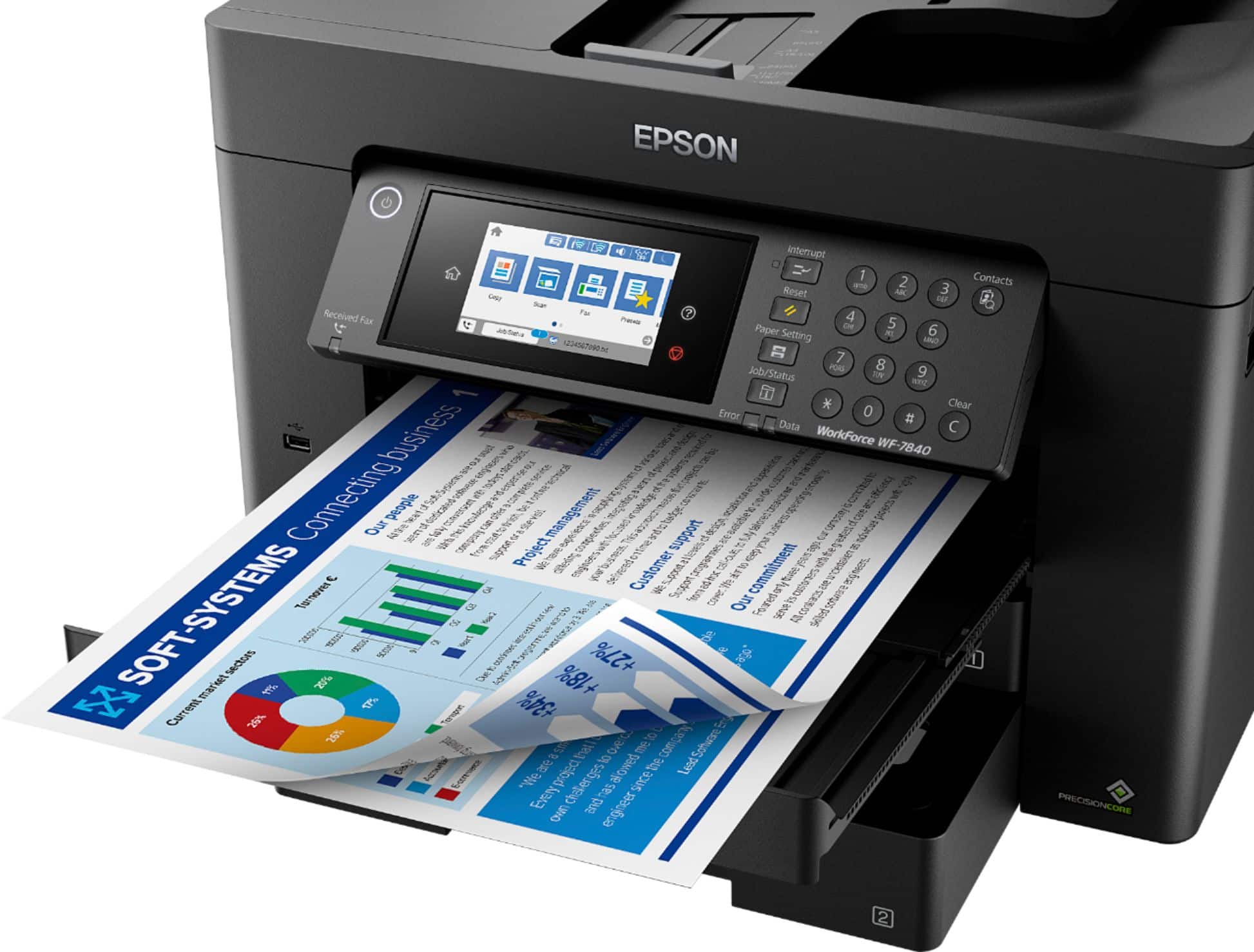
A:AnswerYes — but only in a limited way. The WF-7840 does have a “Mixed Size Originals” option, but it only supports specific combinations (like A3 + A4 or B4 + B5) when using the ADF.
A:AnswerHello Printer. Yes, the WF-7840 will work with Microsoft Windows 11. You can find the latest driver on our official Epson Support page. Regards, Kevin - The Epson Team.
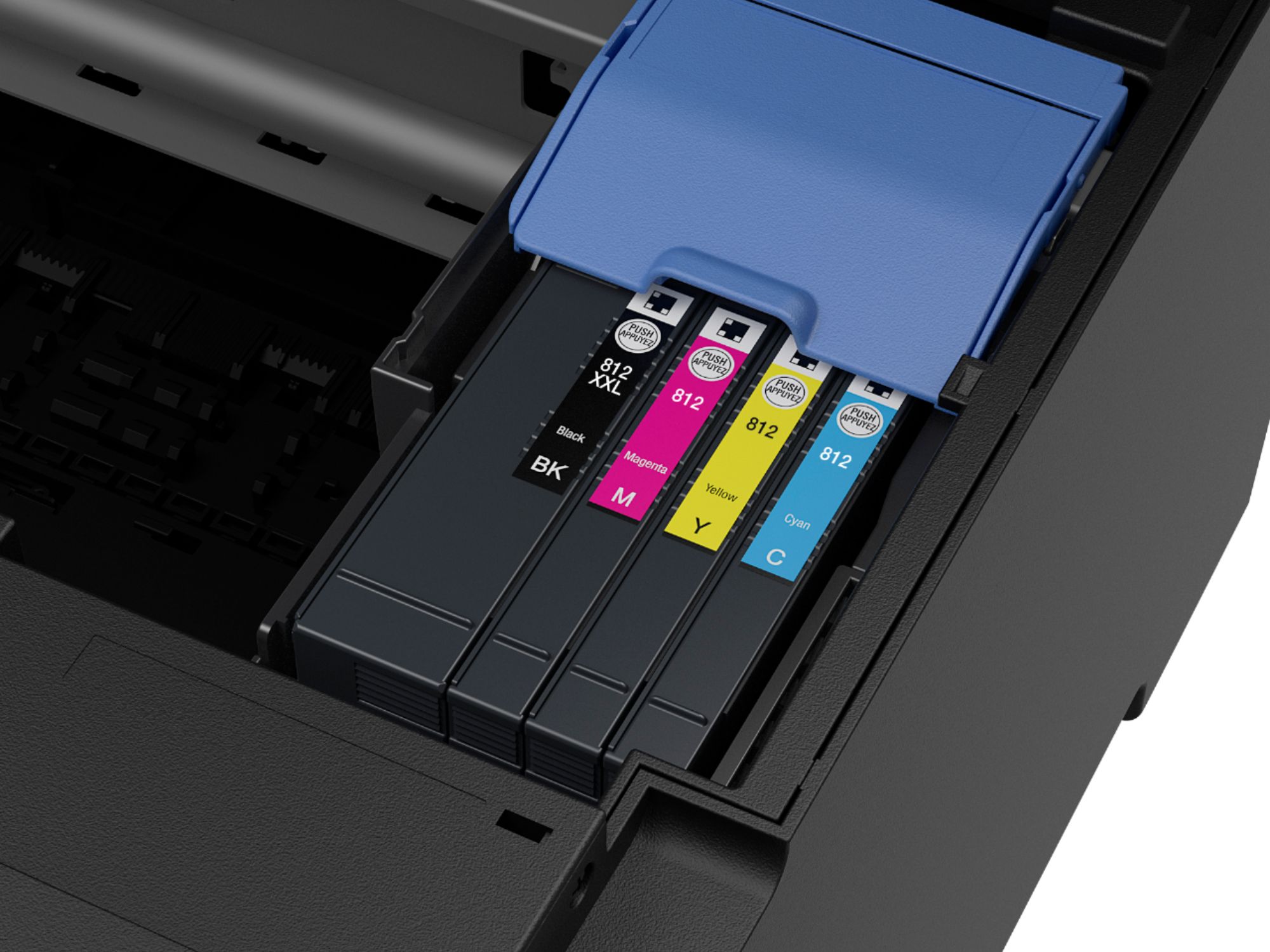
A:AnswerThis usually happens due to installation or contact issues. Try removing the cartridge and reinstalling it firmly until it clicks. Make sure all protective tape is completely removed. Turn the printer off, unplug it for a minute, then restart.
Also check that you’re using the correct Epson cartridge model and that the chip contacts are clean. If it still isn’t recognized, the cartridge may be defective and should be replaced.
A:AnswerThere is no hard reset hole on the Epson WF-7840.
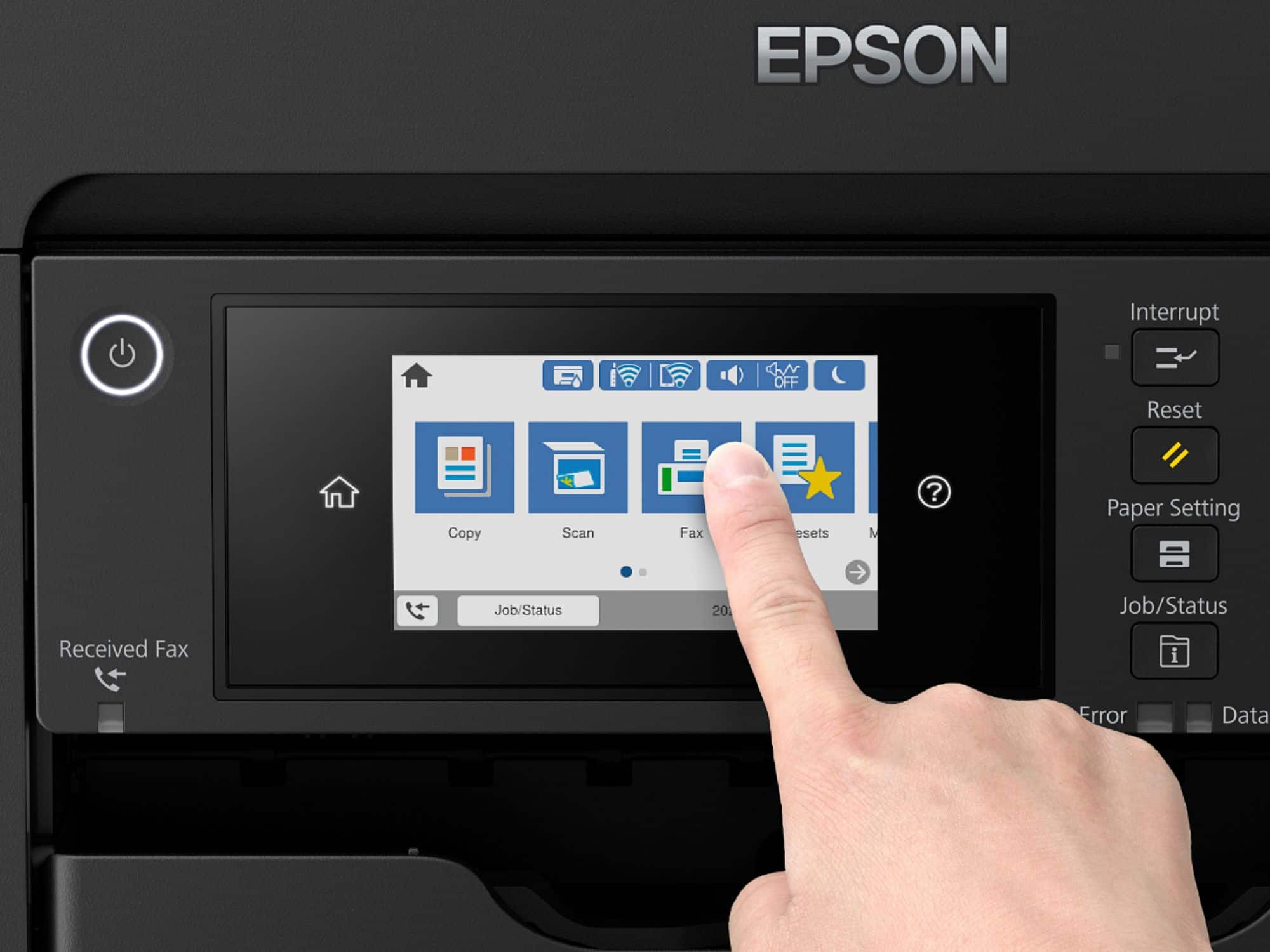
To reset it, you can turn the printer off, unplug it for a minute, then plug it back in. For a full reset, use the Settings menu---Restore Default Settings on the printer screen.
A:AnswerThis usually happens due to a feed or sensor issue.
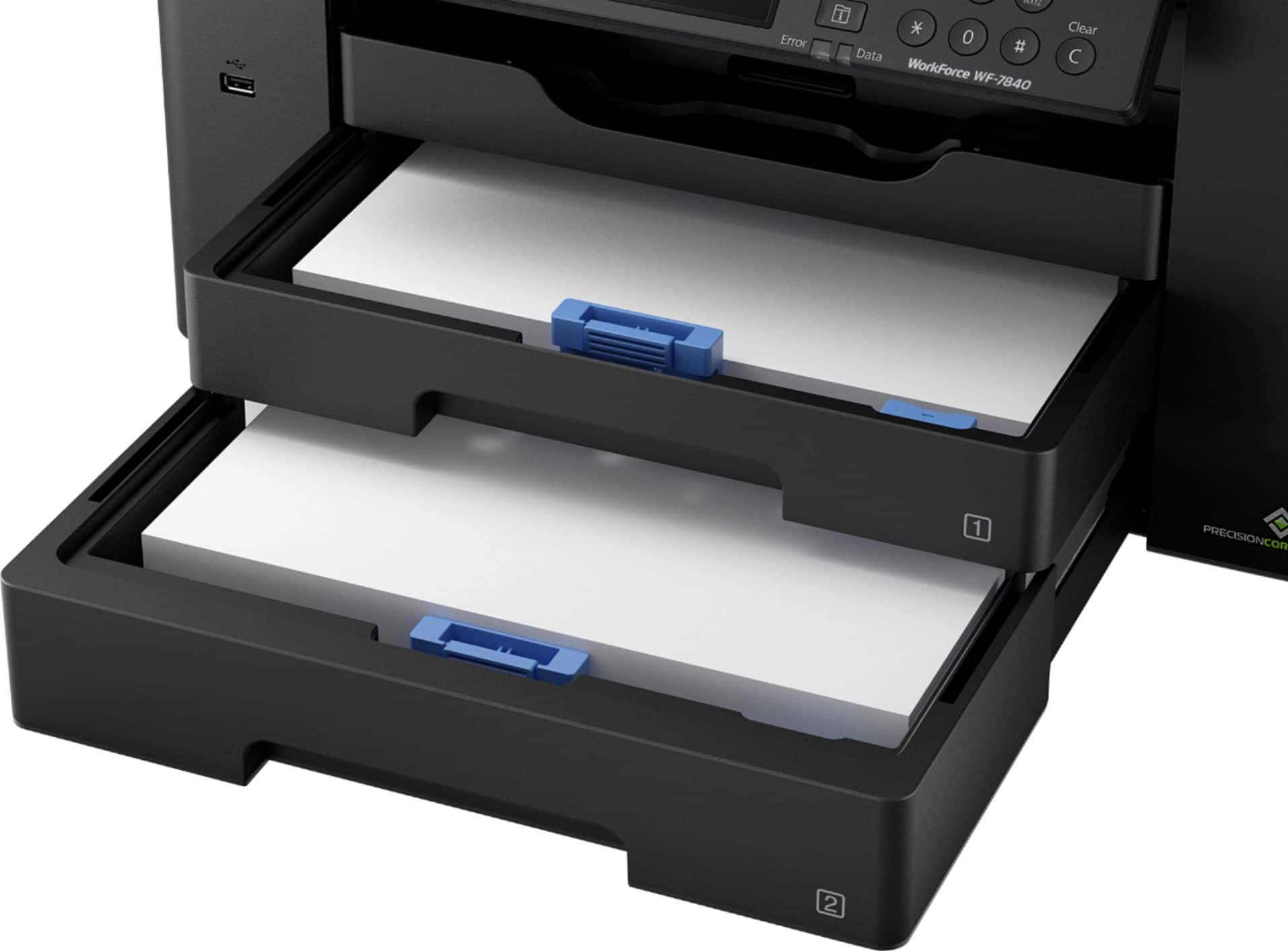
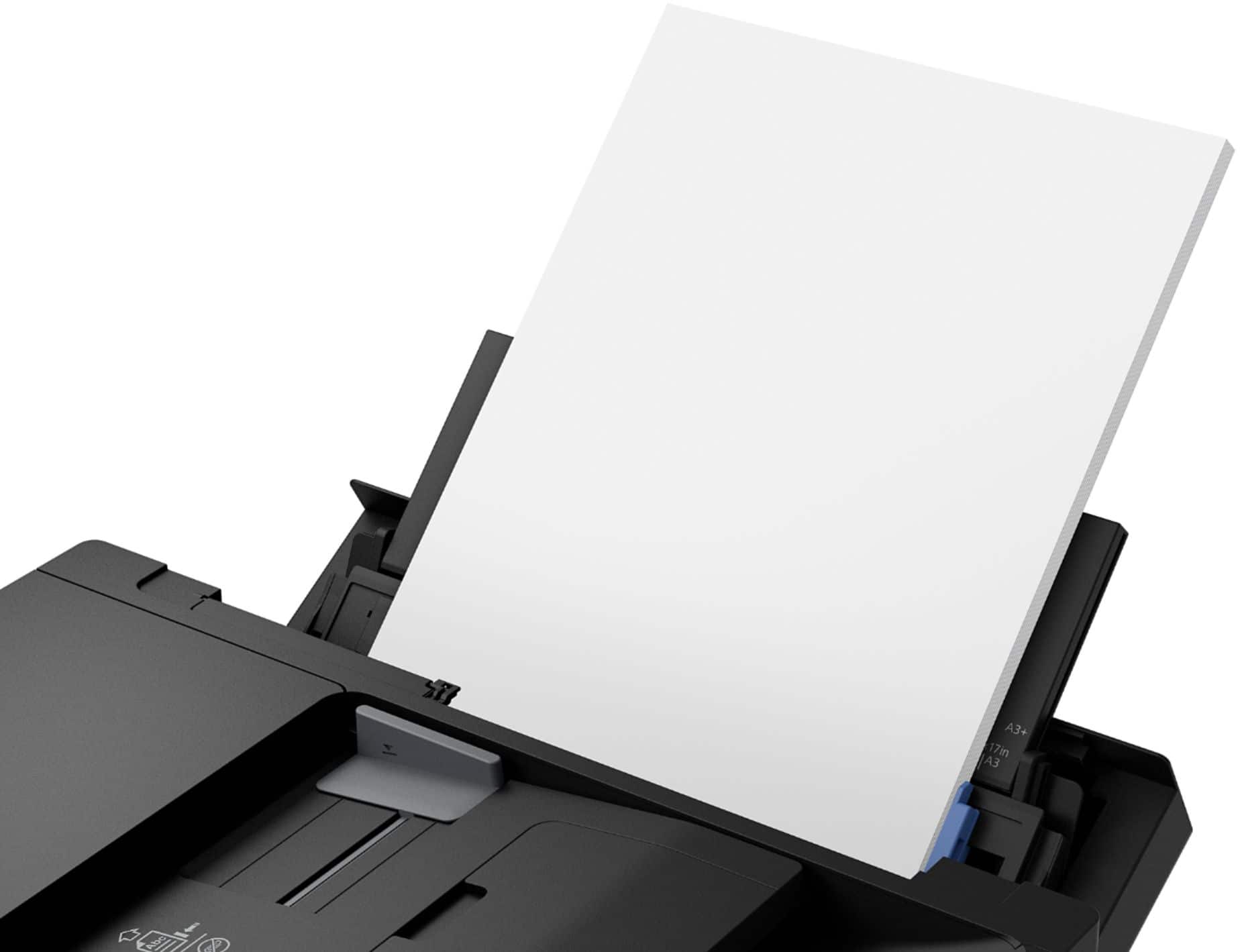
Make sure the paper is loaded correctly and the guides are snug against the paper. Remove and reload the stack, and check for any jammed or stuck paper inside.
Also try cleaning the paper rollers and restarting the printer. If the problem continues, it may be a sensor or roller issue that needs service.