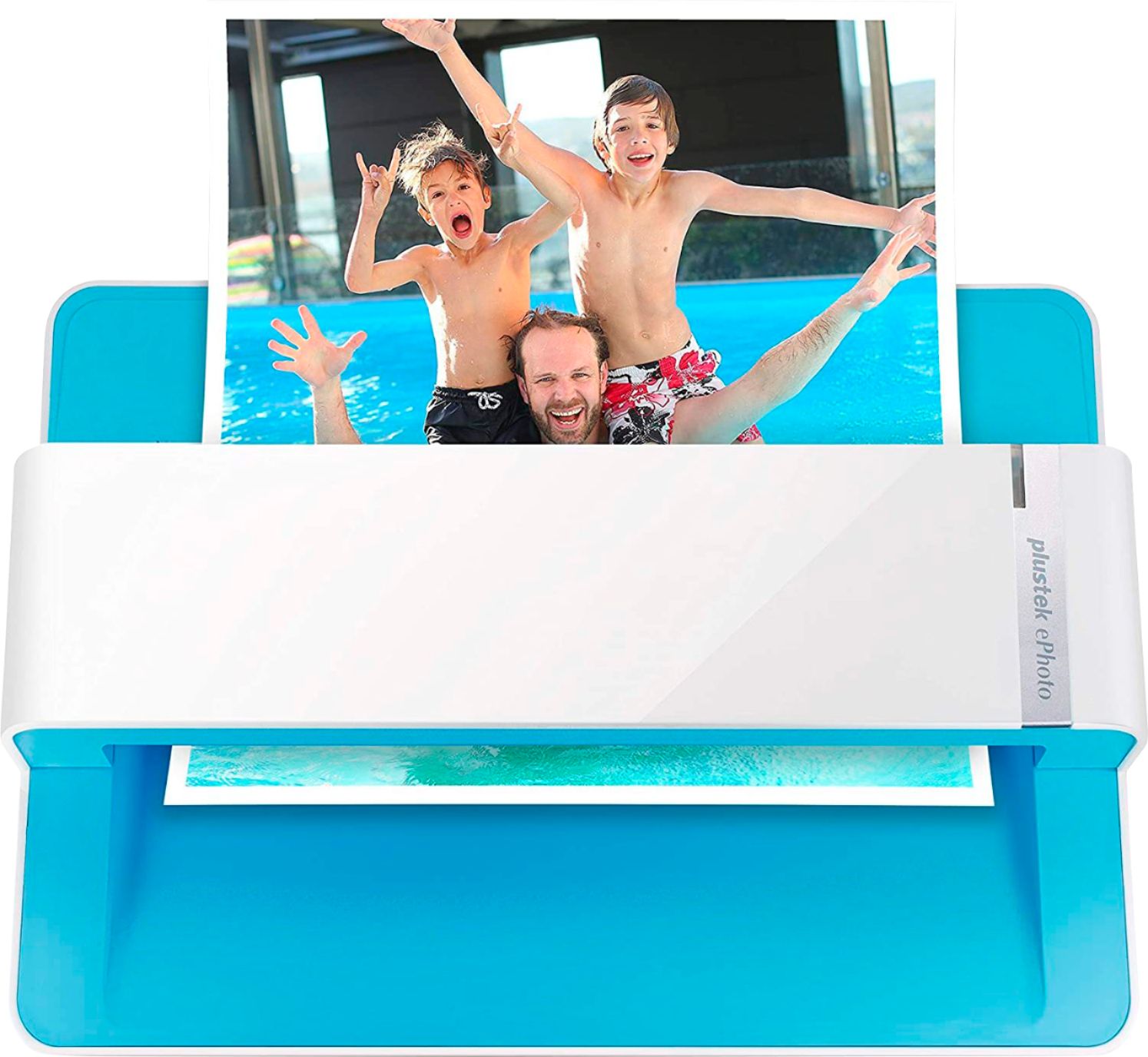
A:AnswerYou have to set the filename before scanning photos. The little gear shift in the top right corner. The software will then name them by interval until you change the filename. Example: You make the filename VaBeach. The 1st scanned pic will be VaBeach_001 and the 2nd pic scanned in will be named VaBeach_002. The software is pretty smart too. I have stopped scanning for a while and went back and the software remembers the sequence number last used so it will not duplicate the filename.
A:AnswerYes, but you will need to import the scans into Apple Photos. In Apple Photos, go to File> Import and then select the files or folder you want to add. You can find detailed instructions on the Apple website.
A:AnswerIf you are asking if the scanner works without a computer and can store directly to a Memory stick, You need to use a computer to run the scans. The scanned photos can then be stored anywhere just as any other files.
A:AnswerHi, while you can use the scanner to create prints and Mixtiles but it's not recommended that you make really large enlargements from small scanned prints. However, if you are scanning typical 4x6 photo prints, you should have no trouble creating standards size Mixtiles.
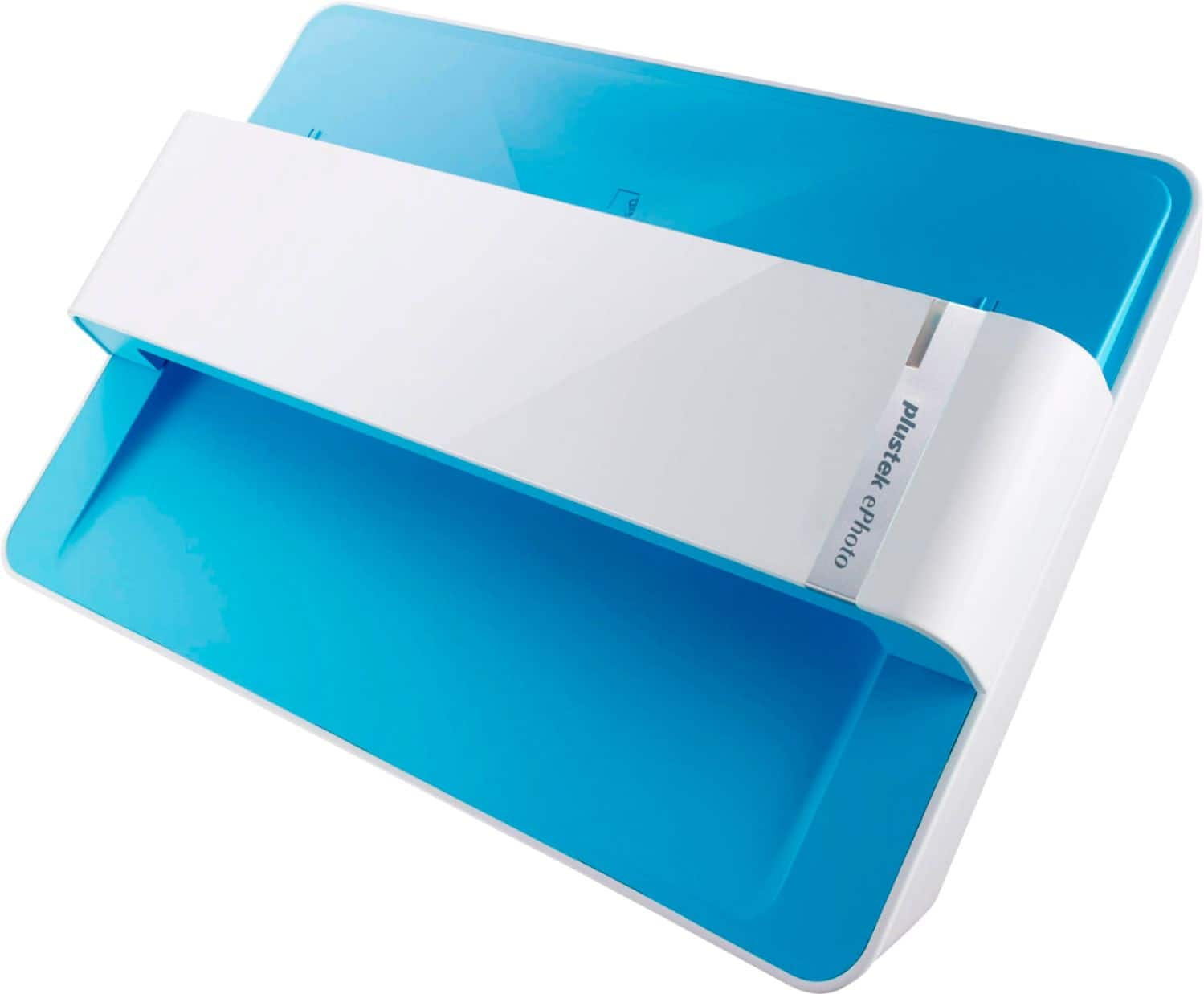
A:AnswerYes! It works on my MacBook Pro. No, you cannot scan to a flash drive; however, it’s easy to find the scanned images or documents and save from the Mac. It connects via the USB port.