A:AnswerIf your computer doesn't have them already, then yes, because this drive does not come with any cables. My computer had the power cord but I had to buy the SATA cable.
A:AnswerThis drive will work in any PC, desktop or notebook that has a standard SATA hard drive connection. It's a 2.5" drive, so to mount it in most desk top computers a 2.5" to 3.5" adapter would be useful however it can be mounted anywhere it will fit, even with double stick tape. Some folks that I've heard of just let it lay in the bottom of the computer or just let it hang from the wires. There are no power supply restrictions.
A:AnswerSamsung SSDs are entitled to two important pieces of software, one is the data transfer wizard, the other is the Samsung magician software, which optimizes your device and improves performance significantly.
The transfer wizard will pull all of your data, including your operating system and allow you to plug in your SSD via USB (I recommend this cable, also sold at Best Buy https://www.bestbuy.com/site/apricorn-data-transfer-cable-gray/3459621.p?skuId=3459621) run the simple transfer wizard, and then install your new SSD, with everything ready to go. No convoluted commands to rewrite the boot sector / bootloader, no need to worry about resizing partitions, it handles everything.
I would highly advise making sure to use a USB 3. 0 port to speed up the process, but the cable I linked to above is perfect for this job, and needs no external power... Just that of the USB port itself.
here's a link to the download page, make sure you get the transfer Wizard and magician software.
https://www.samsung.com/semiconductor/minisite/ssd/download/tools/
Also check out rapid mode inside of the magician software, once everything has been transferred. It can improve your speeds from a base of 550 mbps per second all the way up to 3800 Mbps.
Total project time should take less than 3 hours.
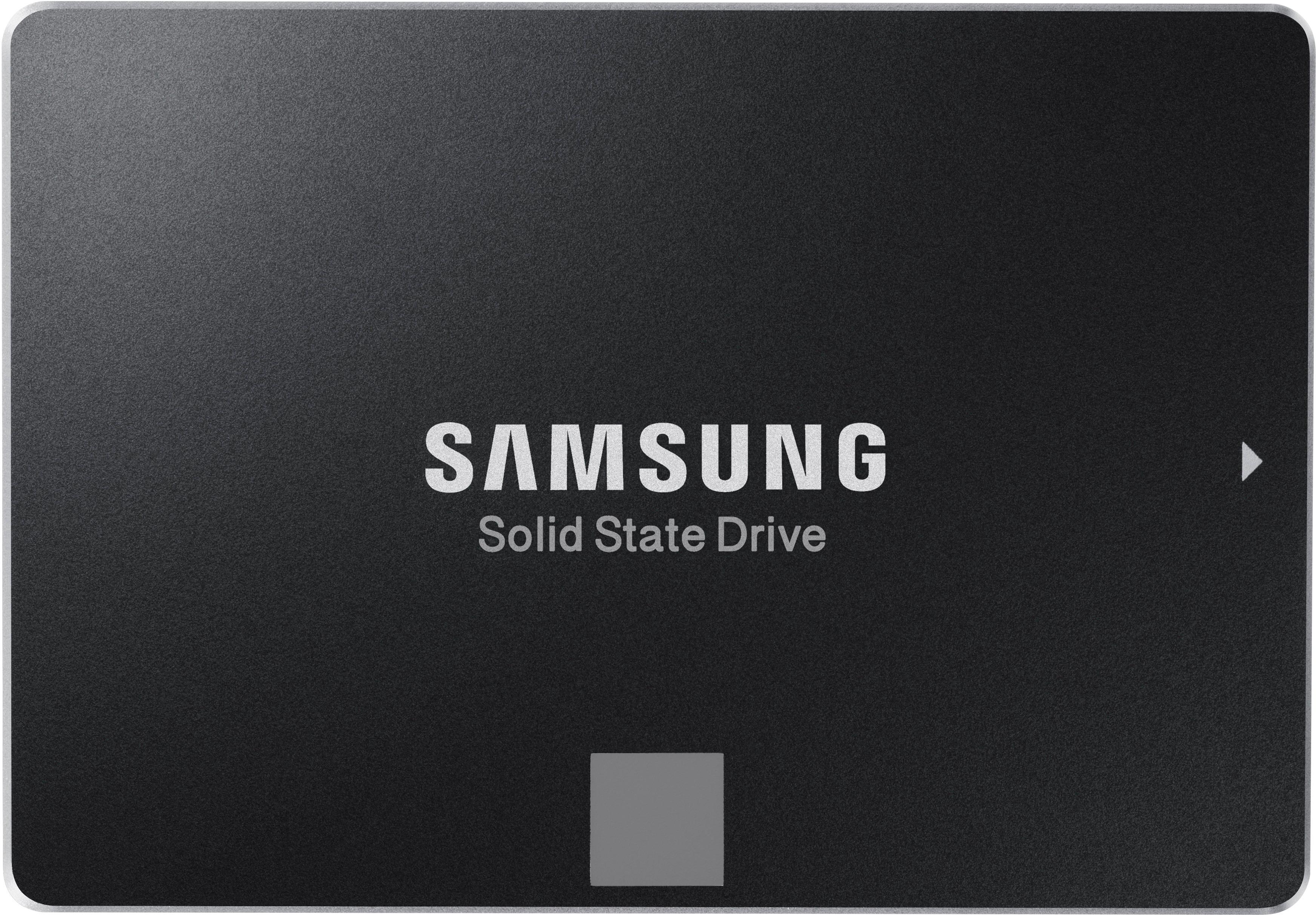
A:AnswerYes, this is a direct replacement for the hard drive in that model of laptop. You will need to image the original drive to the SSD if you wish to preserve the original operating system and recovery partition. You will need to download the Samsung Migration Tool and purchase a USB/SATA interface cable, as well. Good luck!
A:AnswerDepends on how old laptop is.it should work my laptop is over 4 years old and I'll tell you what this ssd made a big difference in speed I thought I needed more ram but I checked ram and still had not maxed it while using it so I put this ssd in and boy best money I put in overall yes it should fit its sata.
A:AnswerThe Samsung Data Migration utility will transfer over your Operating system partition and boot up like nothing is different. The factory recovery partition will not transfer over however, but that will not stop the drive from booting up to your operating system.
A:Answeryes. connect to any SATA port (will need to buy a SATA cable if you don't already have one). Standard SATA power connector on your power supply will work. Enable AHCI mode in your BIOS for best performance.
A:AnswerThis hard drive should be capable of a 3 Gigabit Link Speed (may need to read into the specs of this particular drive)
This hard drive is capable of a 6 Gigabit Link Speed.
You can find out if your iMac is only capable of 3 Gigabit vs 6 Gigabit.
1. Go to "About this Mac"
2. Go to the "Overview Tab"
3. Click on "System Report..."
4. Under the Hardware Menu/Section go to "SATA/SATA Express"
5. Read the "Link Speed:" Number
The Link Speed number will tell you if it's either 6 Gigabit or 3 Gigabit.
A:AnswerYes it Will.
The SamSung EVO SSDs are Great Performance Drives. The SamSung EVO 850 and 860 SSDs will easily replace the existing HDD.
Check this URL for assistance: https://support.hp.com/us-en/document/c03291169#bcf9fdc9-b702-4bb0-9704-4314a0a91cbc
You will Great System Performance Enhancements!
JNP
A:Answerif your Lenovo laptop supports a 2.5 inch drive it should fit just fine. If you are replacing an existing hard drive be sure to remove any mounting hardware off the old drive because you will need it to mount this drive. I have used this drive to replace the hard drive in several HP, Dell and Toshiba laptops. I have never had any problem removing the original hard drive mounting and using it on the Samsung SSD for a perfect fit. Note that you should go to Lenovo's website and check your laptop model to verify it has 2.5 drive bay.
A:AnswerSamsung has downloadable software you can use to clone an existing operating system. I don’ t believe you would need to use disk management in Windows unless you were just adding it as an additional storage drive.