Customer Ratings & Reviews
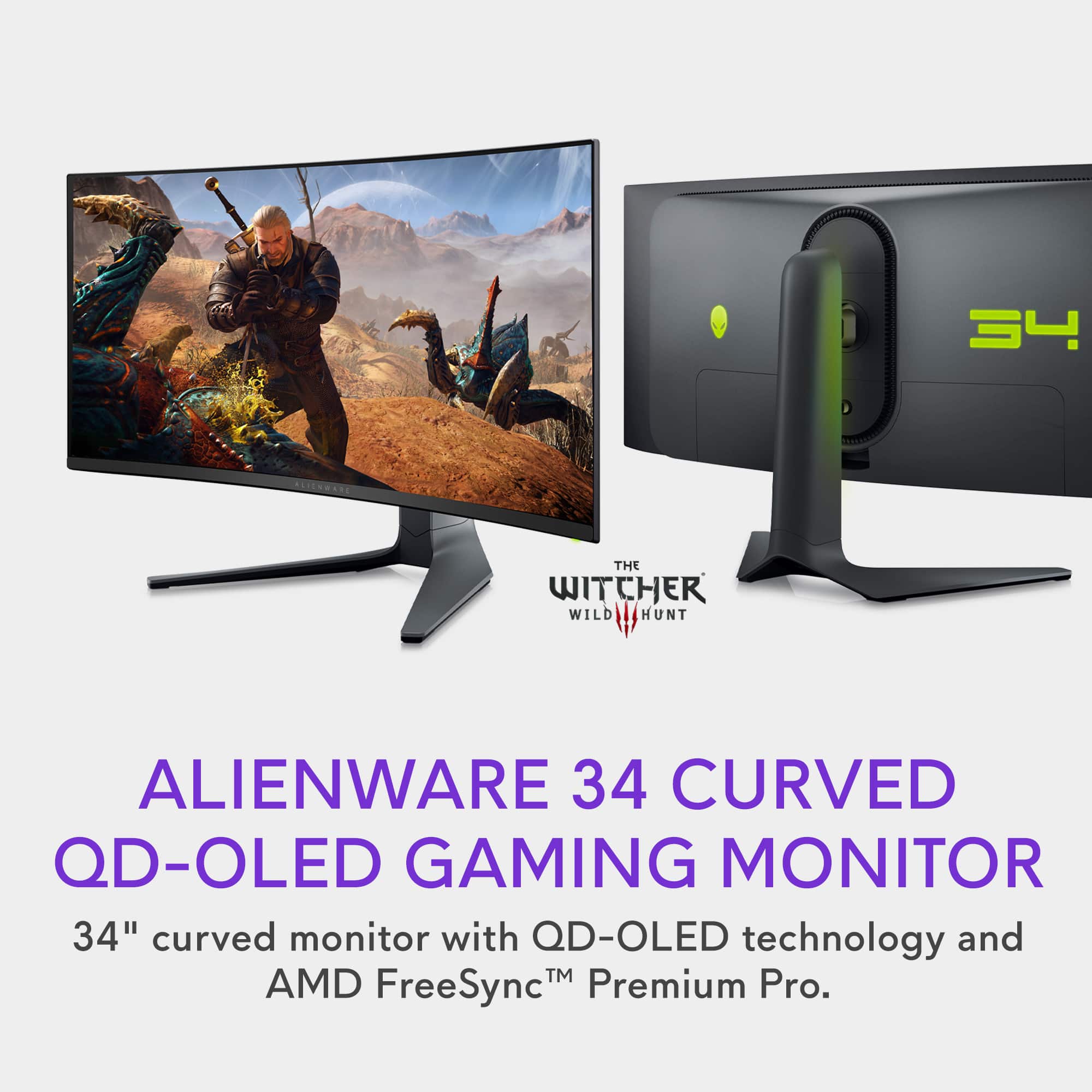
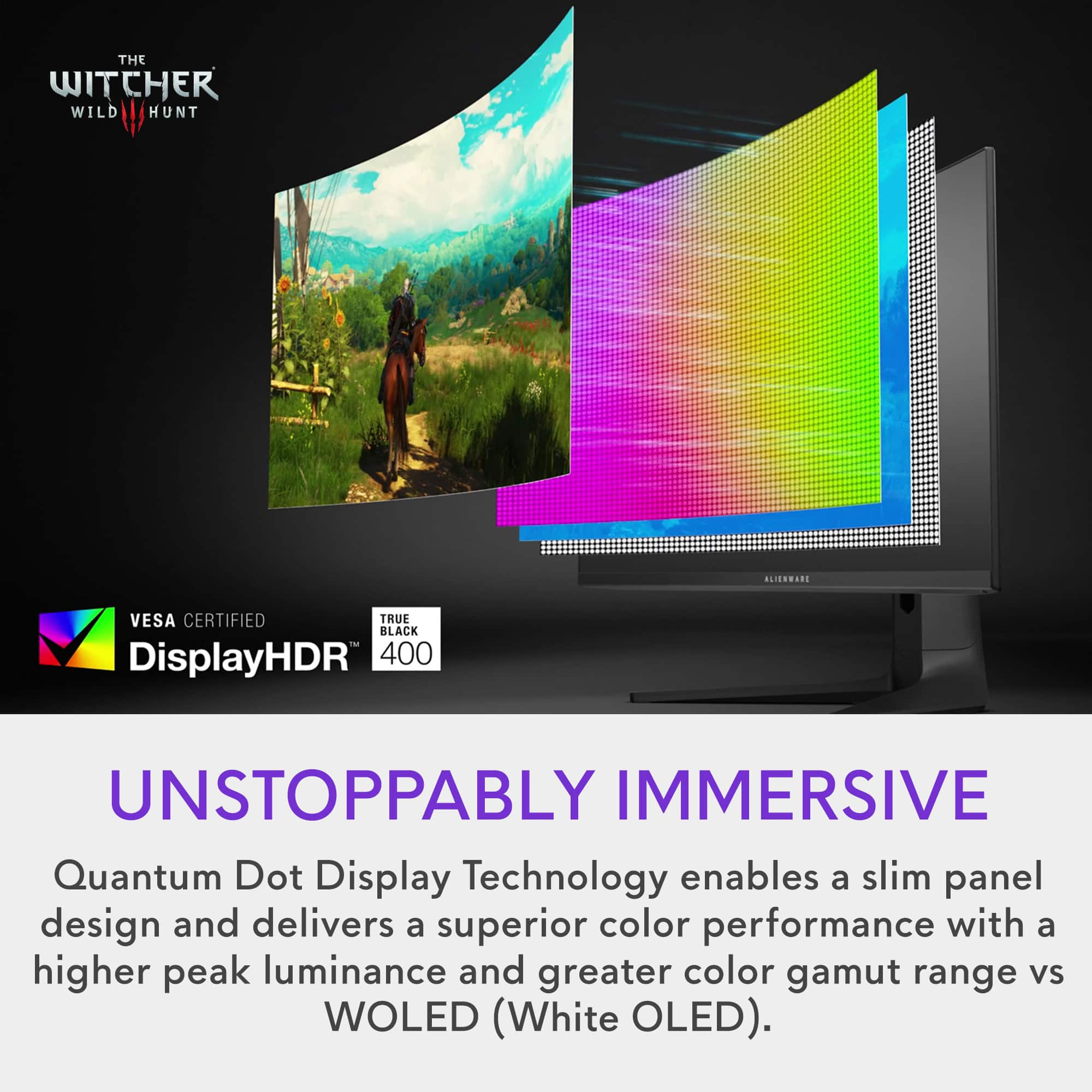
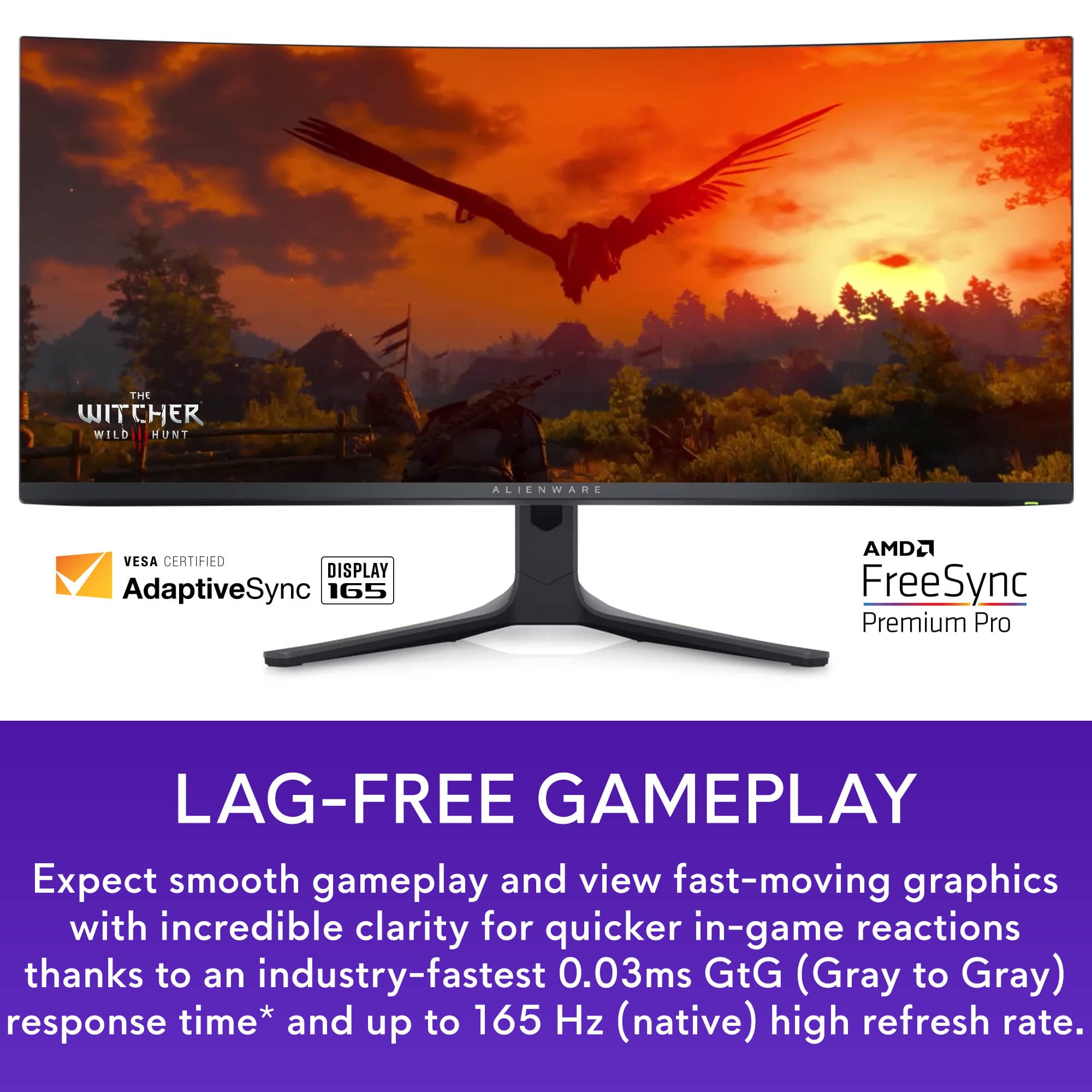
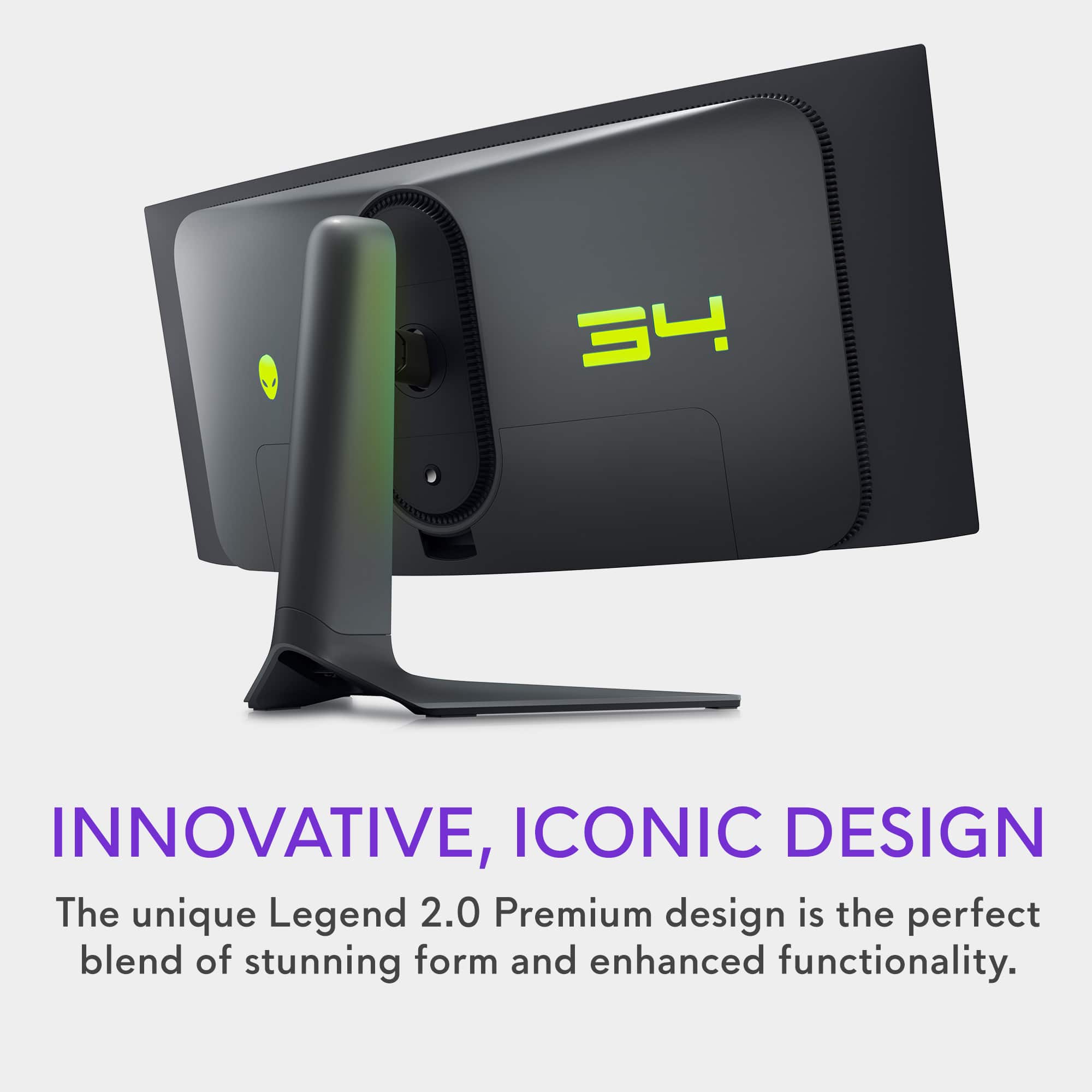
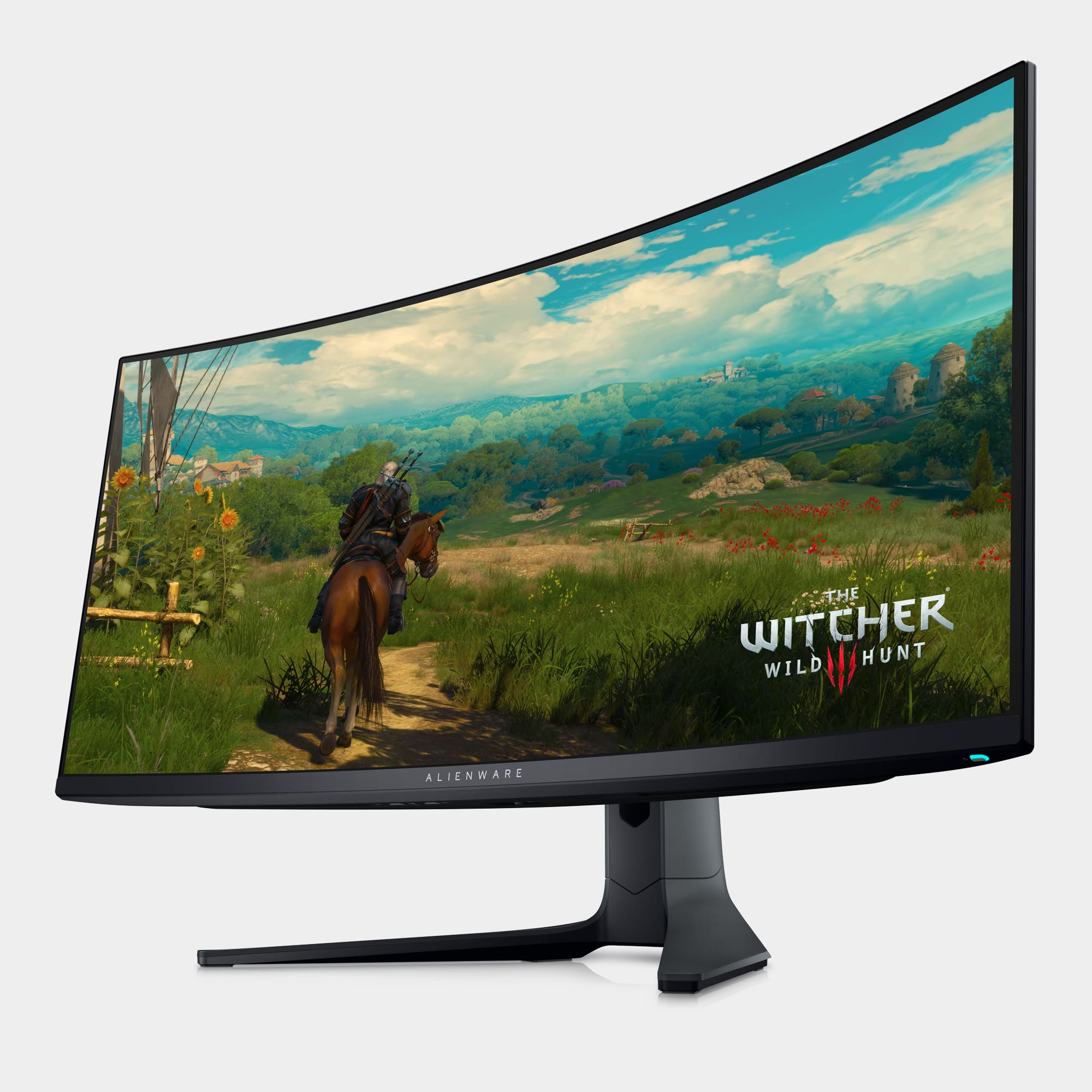
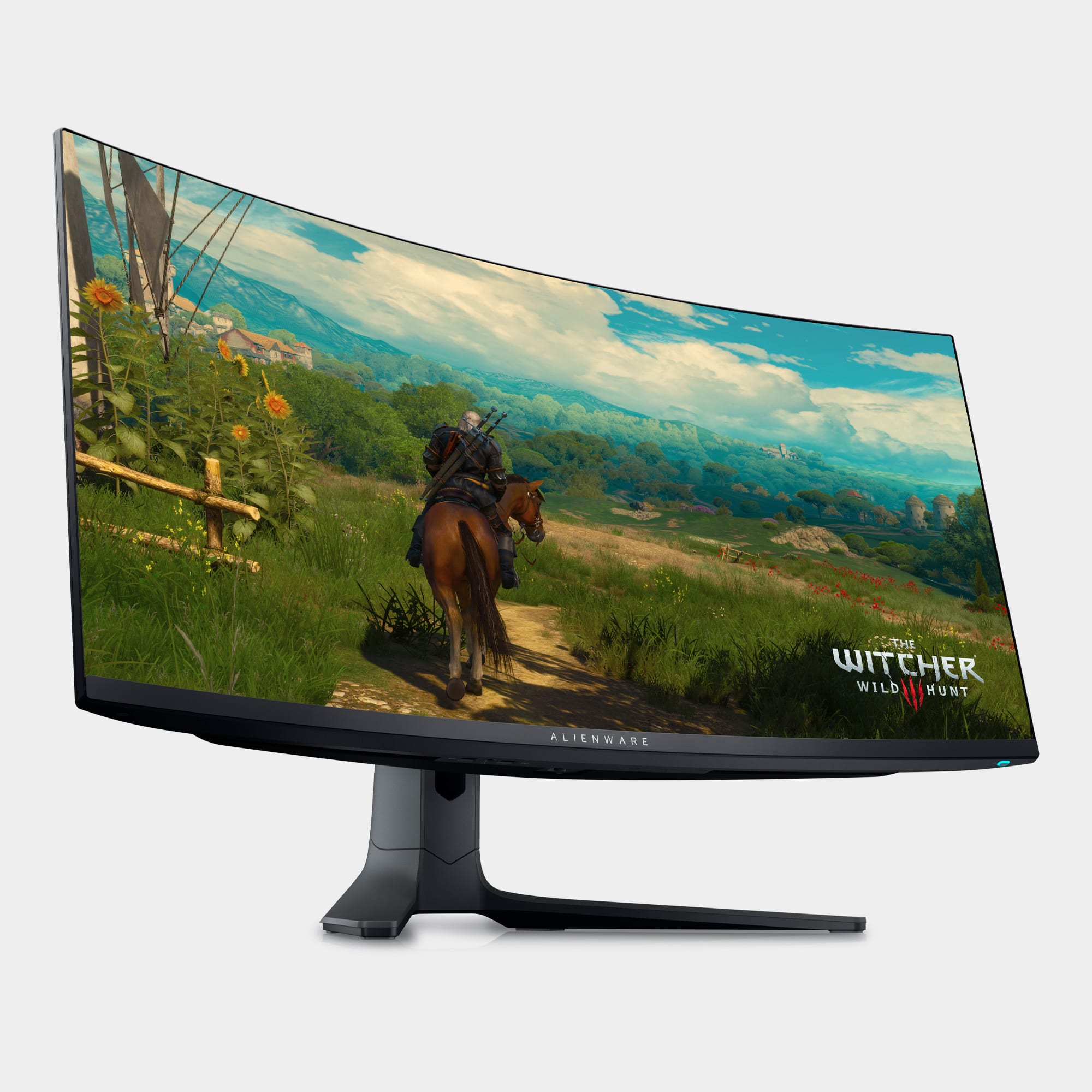
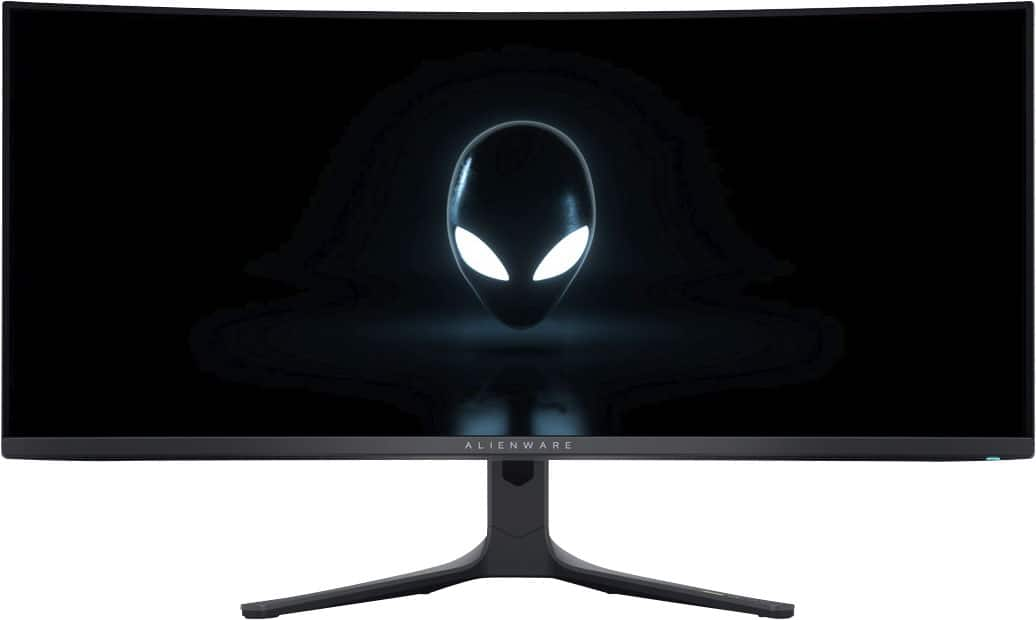

- Model:
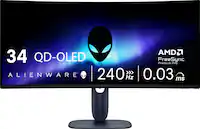
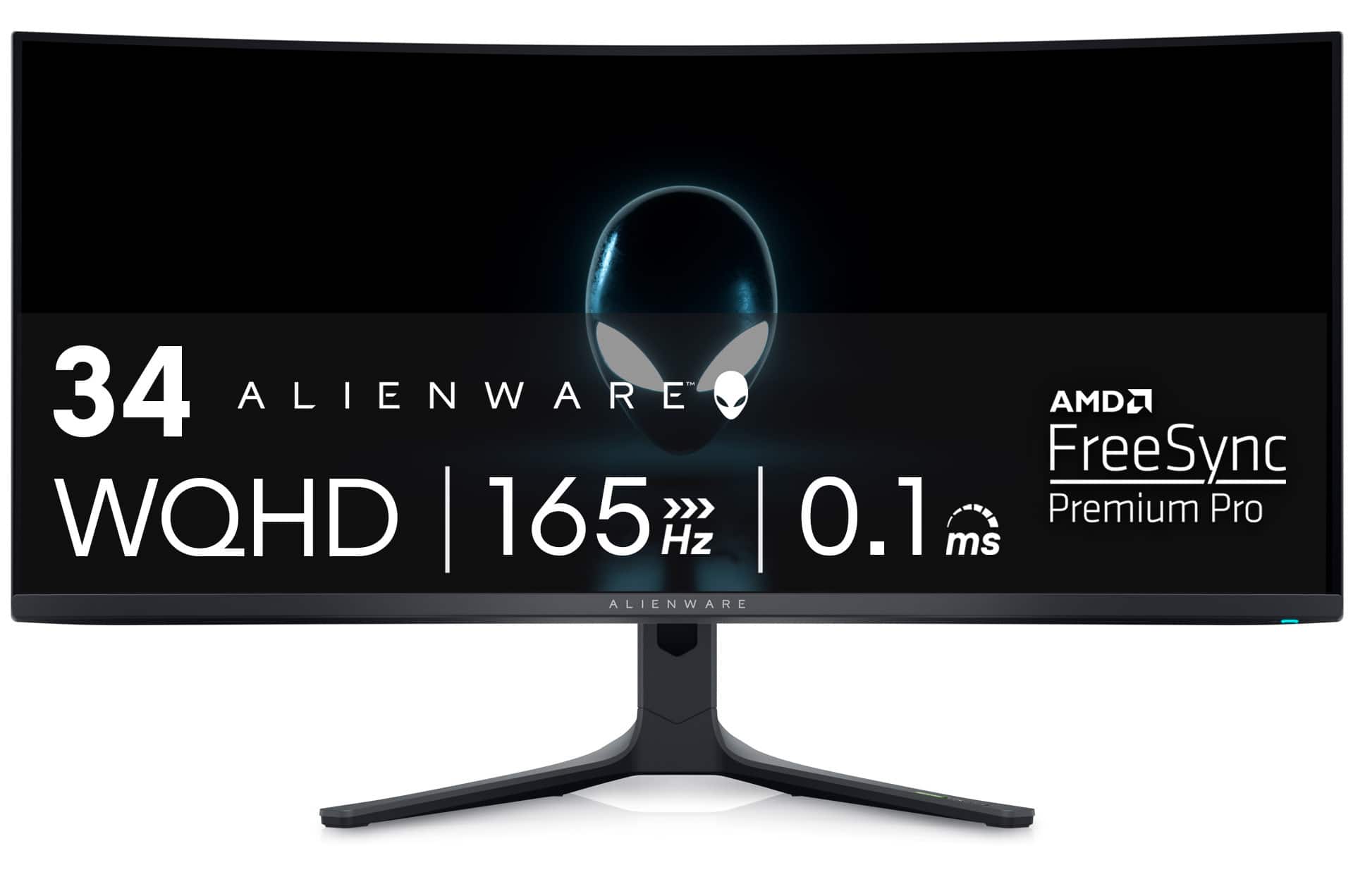
- AW3423DWF
- |
- SKU:
- 6536990
Customer reviews
Rating 4.8 out of 5 stars with 1509 reviews
(1,509 customer reviews)Rating by feature
- Display Quality4.9
Rating 4.9 out of 5 stars
- Ease of Use4.8
Rating 4.8 out of 5 stars
- Features4.8
Rating 4.8 out of 5 stars
Customers are saying
Customers often highlight the AW3423DWF's exceptional picture quality, vibrant colors, and impressive OLED technology, resulting in stunning visuals and deep blacks. Many appreciate the high refresh rate and HDR capabilities, enhancing gaming and media experiences. While some mention the high price point and lack of built-in speakers, concerns about burn-in appear minimal based on user feedback. The overall consensus points towards a superior display experience despite a few minor drawbacks.
This summary was generated by AI based on customer reviews.
- Pros mentioned:Color
Rated 5 out of 5 stars
First monitor to ever give me that WOW factor
||Posted . Owned for less than 1 week when reviewed.This reviewer received promo considerations or sweepstakes entry for writing a review.Ever since i stared building pcs, in 2016, ive been chasing the best image quality. I started gaming on a 1080 tv, then a 4K TV/1080 laptop monitor, then a 2K ultrawide, then a 4K curved VA. No matter how much I upgraded the pc and improved the performance, i always found the image quality to be lacking. Dont get me wrong, ive seen some beautiful screenshots, and amazing performance, but i always felt the colors looked washed out on some monitors compared to others and would sometimes see a ghosting effect, which i pretty much accepted as normal. Then along came OLEDs. I joined a pc group and it made me hungry for more. I ended up trading my crappy 5800x/4070ti build and a 3060 laptop for a 7900x/7900 xtx build that came with an “LG OLED” monitor. The pc checked out but the LG was a 32 inch 2K curved VA. I was beyond devastated. Then the Pc group members would not shut up about this monitor. Im cheap and thought my wife would kill me so i avoided buying this monitor. I ended up renting a samsung 65inch s90c OLED to get a feel for the tech and it absolutely blew me away. I instantly sold my va monitor, however the tv was way too big to be used in a normal desk setting. My family and rommates moved to a bigger house and i got more space so i hung the tv on the wall to use as a tv and needed a new monitor. I had a super old asus rog strix monitor but i realized it didnt even have hdr10 or freesync and it just paled in comparison to the OLED tv. I bought the bugdet AOC curved monitor with the specs i required but the ghosting was SO bad. Tbf i may have not calibrated it properly but it was horrible even compared to the LG i just sold. I returned it and started doing research and ordered two more monitors but canceled after i realized i wasnt getting 1000 nits with an IPS/VA under the price of this monitor and it was super cheap for black friday/cyber monday so i pulled the trigger. Its absolute EVERYTHING i wanted in a monitor. Colors POP off the screen, no ghosting or pixel to be found, it was curved and not a VA. The ultrawide format is a little iffy, but almost all games support it and the ui on the edges of the screen make it so immersive! The few games that dont have it can be modded but takes a bit of time so there is that. If you are like me and are constantly chasing the best image quality, this monitor is a MUST have. Ive spent alot of money of top end components to get the best performance, but i think i may have been happy with even a mid range setup and this monitor. So if you dont think its worth spending big money on your monitor, think again. If your budget is slim and you are thinking of getting the best of the best gpu and a terrible monitor, you will regret it. So if you have any hesitation about this monitor blowing you away then i can safely say you can toss then out the window, and remember, hesitation is defeat.
I would recommend this to a friend Rated 5 out of 5 stars
Sharp from the Box and Huge Upgrade
||Posted . Owned for 1 month when reviewed.This reviewer received promo considerations or sweepstakes entry for writing a review.First OLED monitor and UW. WOW… So far they are perfect for our 2 rigs. We game a lot but not hardcore. We set it to screen refresh when we shut down our systems and auto does it. Since we mix up games and play more causal, plus only used for gaming, not worried about burn in. But the 3 year warranty is a nice piece of mind. Colors are amazing! It’s wide enough to be a big diff for immersive gaming and not too big for our smaller desk space. I wish it could mount further back, but plan to get a stand or wall mount. But still fine for now and comfortable for us. Especially gf since she mostly used game controller and can move further. Definitely recommend these on sale. I know new Gen OLEDs are coming out but those will still be priced high for awhile. Didn’t want to wait and glad I didn’t!
I would recommend this to a friend- Pros mentioned:Color, Picture quality
Rated 5 out of 5 stars
Best monitor on the market
||Posted .This reviewer received promo considerations or sweepstakes entry for writing a review.The colors and picture quality on this are absolutely bonkers. Like, I’ve never had a monitor this good. The blacks are pure, deep blacks and there is no ghosting or pixel shift at all. 10/10, I recommend for anyone that has enough to afford this.
I would recommend this to a friend Rated 5 out of 5 stars
Amazing OLED monitor
||Posted . Owned for 8 months when reviewed.This reviewer received promo considerations or sweepstakes entry for writing a review.This monitor has been my favorite purchase of the year by far. The QD-OLED display is unmatched, colors are vibrant and the blacks are deep. It's incredibly snappy for gaming too - both the response time and refresh rate are perfect. I also use this monitor for work and the size is perfect for productivity tasks - I replaced two separate monitors for this one alone and it's been much easier on the desk space.
I would recommend this to a friendRated 5 out of 5 stars
Alienware monitor
||Posted . Owned for 9 months when reviewed.This reviewer received promo considerations or sweepstakes entry for writing a review.Best monitor I ever had, I got it almos 1 year ago and still it’s perfect for me, great colors and great resolution
I would recommend this to a friendRated 5 out of 5 stars
Best gaming monitor. Period.
||Posted . Owned for 3 weeks when reviewed.This reviewer received promo considerations or sweepstakes entry for writing a review.Best OLED gaming monitor hands down. Perfect blacks, vibrant colors, great build quality. I picked this over the LG 27gr95qe-b for several reasons. -You basically get 2 screens worth of display for the same price. -I play single player games so 165hz is plenty (if u play FPS , sure the LG w/ 240hz 0.03ms is unbeatable). - More immersion from ultrawide + curved Cons: -The settings joystick didn't work at first , but Best Buy let me switch it out for a new one - no hassle. - Text fringing due to the sub pixel layout - but honestly I have to put my face way close to even notice it - doesn't bother me
I would recommend this to a friend- Pros mentioned:Color, Hdr
Rated 5 out of 5 stars
Still fantastic after 1000s of hours!
||Posted . Owned for 1 year when reviewed.This reviewer received promo considerations or sweepstakes entry for writing a review.Incredible gaming monitor. It was very simple to set up, and the onboard menus are intuitive. I have mine mounted to the wall. The display has incredible color depth and interfaces with Windows HDR seamlessly. Easily the best panel I've owned. I've had this monitor for coming up on 2 years now, and I've had no burn-in or ghosting. I'm pretty religious with performing pixel refreshes every time I turn off the monitor. It's easy to do, happens with the display blackened (so you don't see colors flashing) and the monitor turns itself all the way off when done. Very satisfied with my purchase.
I would recommend this to a friend Rated 5 out of 5 stars
Beast Monitor
||Posted . Owned for 3 weeks when reviewed.This reviewer received promo considerations or sweepstakes entry for writing a review.Not going to lie... This monitor is HANDS DOWN, the best monitor I've ever owned. Hertz: Going from 100hz to 165hz is literally life changing and especially on my first widescreen. Response time: I've never snapped on people and had my bullets feel like they actually hit on time before this monitor. Graphics: SOLID! Might have to change the coloring on each game depending how bright you want your colors, but you can't get more realistic graphics than with this monitor. Awesome for those who want to watch movies in the best quality. Widescreen: I was hesitant on gaming on the widescreen at first. All I can say is, if you're a gamer, it's A MUST! I have my monitor on a desk mount and holds up great with its size. Price: Obviously, no one wants to drop $700+ on a monitor, BUT I'm glad I invested in one that was actually worth it. This monitor is definitely worth it.
I would recommend this to a friendRated 5 out of 5 stars
SAVE MONEY, READ THIS BEFORE BUYING
||Posted . Owned for less than 1 week when reviewed.This reviewer received promo considerations or sweepstakes entry for writing a review.First, hands down if your in the market for a OLED monitor this is the model to get. Several companies all use this exact screen, but the Alienware AW3423DWF is the QD-OLED you want. Now heres how to save you money if your not constantly buying PC tech etc. 1)DO NOT buy this monitor for anything above $799! ($799 is what the regular sale price is for this model. What that means is every two weeks or so Bestbuy will say they are having a sale and this monitor will be $799. Then they raise the price back up to $999. It has switched back and forth 3 times in the last 2 months just to give you an idea. So only buy this when its at the $799 price point. 2) This monitor absolutely supports Nvidia GSYNC. Do NOT pay an extra $150 just to buy the Alienware "Nvidia premium" model. Not only does your Nvidia graphics card work with the "AMD PREMIUM" model, it supports the NVIDIA features such a GSYNC, etc. I saw a salesman tell a older guy he needed to order the nvidia branded version of this monitor in order for it to work with his computer which is 100% a lie. Buy this model AW3423DWF, its over $100 cheaper, supports Gsync etc., and it allows you to upgrade its firmware which the other version does not for some reason. Hope that helps some of you who aren't used to constantly upgrading and building computers.
I would recommend this to a friendRated 5 out of 5 stars
Best gaming monitor on the market!
||Posted . Owned for 4 months when reviewed.This reviewer received promo considerations or sweepstakes entry for writing a review.I have to say this is the monitor for gaming!!! Graphics with no lagging! Best display I have ever had and looks really nice too! The price is worth the money spent. You will never want another monitor once you have experienced this one!
I would recommend this to a friend- Pros mentioned:Picture quality, Refresh rate
Rated 5 out of 5 stars
I LOVE IT
||Posted .This reviewer received promo considerations or sweepstakes entry for writing a review.The Alienware AW3423DWF is an absolute game-changer. The QD-OLED display offers stunning clarity, deep blacks, and vibrant colors that make everything from gaming to multitasking feel immersive. As a trader, the 34” ultrawide curved screen gives me the perfect workspace to view multiple charts, timeframes, and news feeds side by side no need for a second monitor. The 165Hz refresh rate and response time make scrolling through charts buttery smooth, and the crisp detail helps me spot key candle patterns and wicks.
I would recommend this to a friend - Pros mentioned:Color
Rated 5 out of 5 stars
WOLED vs QD-OLED trade blows. Buy the right 1 4U!
||Posted . Owned for 2 weeks when reviewed.This reviewer received promo considerations or sweepstakes entry for writing a review.Great monitor! For $650-$799, it is the best choice in the market currently (May 2024). I also use a 42" C2 WOLED as a PC monitor, and the colors on QD-OLED are noticeably more vibrant. However, it does have an issue of producing raised blacks when light is shining directly on, or near the monitor. So QD-OLED and WOLED trade blows overall. But due to the limited availability of WOLED in this form factor and price range, I think this is a great option if you can control the lighting in your room. If you are using the monitor in a bright room, I would definitely go with a WOLED panel, either the 42 C2/C3 if you can fit that in your space, or possibly consider spending more money on a WOLED panel in a smaller form factor, by LG. If your office/space is within a dark room, go QD-OLED if you would like more vibrant colors. But there are basically no options at the sub $1000 price point other than this monitor, the Samsung G8 (which is the same panel but no 3 year warranty). Overall I am satisfied and I do recommend this monitor, just know which type of OLED panel would be the best option for your space!
I would recommend this to a friend Rated 5 out of 5 stars
Doesnt get much better.
||Posted . Owned for less than 1 week when reviewed.This reviewer received promo considerations or sweepstakes entry for writing a review.I came from a 27” 1440p IPS monitor. I thought the IPS was a huge leap in quality for the $550 I spent a few years back. But wow, OLED is a game changer, so is an ultrawide. This monitor is worth every penny, I could never go back. The HDR is truly amazing.
I would recommend this to a friendRated 5 out of 5 stars
Rich Contrast, Deep Blacks, Needs Met
||Posted . Owned for 1 month when reviewed.This reviewer received promo considerations or sweepstakes entry for writing a review.I made a conscious switch from an Ultragear 38" Ultra wide due to migraines and light bleed. The reduction in size and deeper blacks proved to be the solution to my eye strain. I would highly recommend this for avid gamers looking for a top of the line UW monitor.
I would recommend this to a friendRated 5 out of 5 stars
A Very Beautiful QD-OLED Monitor
||Posted . Owned for 3 weeks when reviewed.This reviewer received promo considerations or sweepstakes entry for writing a review.Easily the best monitor I've owned so far. I own an LG OLED TV so I expected going in that an OLED monitor should be on par picture quality-wise. The addition of the QD on this monitor makes bright areas pop much more nicely. The PIP is also great for allowing 2 simultaneous connections, one from my laptop and the other from my desktop, so it's like having 2 screens without the border bezels. Refresh rates are great, and the curve is much more subtle than the Odyssey which to me is a great thing.
I would recommend this to a friend- Pros mentioned:Color
Rated 5 out of 5 stars
Worth the price
||Posted . Owned for 1 month when reviewed.This reviewer received promo considerations or sweepstakes entry for writing a review.This is probably the best monitor I’ve owned. I purchased this monitor after all the recommendations from friends and reviews. The sister model to this one was rated as the best overall monitor on Rtings.com. The picture quality is absolutely beautiful, colors are vivid and bright, motion is silky smooth, and the black levels are unbeatable. I currently have an LG OLED TV for the past four years and fell in love, so decided to go ahead and purchase an OLED monitor and have zero regrets. Im coming from a Samsung G6 and this is a huge upgrade. As for burn in concerns, there’s many features that help mitigate this, and Dell provides a 3 year warranty against burn in. It’s expensive, but HIGHLY recommended.
I would recommend this to a friend Rated 5 out of 5 stars
Level Up IRL
||Posted . Owned for 3 weeks when reviewed.This reviewer received promo considerations or sweepstakes entry for writing a review.Upgraded from a 10 year old 27" BenQ XL2730z 1440p 144hz monitor. This is a total game changer. I have an OLED LG C4 TV so I knew it wasn't going to be a small change, but I didn't expect sailing the high seas in Sea of Thieves and having the sun illuminate my face like I was looking through a window to the outside world. This thing is the real deal! Beautiful picture, no lag, no ghosting, absolutely wonderful experience.
I would recommend this to a friend- Pros mentioned:Color
Rated 5 out of 5 stars
Absolutely Gorgeous Monitor for Gaming
||Posted . Owned for less than 1 week when reviewed.This reviewer received promo considerations or sweepstakes entry for writing a review.TLDR: Phenomenal monitor for gorgeous 1440 gaming and screen real-estate. The size is also great for productivity work, just be mindful of text Fringing if you're doing mainly productive graphic design work as this could effect font creation and other graphic design element accuracy. With pixel/panel refresh warnings and a 3 year warranty for burn-in, you can purchase this amazing monitor worry free! My Experience: I picked up this monitor on sale for $800, but after setting it all up and using it, I would have easily paid the full $1,000 price tag. This thing is absolutely stunning! I play a lot of FFXIV and having the extra screen real-estate on the sides is great for MMO raiding. The colors on this QD-OLED monitor are gorgeous. The HDR colors are great to look at. I gave my old 32" Dell 1440 curved monitor to my girlfriend, which is was an upgrade for her. But man, after setting mine up and going into her room to help her set it up, I realized how much of an upgrade I really made. Addressing the Issues on the web: - Out of the box it looks great, but after watching a few set up videos to adjust my settings and download all the updates, it got even better. The benefit of this monitor over the AW3423DW is that this monitor allows for updates. So issues can be corrected over time. The main complaint about the other monitor was you didn't have that option. Also for those with an Nvidia gpu, like me, it works great. Though advertised as an AMD monitor, G-Sync and DLSS works great on it. - The main concern with OLED tech is the risk of burn in. The monitor itself has a lot of safeguards for this, including Pixel and Panel refresh warnings. This along with the generous 3 year warranty (which includes burn in) make this a worry free purchase. Just be mindful of moving static images from time to time and you should be fine! - I will say, as a Web Developer, there is some text fringing when coding. However, it's only really noticeable if you're really close or really zoomed in. As someone who works with code for development and lot's of fonts for design, it hasn't been an issue for me. Again, it's there, but I can look past in for what I'm getting on the gaming side. However, if you're someone who is using this monitor mainly for designing fonts, graphic design, etc., just keep the text fringing in mind. Watch some videos on the subject.
I would recommend this to a friend Rated 4 out of 5 stars
Great widescreen OLED monitor.
||Posted . Owned for 2 weeks when reviewed.This reviewer received promo considerations or sweepstakes entry for writing a review.Great OLED screen, even in the world of 4K OLED and higher refresh rates. Setup takes a little bit of research to get the best picture quality (using HDR1000) instead of it being default. Monitors are calibrated from factory, but at an unrealistic brightness level unless you work in the dark. There is slight text fringing, but many fixes (my favorite is using super resolution to 5K2K), and this exists for all QDOLED displays, even the new 4K ones. Also 10bit 165hz HDR needs some editing using CRU, but really easy to do (no real perceivable difference, maybe). Overall, great monitor that will last for years, not simply plug and play for the best quality, but close, and will last hopefully for years.
I would recommend this to a friend- Cons mentioned:Burn-in
Rated 4 out of 5 stars
Top Tier Gaming Monitor
||Posted . Owned for less than 1 week when reviewed.This reviewer received promo considerations or sweepstakes entry for writing a review.I genuinely love this monitor. You can't go wrong with OLED. The missing star from a full 5-star rating is due to: * Possibility of burn-in. That anxiety along with recommended every 4-hour usage pixel refresh run. I know they have an amazing 3-year burn-in protection. But that cloud over my head is still somewhat annoying. So I have to hide my toolbar and move all shortcuts to a secondary monitor. Along with using a live wallpaper to give this monitor the best chance to last and not have any burn-ins. * Because it's Quantum Dot configuration OLED, funny green and red lines around the screen and box display are a bit annoying. But you'll get used to it after awhile. Overall, it's a perfect size and curve for gaming. Rich color. Good enough refresh rate. Especially when it's on-sale for $699 or $799. It's an amazing value.
I would recommend this to a friend