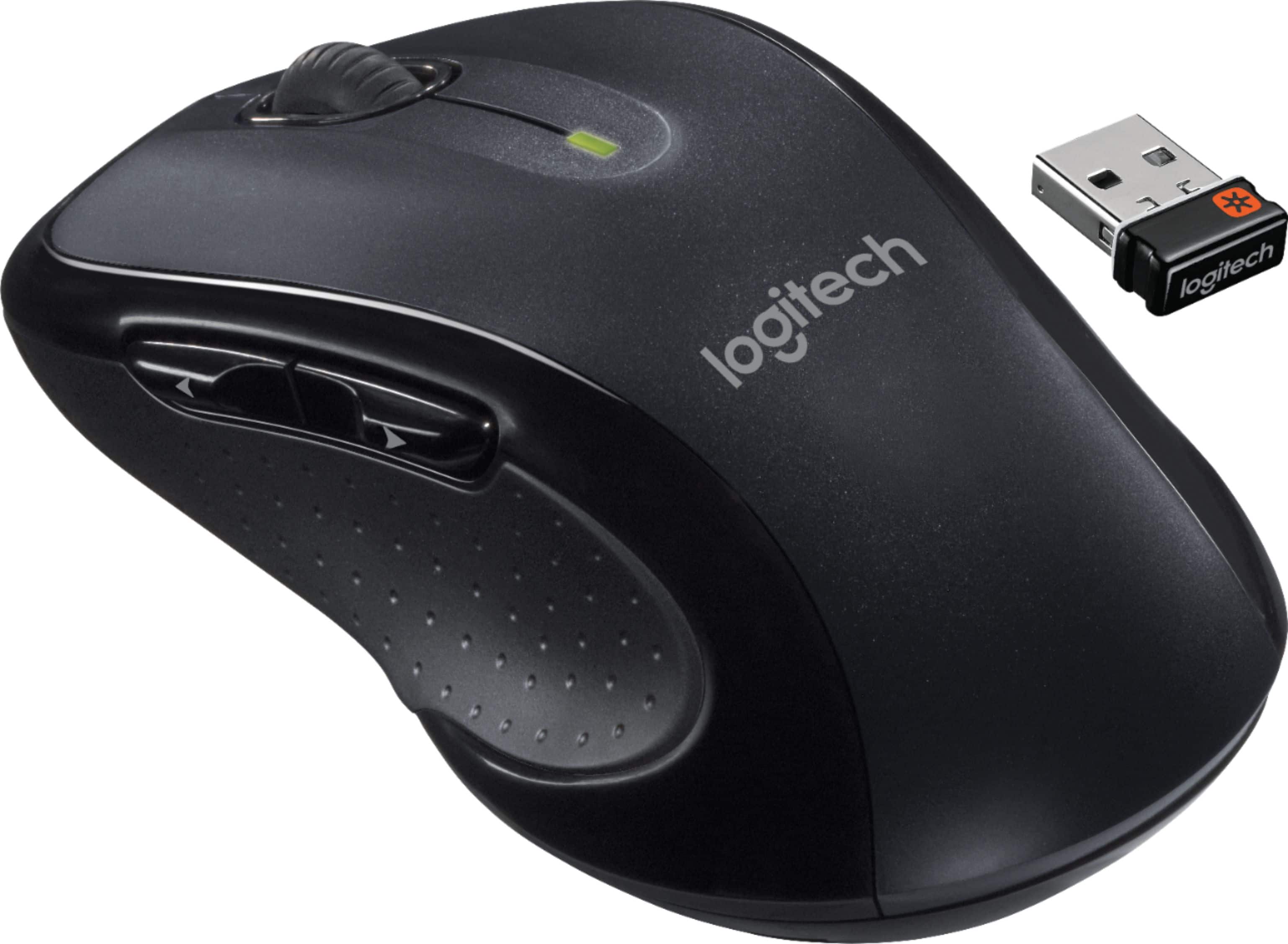
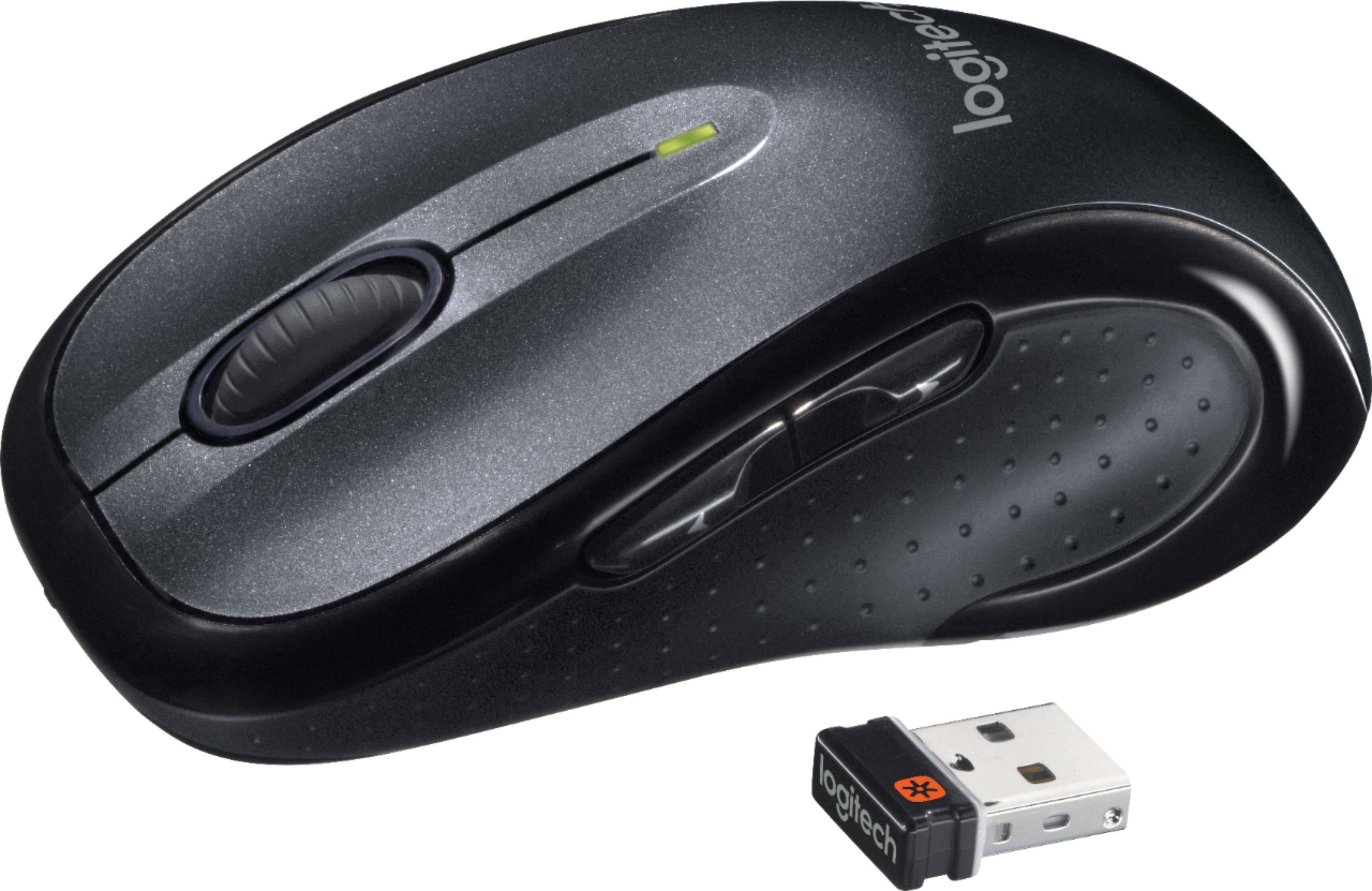
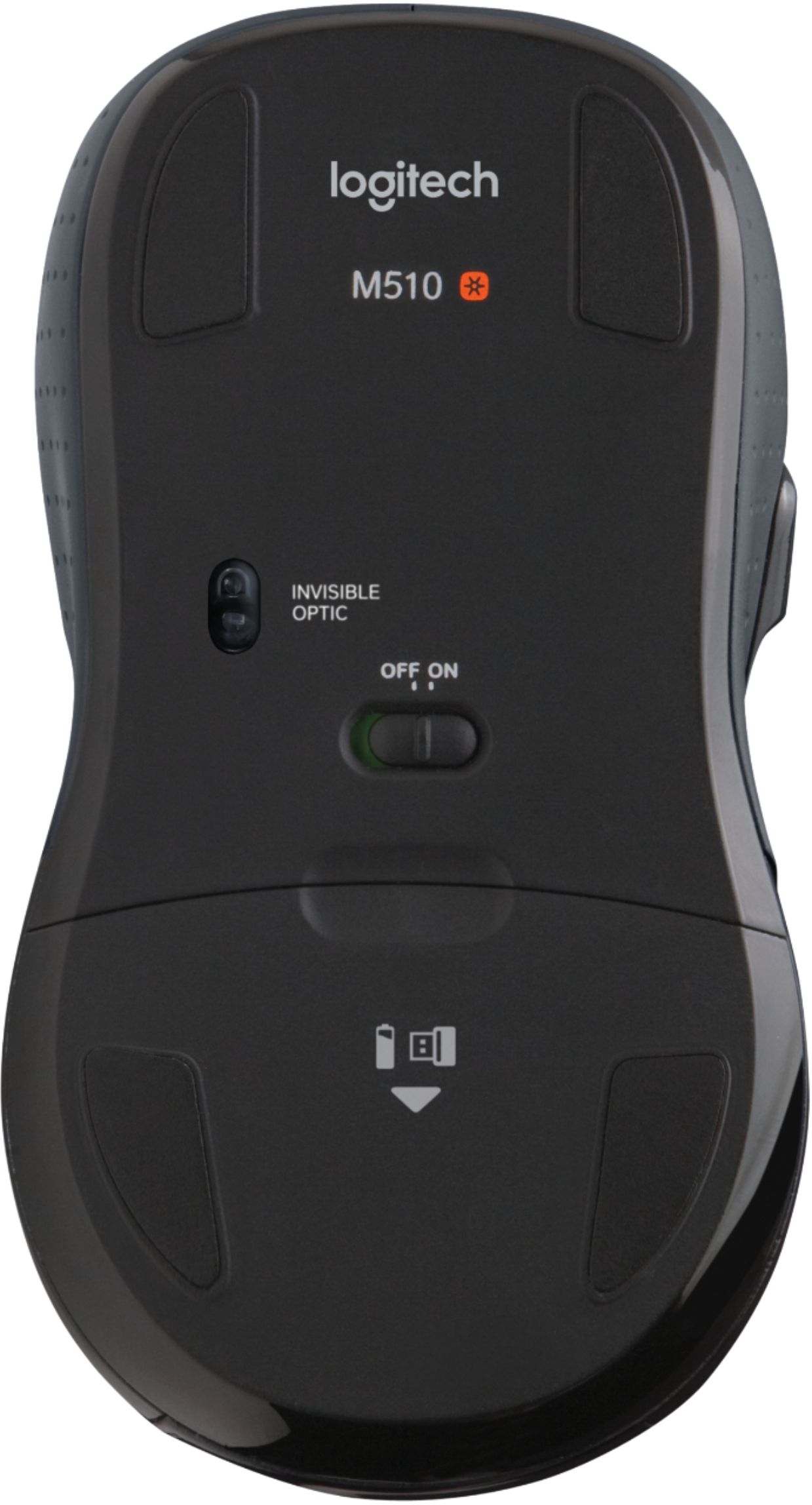
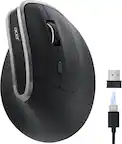
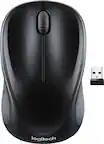
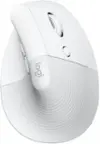
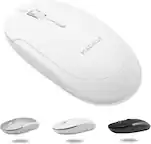
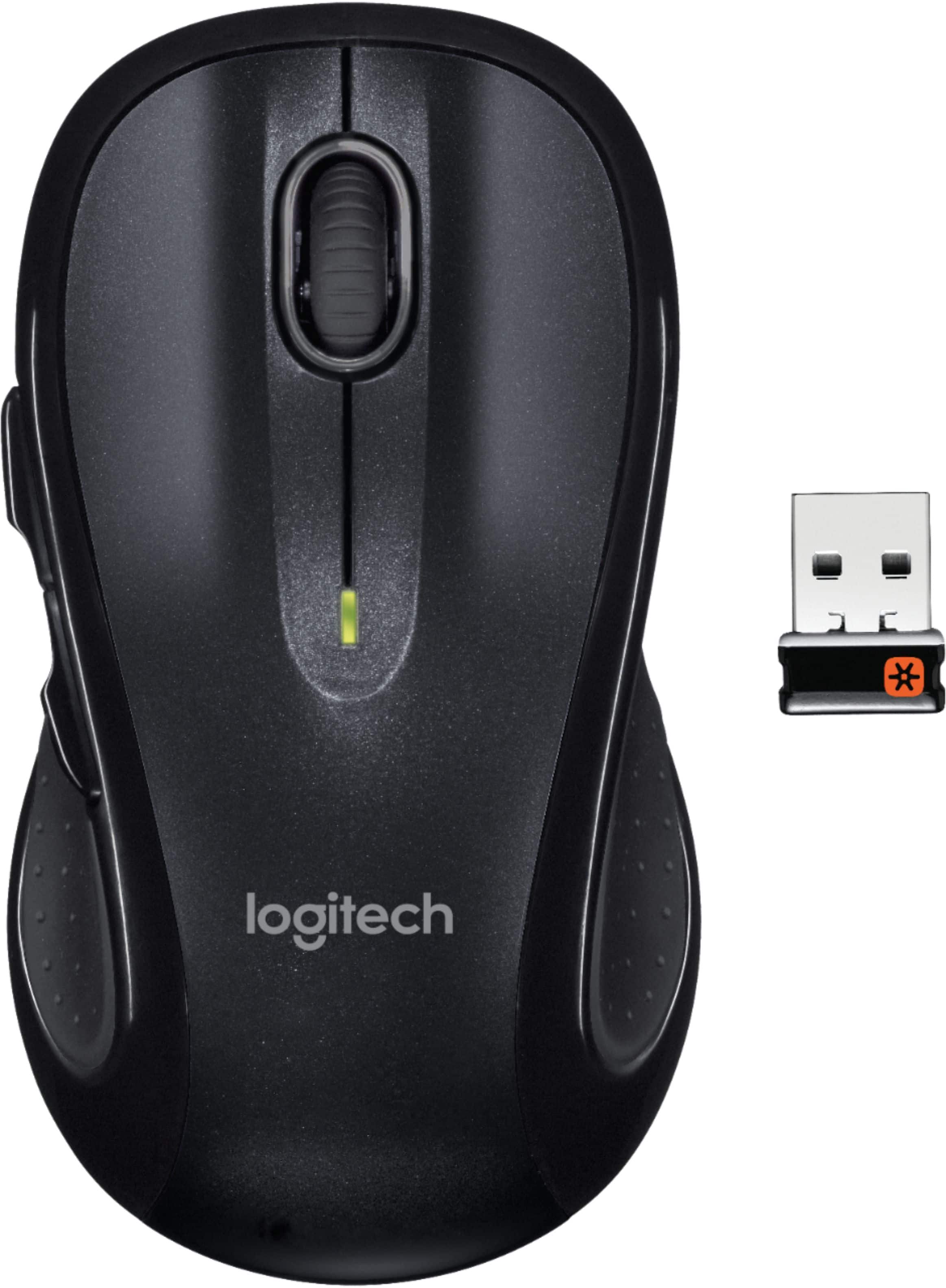
A:AnswerLook around where the batteries are. The USB plug in is rectangular piece that should easily slide out. You should NOT have to put effort into it. If it doesn't slide right out odds are you have the wrong object. Also note, the USB plug in may have an orange or red circle on the side, signifying it is removable.
A:AnswerHello Anon, The M510 will have limited to no functionality when plugged into a PlayStation 2 console since it's designed to be used with Windows 10 or later, Chrome OS™, Mac OS X 10.4 or later, and Linux® kernel 2.6+. - Richard from Logitech
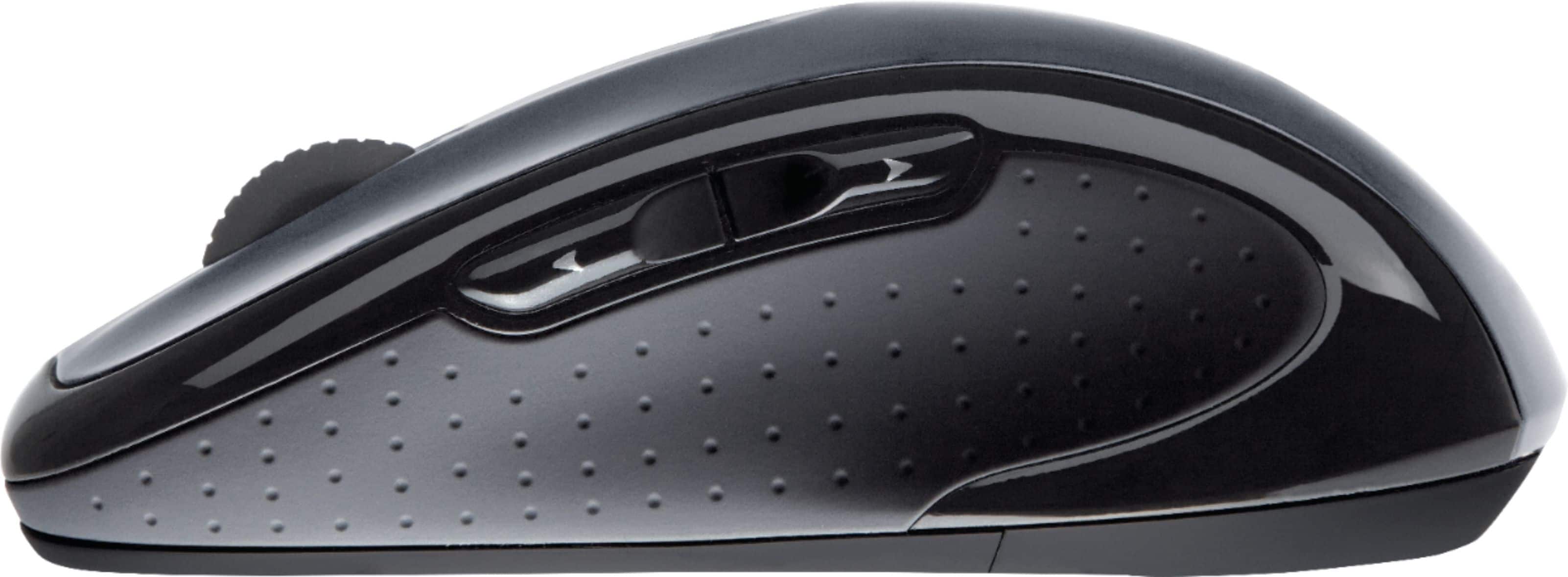
A:AnswerFirst 2 are the 'normal' ones, left click and right click. The scroll button has 3 switches, you can push it to the left, the right, or push it down. The last 2 are on the left side by the thumb, a very handy position when you get used to using them. All the switches can be programmed to perform any of about 25 tasks. I use the buttons built into the scroll wheel for volume up & down and mute. I use the 2 on the left side by the thumb for back and forward when browsing the web. All are easy to program and easy to use.
A:AnswerHello Larry,
The wireless range of the M510 is rated at 30 Feet/10 Meters. I have attached a link to the Logitech support page for the M510 where you can find specifications and further support.
Best regards,
John at Logitech
https://support.logi.com/hc/en-us/articles/360023306194-M510-Technical-Specifications
A:AnswerThe mouse will connect after you install the little usb device located in the battery compartment. Just plug it into any available USB port on your laptop and it should start working
A:AnswerBoth laser and optical mice technically shine a light off a surface and measure the reflection in order to provide precision tracking. An optical mouse usually uses an infrared LED (sometimes photodiodes), while a laser mouse uses a laser to illuminate a surface.
Optical sensors have less than a one percent variation in tracking at different speeds, while laser mice can have five percent or more variation. An optical mouse works well on a mouse pad or any non-glossy surface. A laser mouse will work on any surface.
A:AnswerI'm using a Chromebook and it works fine with it. Not sure what Chromebook you have, but I haven't had an issue with it working. I have a pixel book and a cheaper Samsung Chromebook. It works with both without issue.