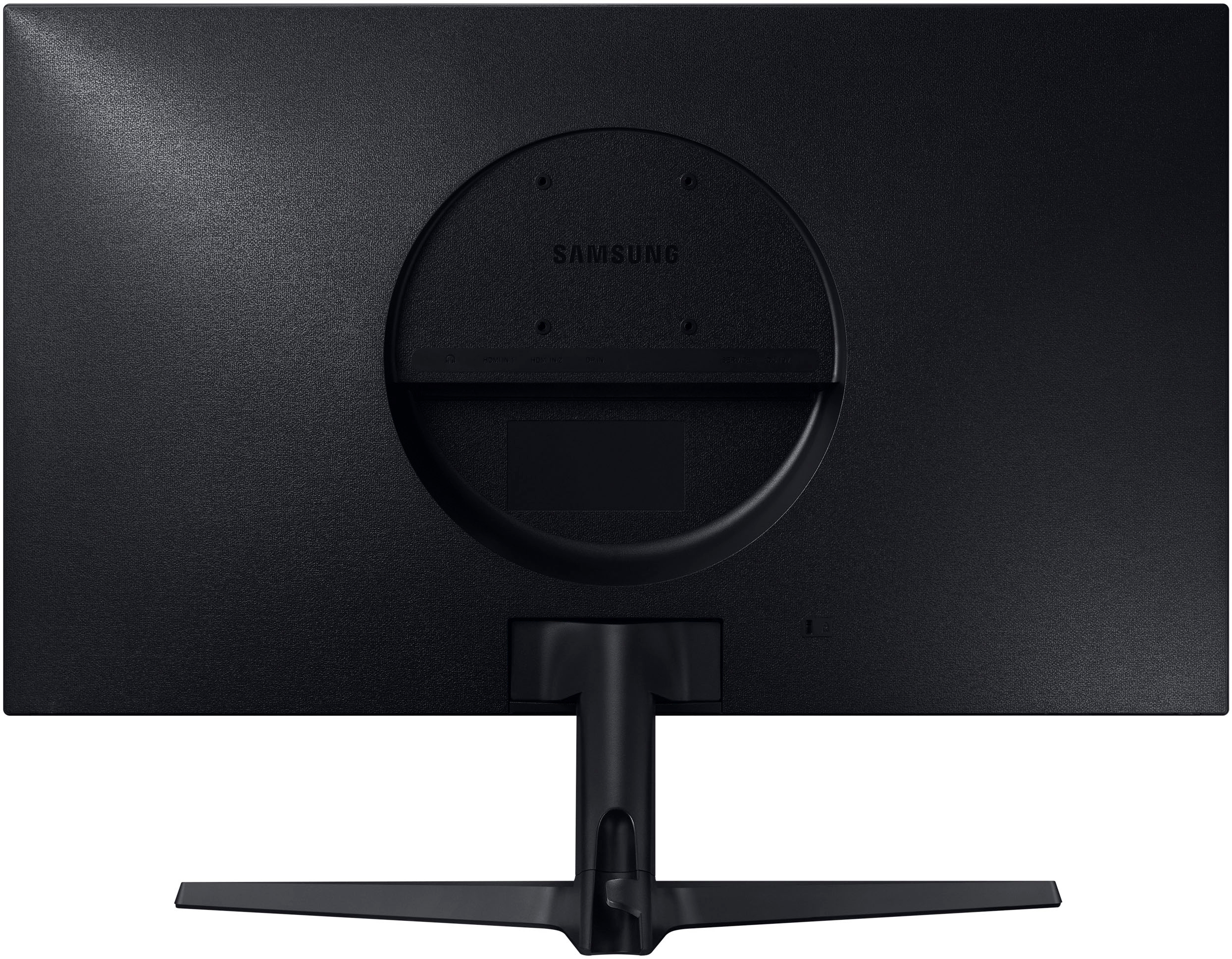
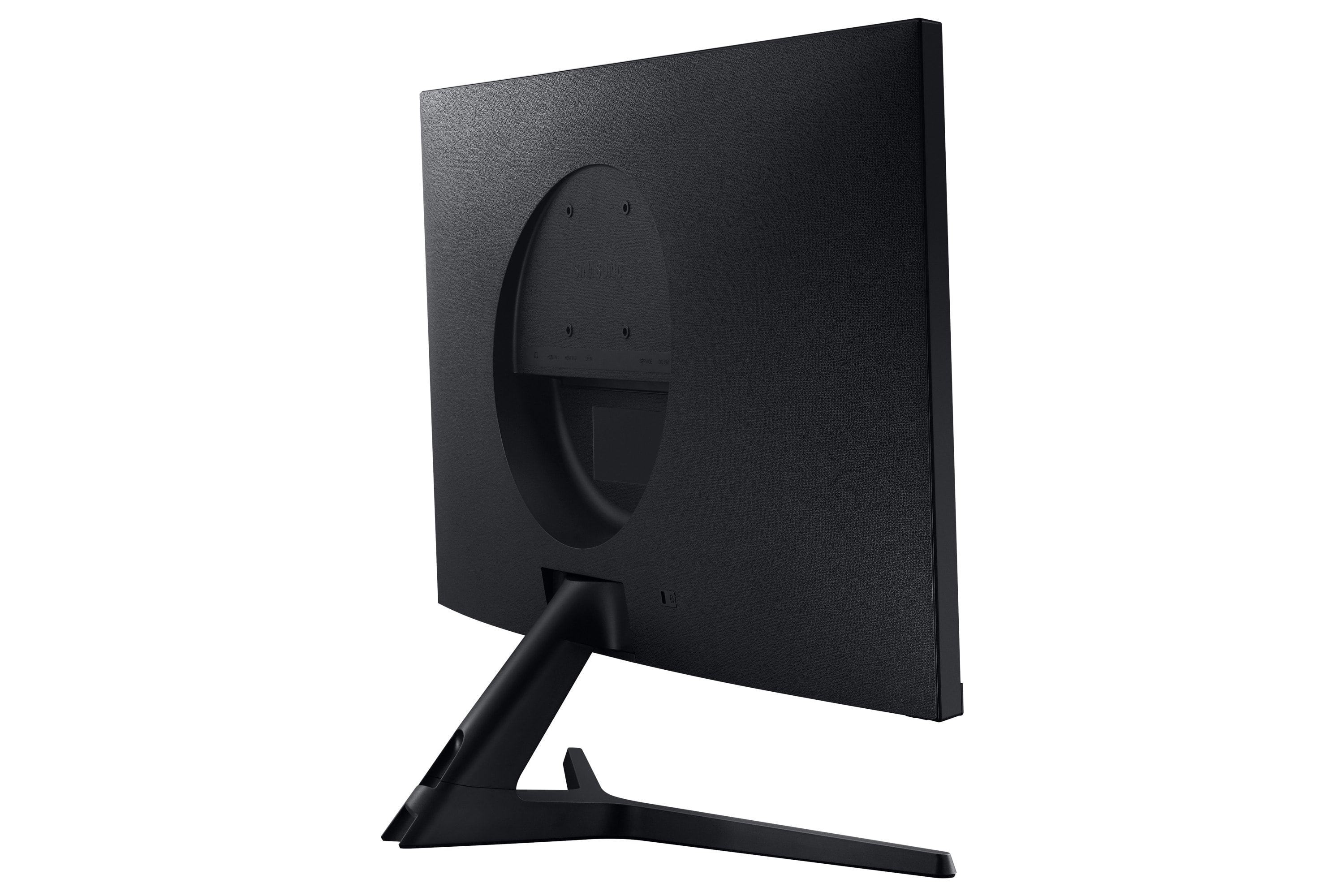
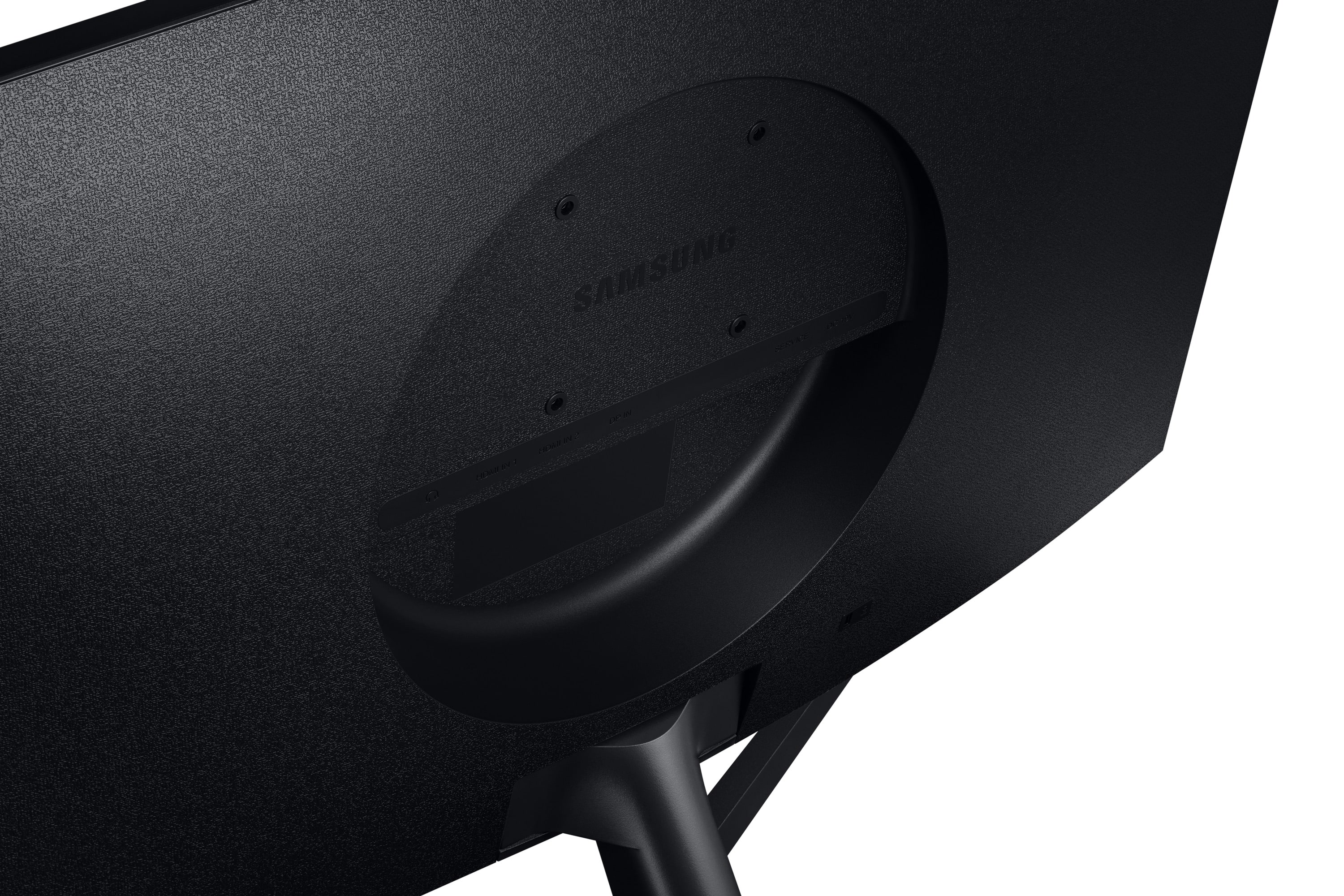
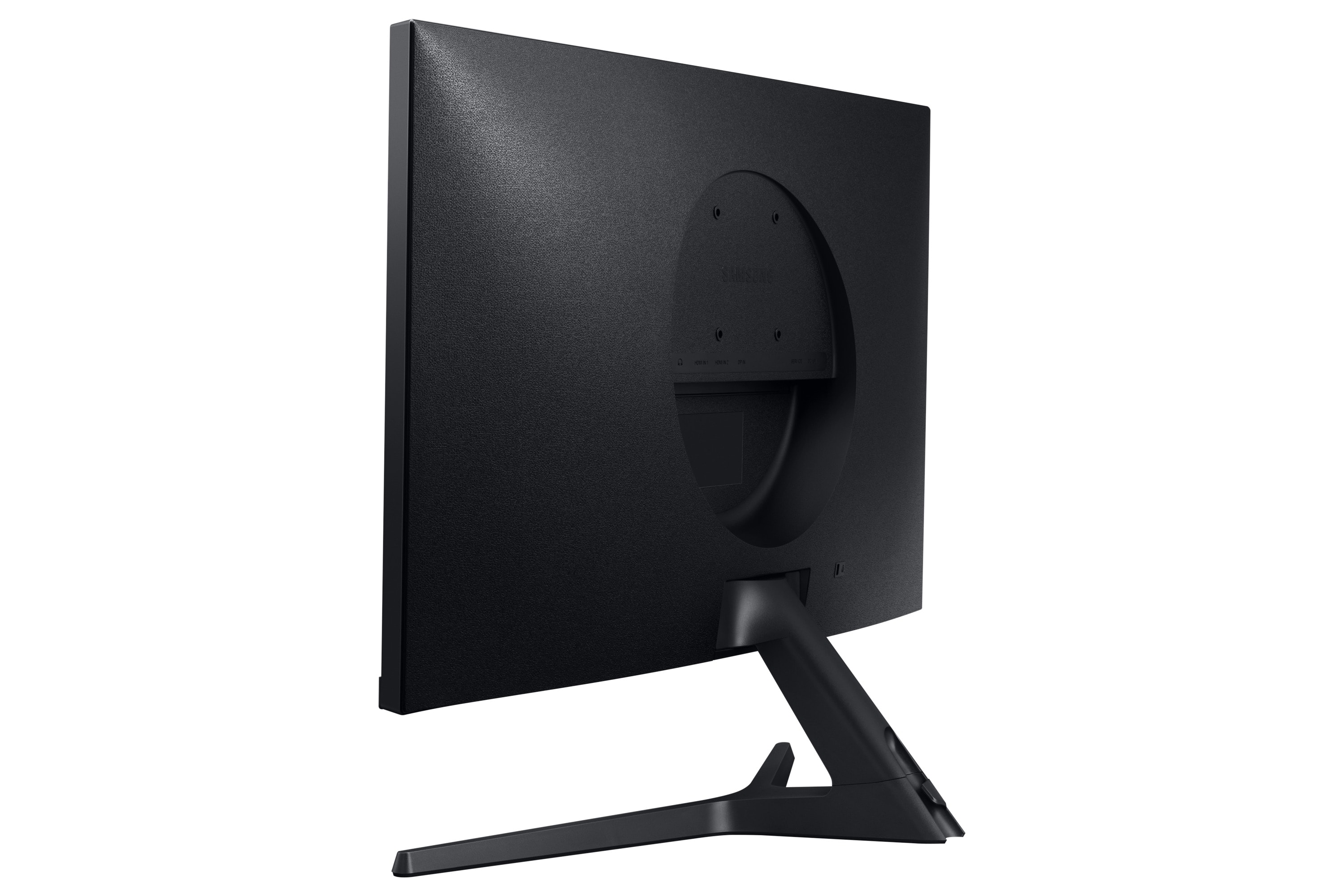
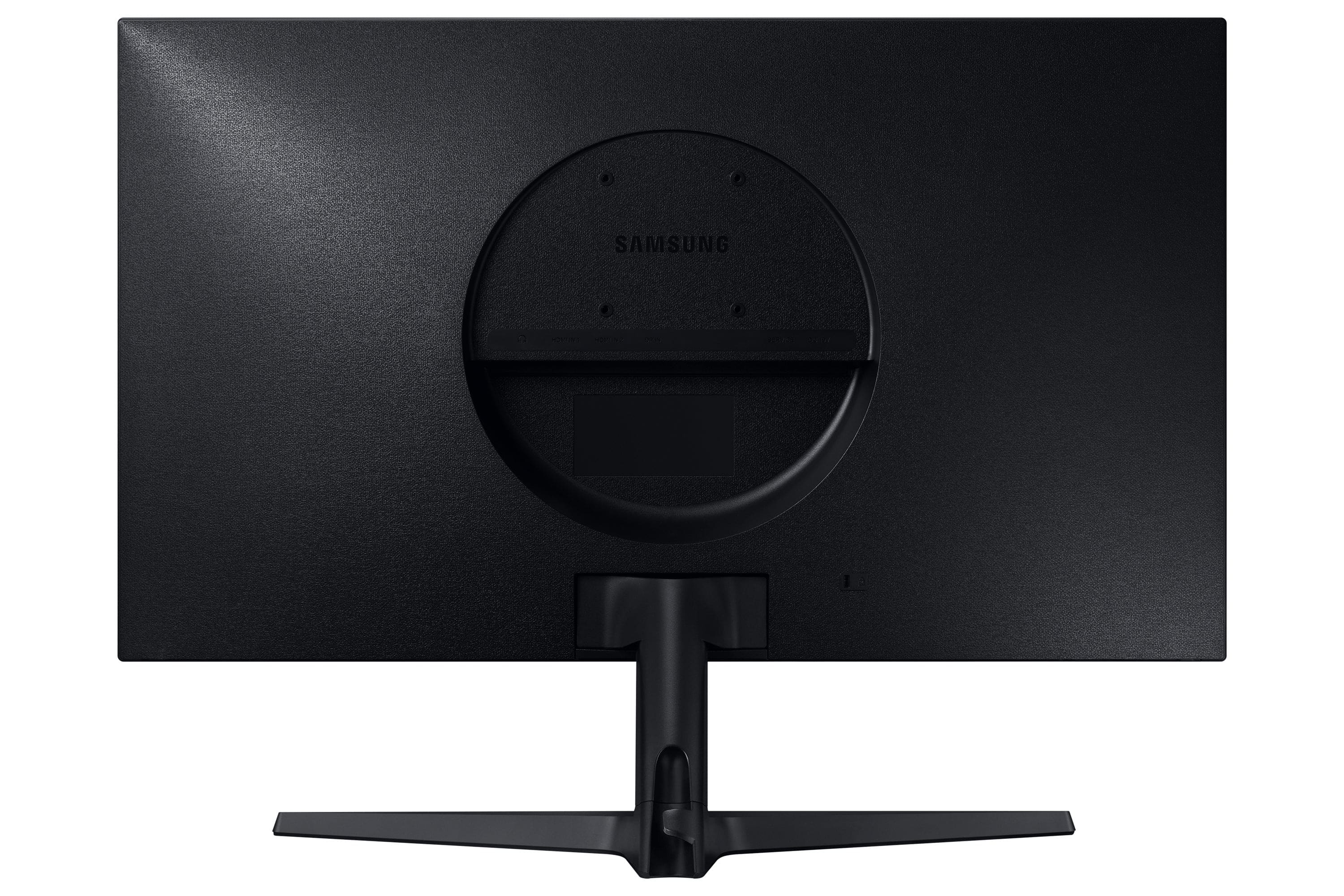
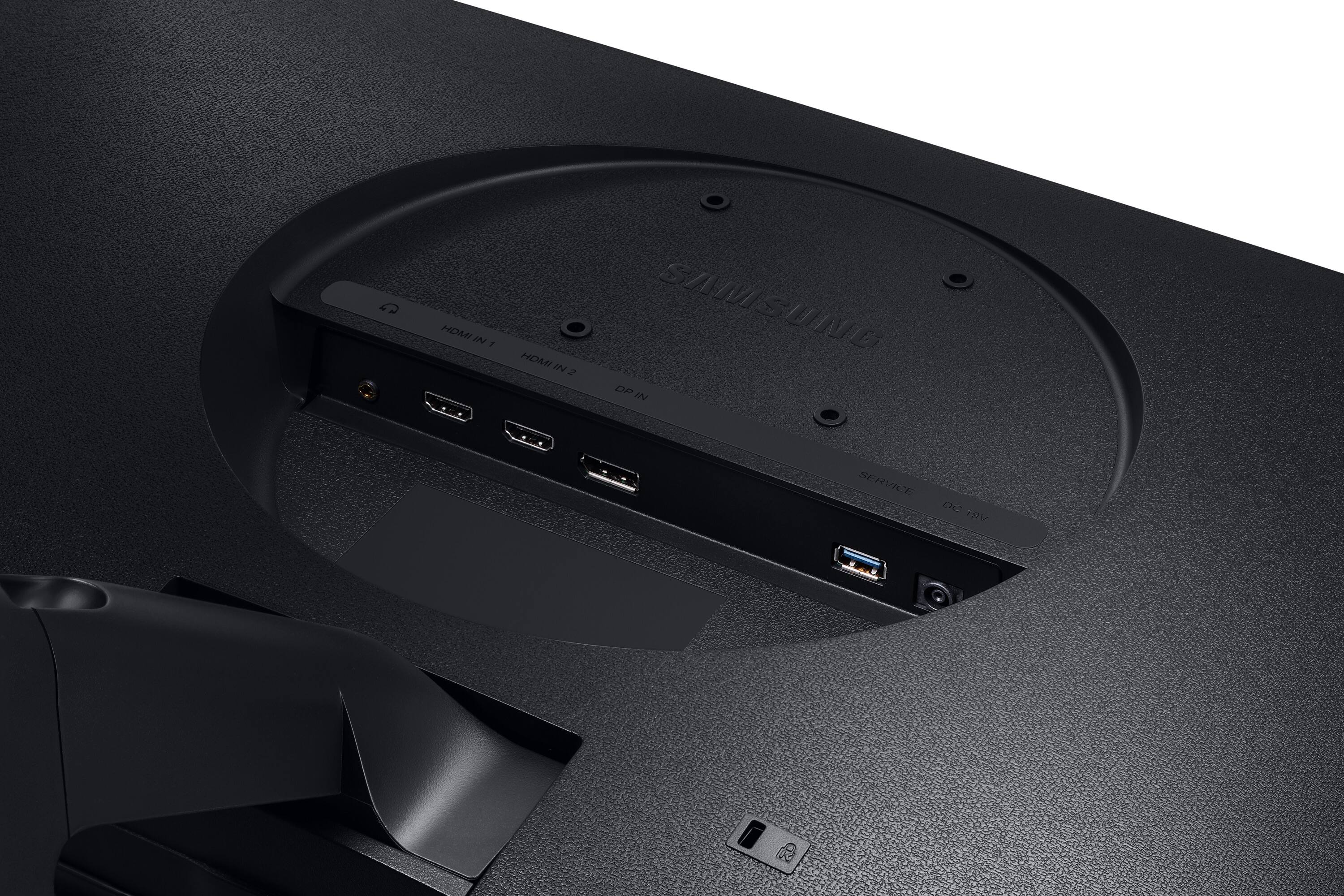
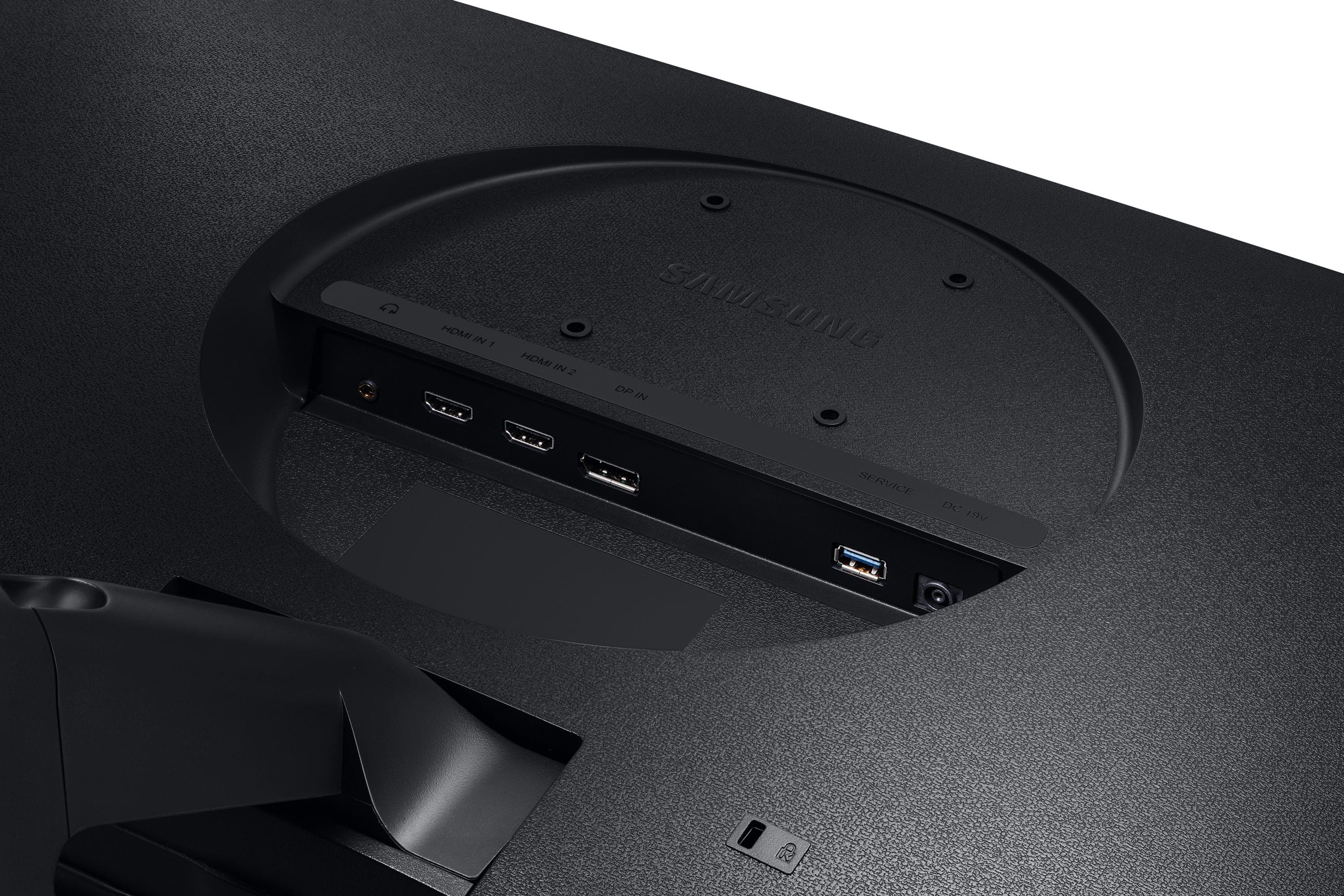
A:AnswerI am having a very hard time finding mounts that are compatible with their 75mm setup in the back. There is a ridge that is blocking both of my mounts at home. So it would seem that you would need a mounting that is 75mm ONLY, and not 75mm and 100mm like most mounting brackets are. This is a poor VESA design on Samsung's part.
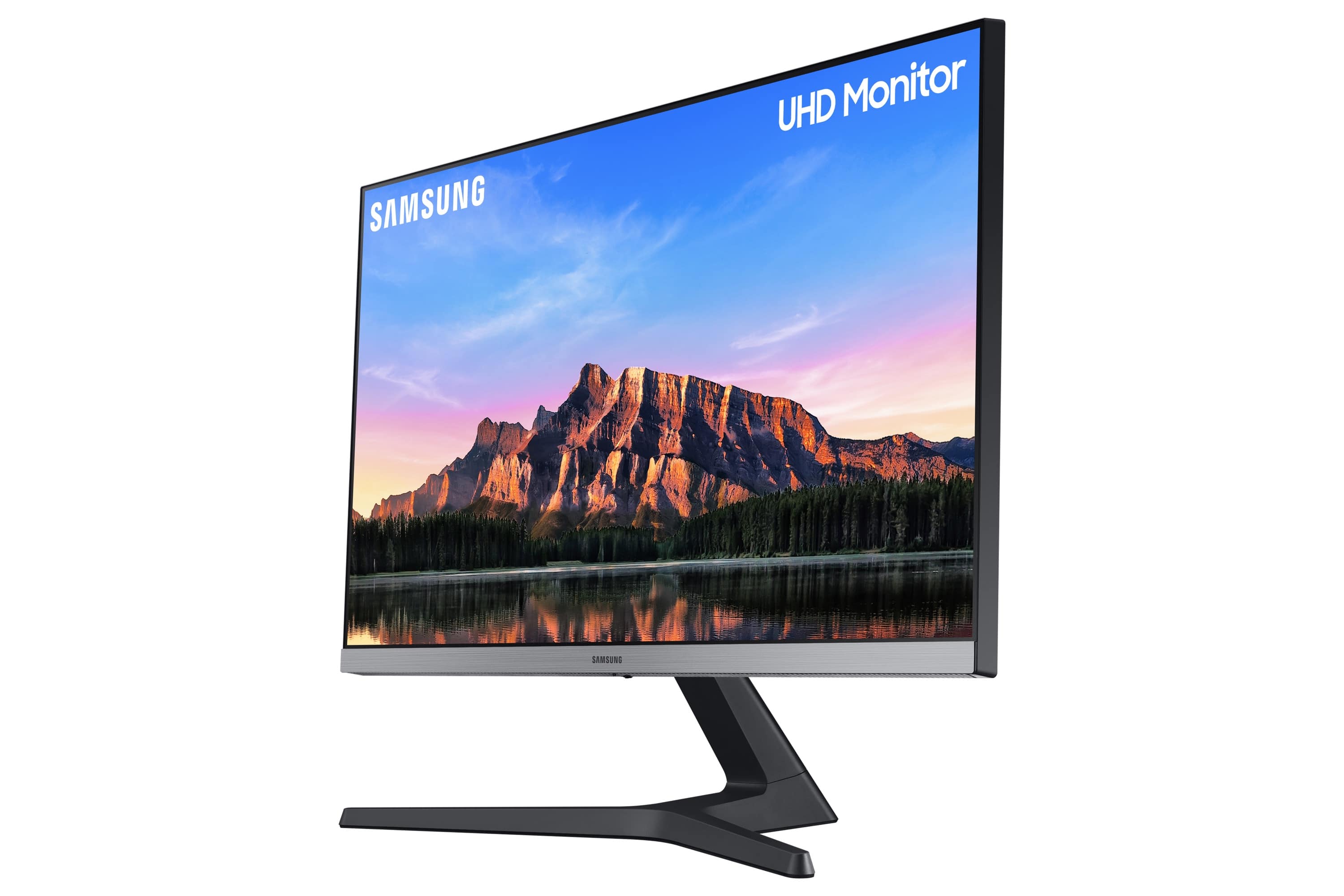
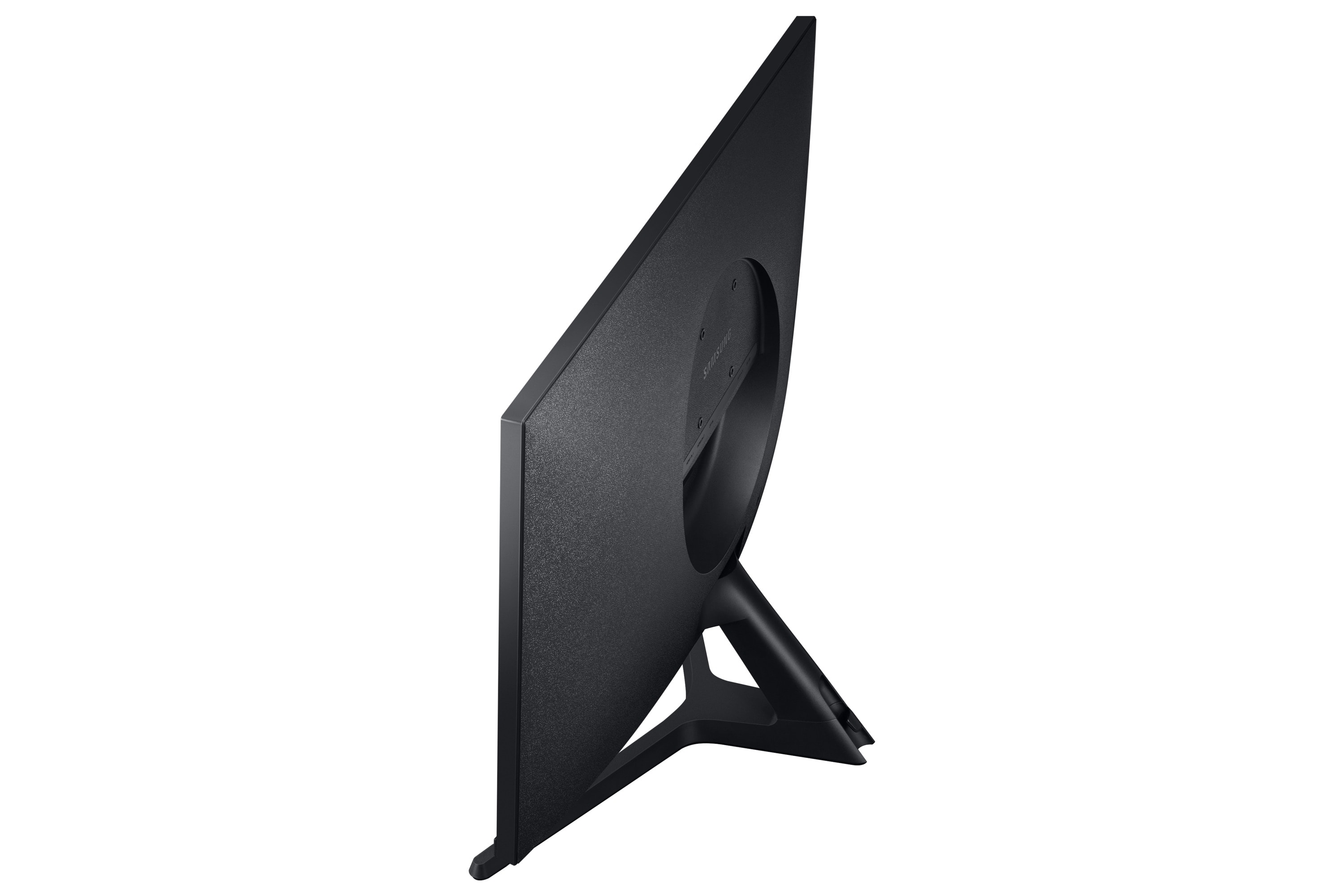
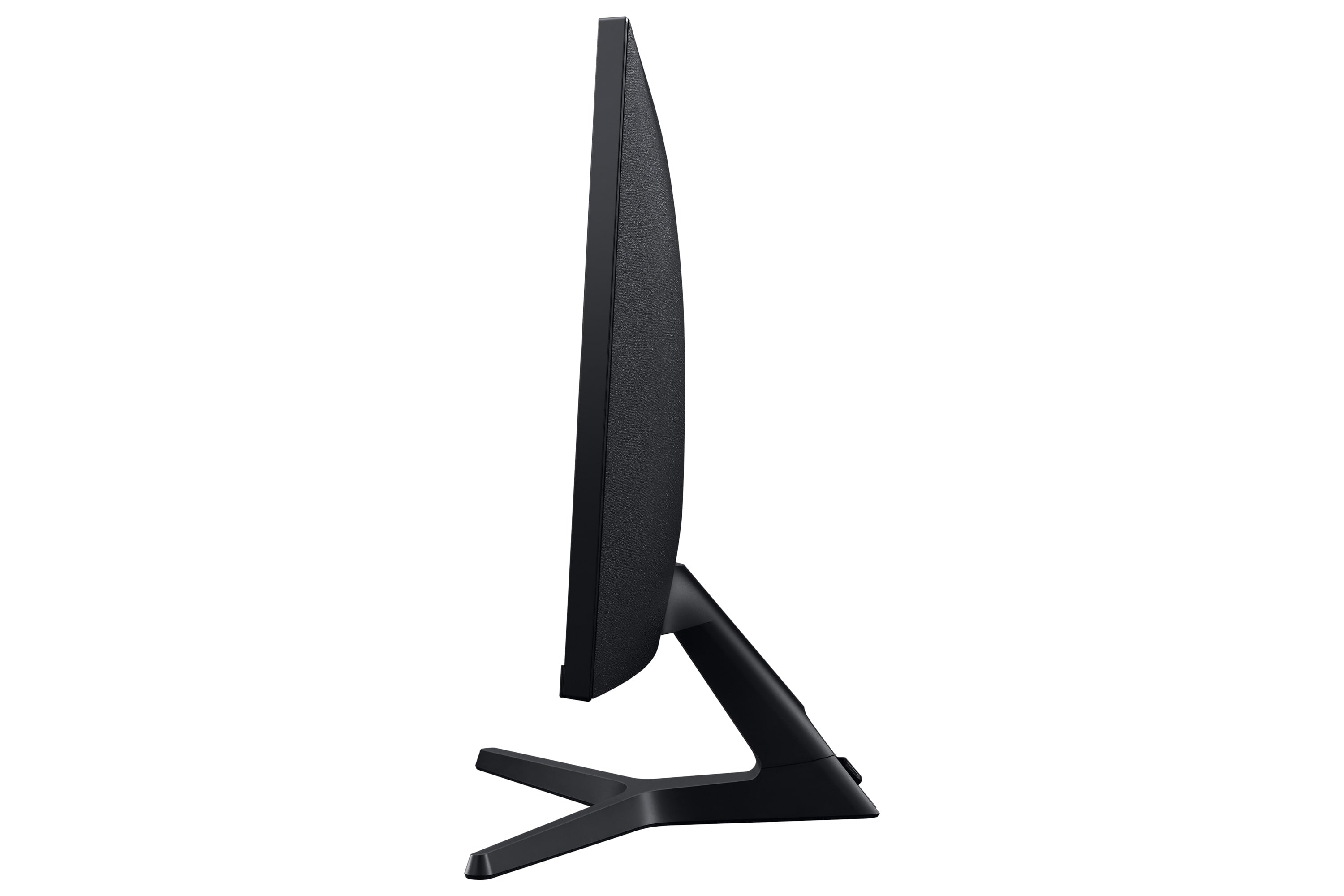
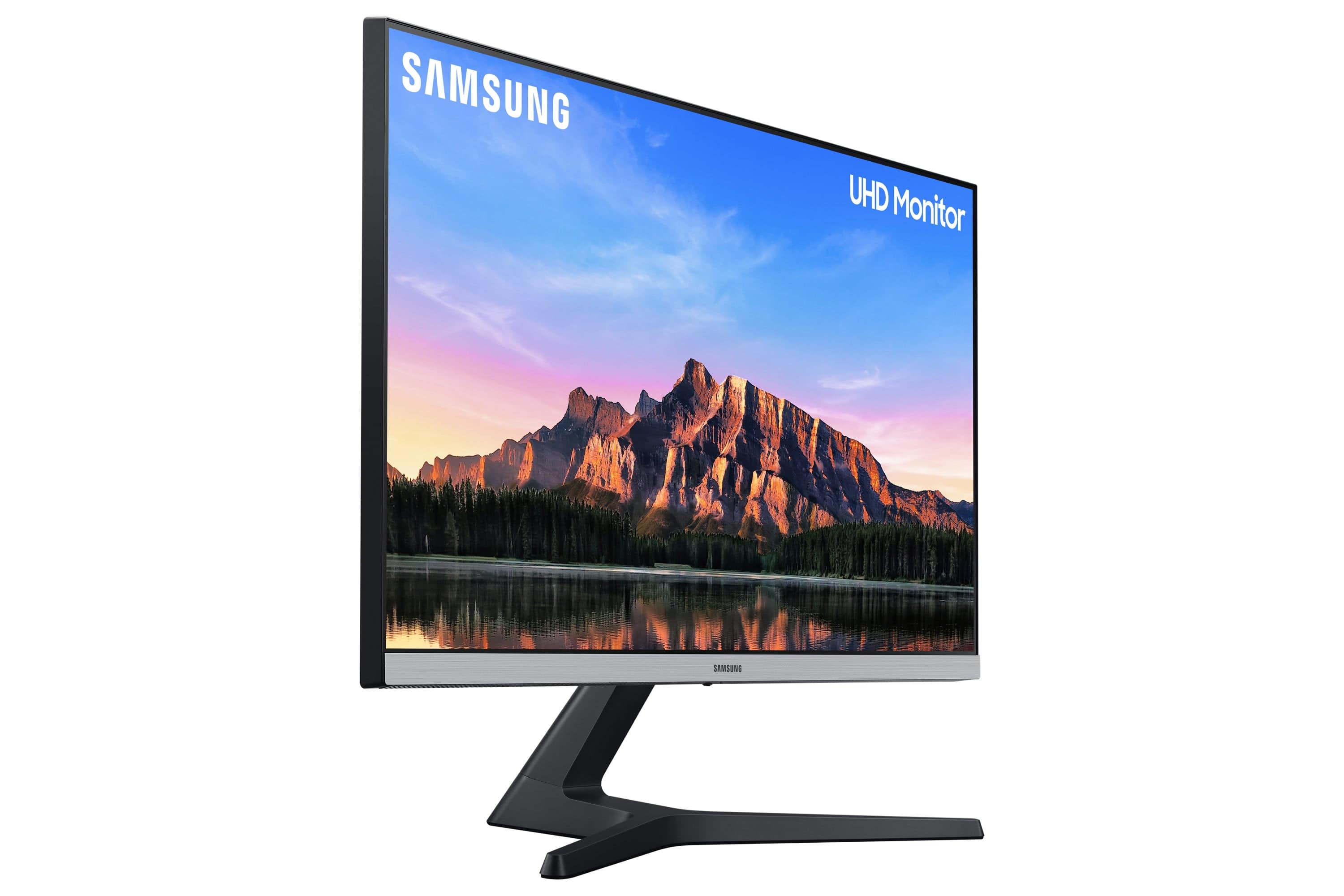
A:AnswerI had the same problem! I kept looking at the manual and looking online for documentation or videos. I finally figured it out just by trying to tilt it from different points. It does tilt, and it hinges right where the stand attaches to the monitor. I think the best way to tilt it is to put one hand on top and one hand on bottom, both in the center, and push from the bottom. Hope this helps!
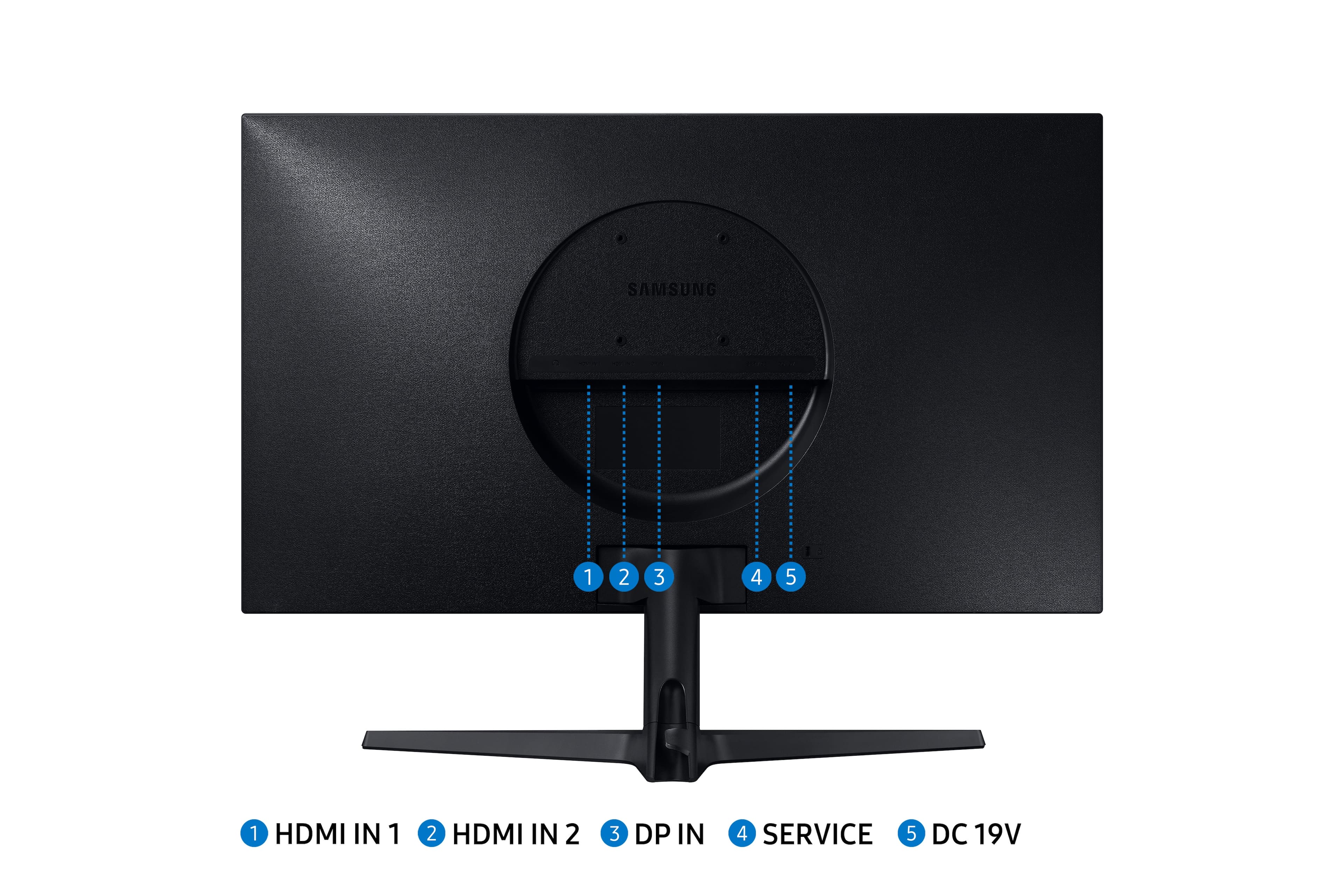
A:AnswerYep it is a hdmi 2.0, it has 2 of them. It also has a displayport 1.2. It comes with a HDMI cable that is high speed and able to do 4k 60hz. I run my pc at 12bit 422 hdr on 4k 60 hz, and my play station pro runs at 10 bit 420 4k 60hz i believe. It wont do 12bit 444 or 12 bit RGB full, on my computer, which I think is a limit of HDMI 2, I could be wrong though. I dont have a DP cable to try that. It might also be because I have amd freesync enabled, I did no try with it off.
A:AnswerIn the beginning when I hooked up to the MacMini, it was slightly blurry, so I had to make some adjustments.
This is my setting with the 2018 MacMini (and PC), and it is clear -- so I hope this helps make the fonts better and more readable.
There is a few points of caution on the Mac (settings) that I found made the screen very blurry that I have not found work-around, so I had to turn these off..
First, in the System Preferences > Display > I had to uncheck the "High Dynamic Range" box because it seems to make fonts blurry.
Second, Under "Resolution" I am picking the second from the left (Larger text), and it was 'clear', any smaller text is a bit too small for me to read.
Mac Display Setting
LU28R55:
Display: Resolution: Scaled (Second from Left) -- i.e., second largest text (not Default)
HDR Button: OFF
Samsung Magic Bright (mode) Picture (Custom)
Brightness 51
Contrast 75
Sharpness 60
Color
RED 50,
Green 50,
Blue 50,
Color Tone Normal,
Gamma mode 3
Magic Upscale OFF
Eye Saver mode off
Game mode OFF
Response Time Standard
Screen Ratio Auto
My Calibration report says: (2.2% + 10%) Result 2.18
Grey scale calibration
Delta E < 5.0
Result Delta Emax 1.68
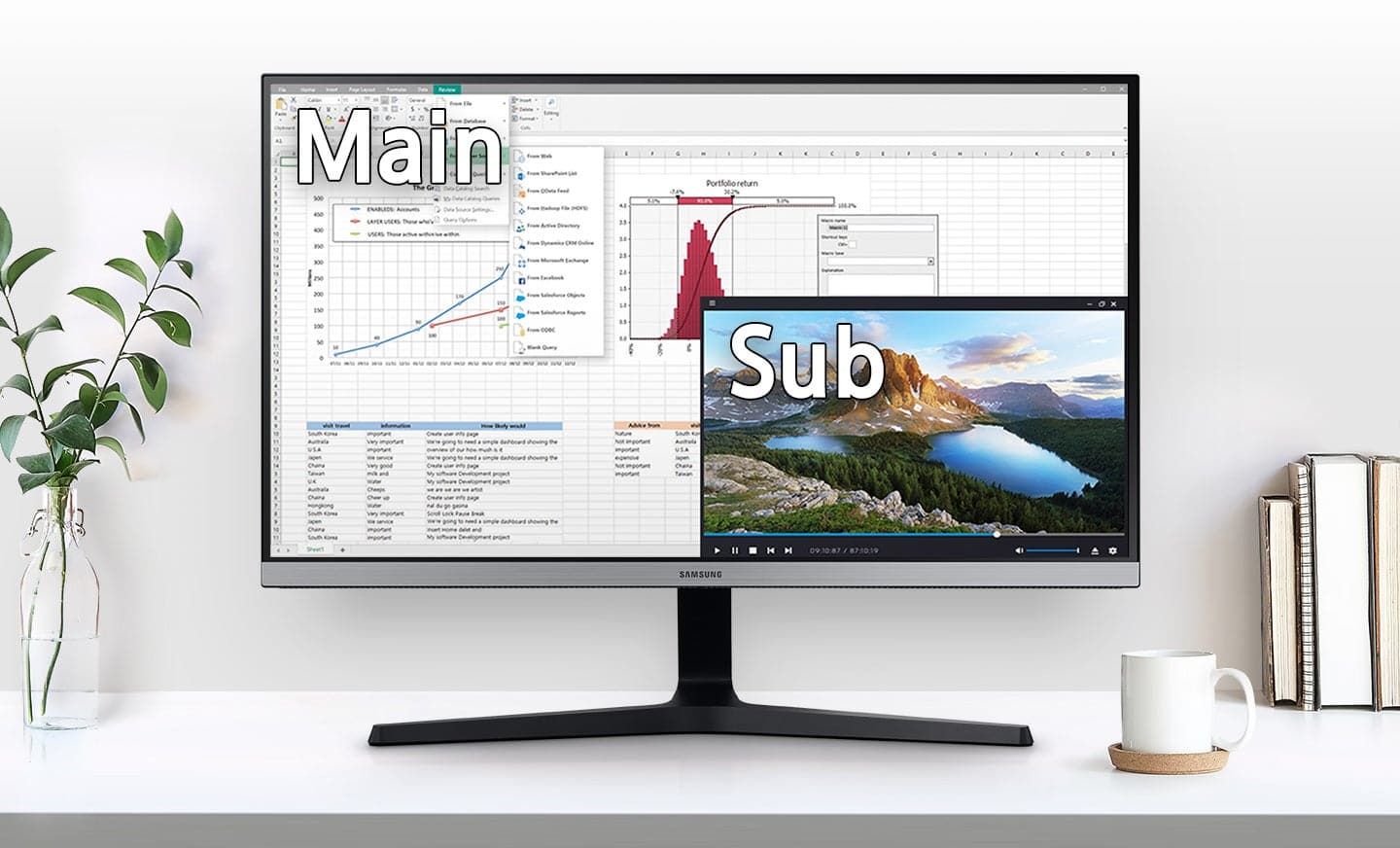
PIP/PBP mode: OFF
Display port V 1.2 HDMI Mode 2.0
Freesync off
Eco Saving Plus off
SYSTEM (TAB) :
PC/AV Mode:
Display Port AV
HDMI 1 (PC) <<< where Mac is plugged into
HDMI 2 (PC)
Information TAB:
HDMI 1 3840 x 2160
135.0 kHz 60Hz
It is like 90% perfect, although if you have eagle eyes and likes even smaller fonts or HDR settings turned on the Mac, this may not
be a perfect solution, but at least you won't be reading blurry stuff. Maybe someone will have better answers soon, or Samsung can release an thumb drive update to improve the firmware... That is what I am hoping, because there are certainly nagging issues if you pick either the smallest 3 text settings, and/or check that HDR Box.
For the record, I have the MacMini hooked up to the Apple Thunderbolt Display at the same time in dual screen mode, and I have no font issues on the Thunderbolt display at all.
So, I think yes, there is room for improvement for Samsung, and they should definitely think about doing a firmware update for Mac Users.
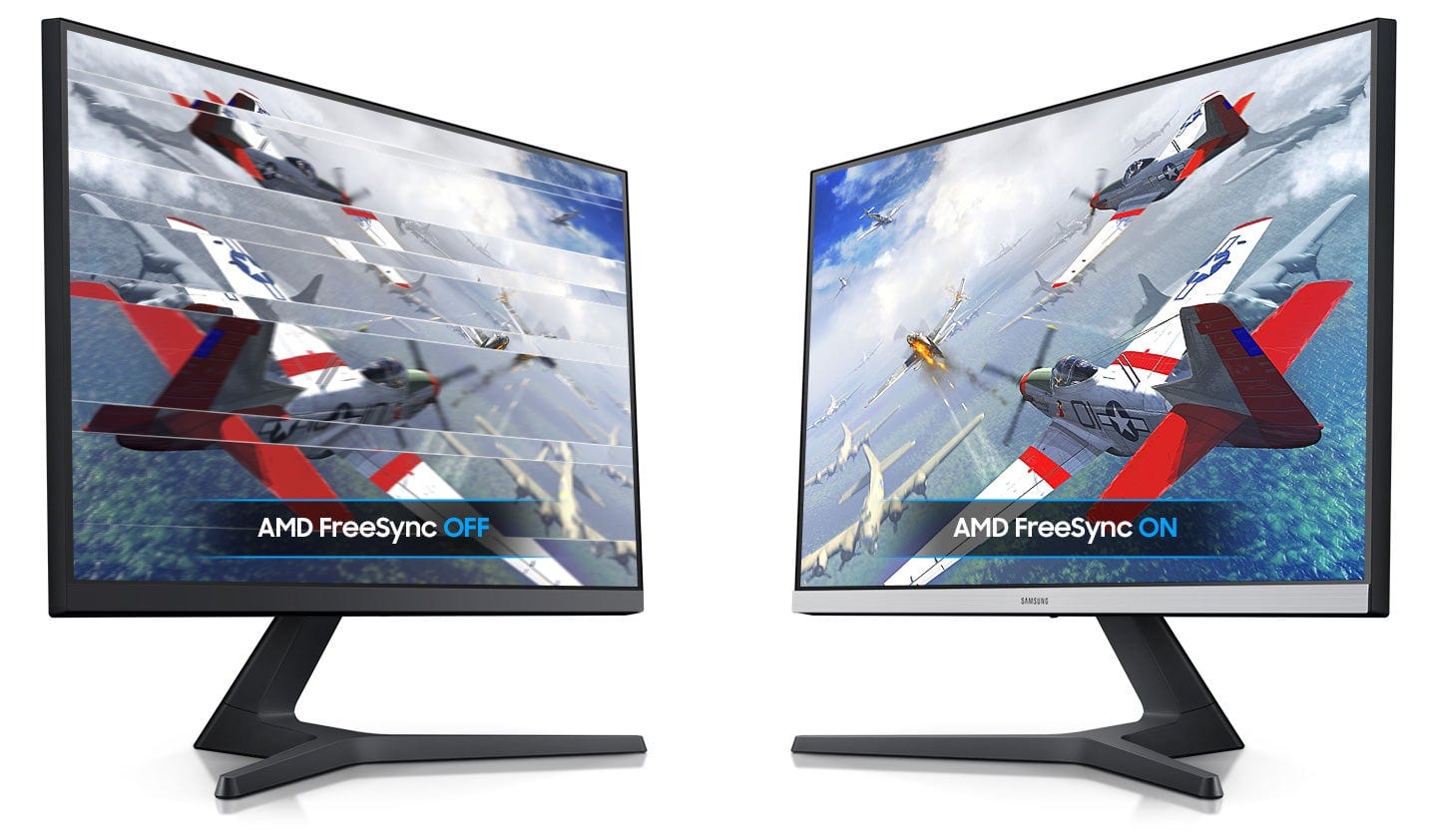
A:AnswerIn my opinion it's good for my needs as I don't do too much competitive gaming and play on my PS4 Pro as the panel's max refresh rate is 60 Hz. If you do competitive gaming and need that edge, look for high refresh rate monitors. I mostly bought it for the the 4K HDR and the fact that Samsung finally made an IPS monitor. Also the Freesync support is a plus for PC players who use AMD GPUs or even Nvidia GPUs but you'll need to use the Diplayport connection for Nvidia cards.
A:AnswerAll 75x75 VESA mounts are compatible. Note you may need spacers for a combo 100x100 mount as the plate may be larger than the inset in the back of the monitor.
A:AnswerAll Samsung monitors should work with any Apple models, you just have to find out what type of cable the current Apple model requires. Apple’s website lists which models need what cables: https://support.apple.com/en-us/HT201736.
A:AnswerI am using the monitor just as you describe with my MacBook Pro. I have the monitor, a mixing board and powered speakers on an outlet strip. Once I boot up the mac and turn on the outlet strip the monitor turns on every time on its own.
A:AnswerYou will have to find a Thunderbolt 3 to HDMI or display port adapter to use this With a Mac Book Air M!. One Such may be Apple's own USB-C Digital AV Multiport Adapter
$69.00, or Belkin has a USB-C to HDMI adapter with a $49.00 price, With either choice, you provide the HDMI cable. There are also mane small docks with both HDMI and DP connections that will work.
A:AnswerI use this with MacBook Pro and tested a couple other monitors for color representation and this one was the best for what I tested by far. Easy to get color that almost perfectly matches my MacBook Pro with M1 chip. I do a lot of Photoshop but not a lot of printing but if you are happy with your print from your MacBook I’m sure you’ll be happy with this monitor
A:AnswerI bought the following items for my new computer, just waiting on the graphics card to become available. Bought the 10th Generation Core i9 unlocked processors, Corsair 32GB DDR4, 3600MHz memory, Samsung 970 EVO Plus NVMe M.2 - 2 TB and 1 TB drives. New Asus ROG STRIX Z490-E Gaming motherboard . So I want a good 4K monitor but can't afford the super high dollar ones. Most of my use is for video editing, restoring old photos and occasional game. Any recommendations. I have always had good luck with Asus and Samsung monitors.