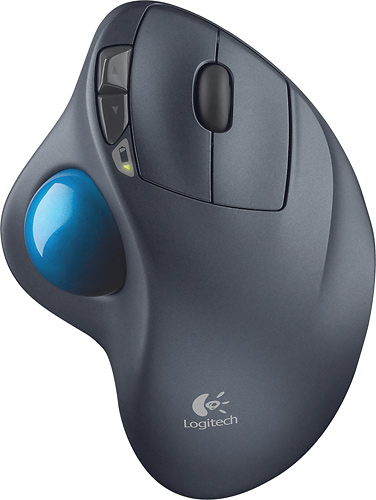
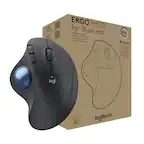
A:AnswerNo, this is for right-handed use only. Logitech does not make a left-handed thumb-operated trackball. There *is* one on the market made by Elecom - search for "ELECOM M-XT4DRBK Wireless Trackball mouse for Left-Handed". Elecom has a newer version just released - but the newer version has not (yet?) been released in a left-handed version.
A:AnswerThe mouse has the ability to replicate keystrokes from your keyboard. Without OS 10.12 you cannot do this. Also, Logitech has removed many of the common customization functions so linking it to keystrokes might be the only way to get the mouse to do what you want.
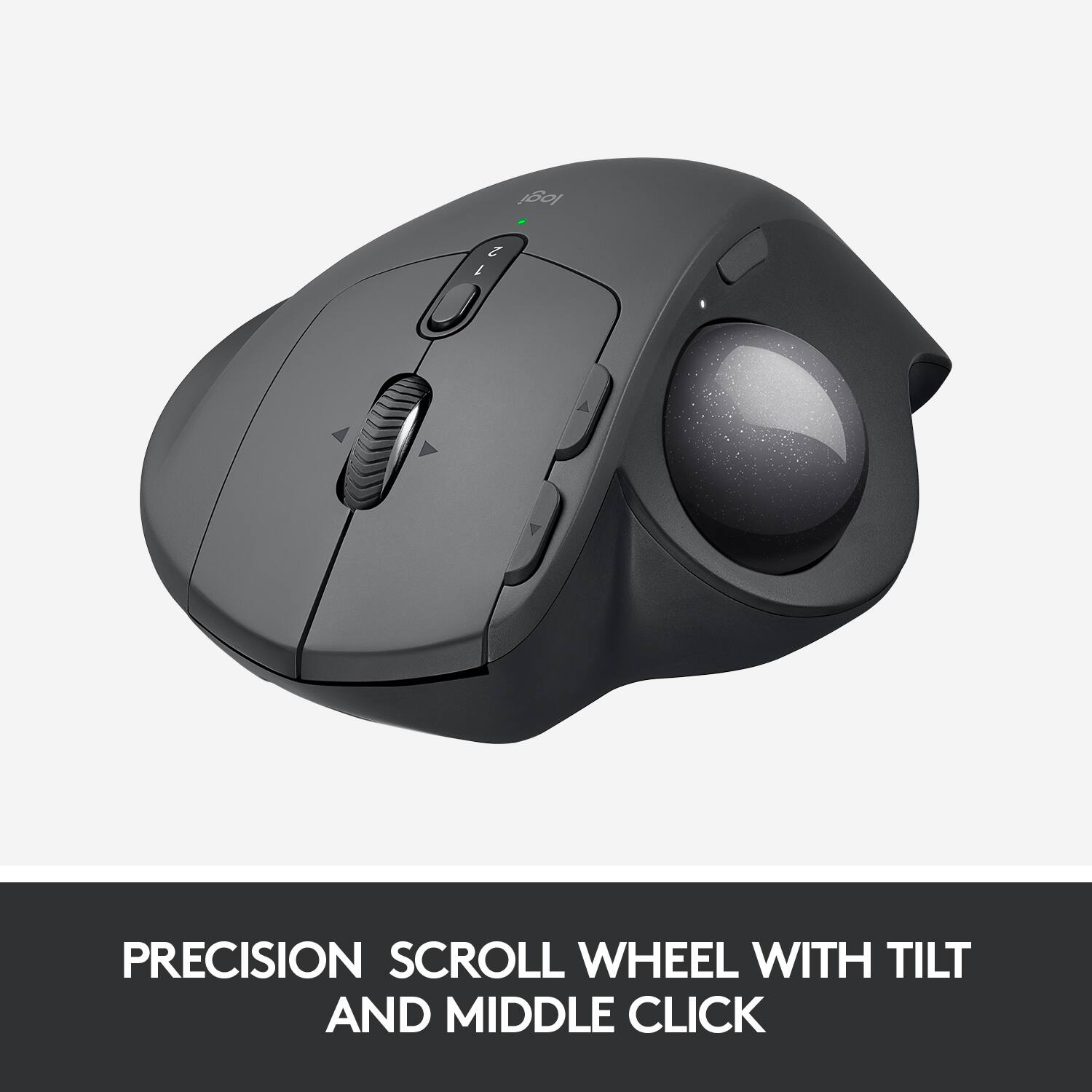
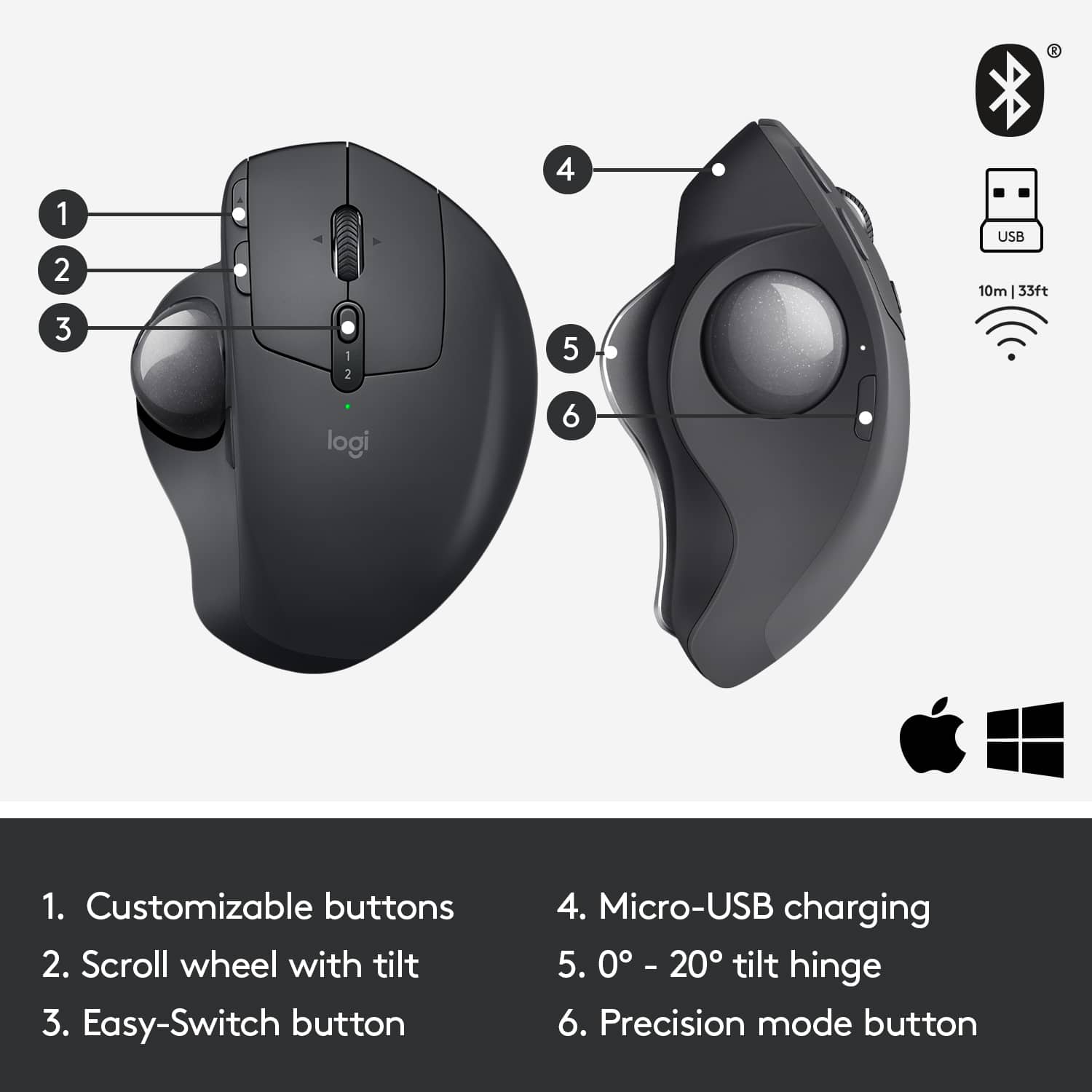
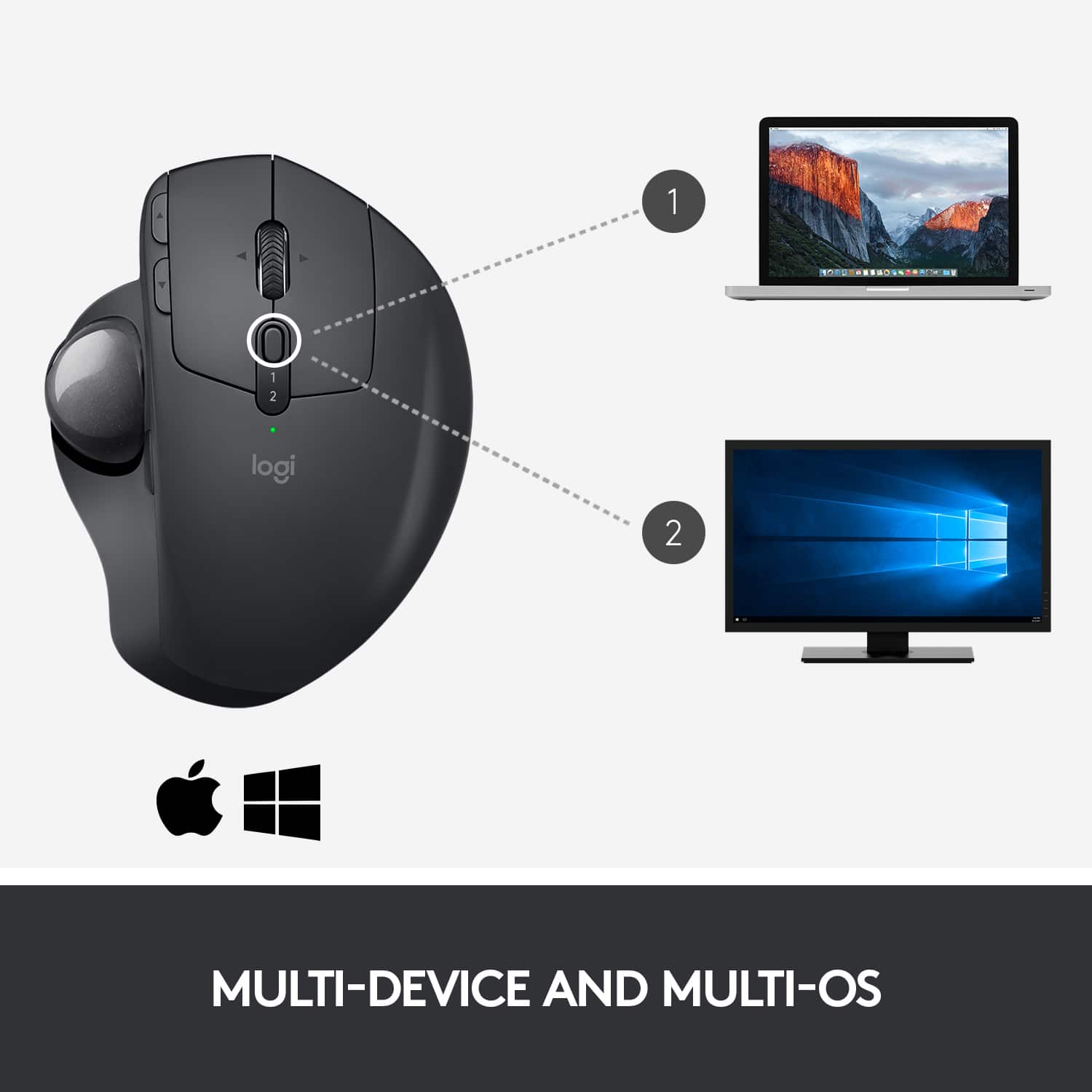
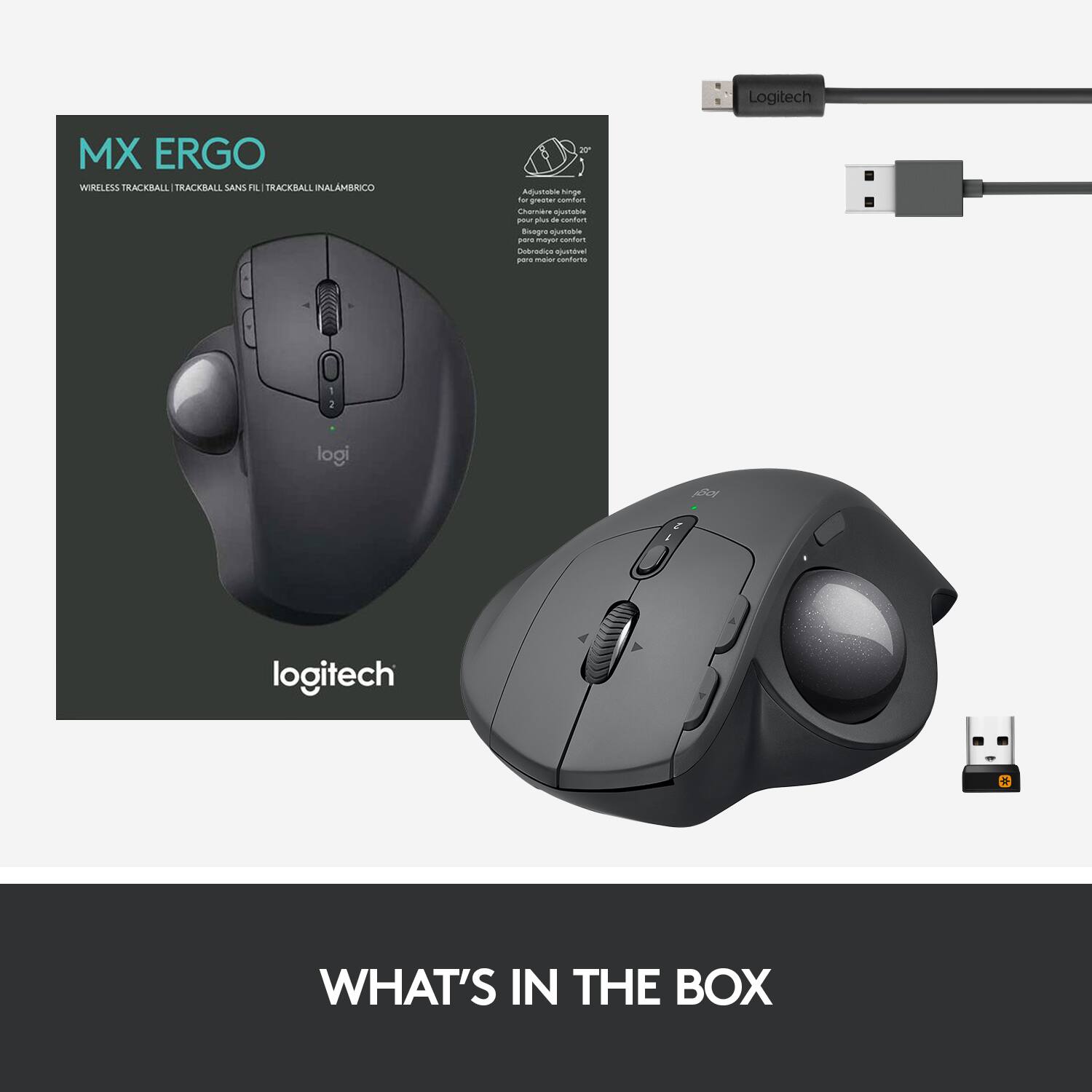
A:AnswerHey! Yes, the Logitech MX ERGO Plus Wireless Trackball Mouse does have the option to switch between devices. It can connect to two devices at once and you can easily switch between them using the Easy-Switch™ buttons on the top of the mouse.
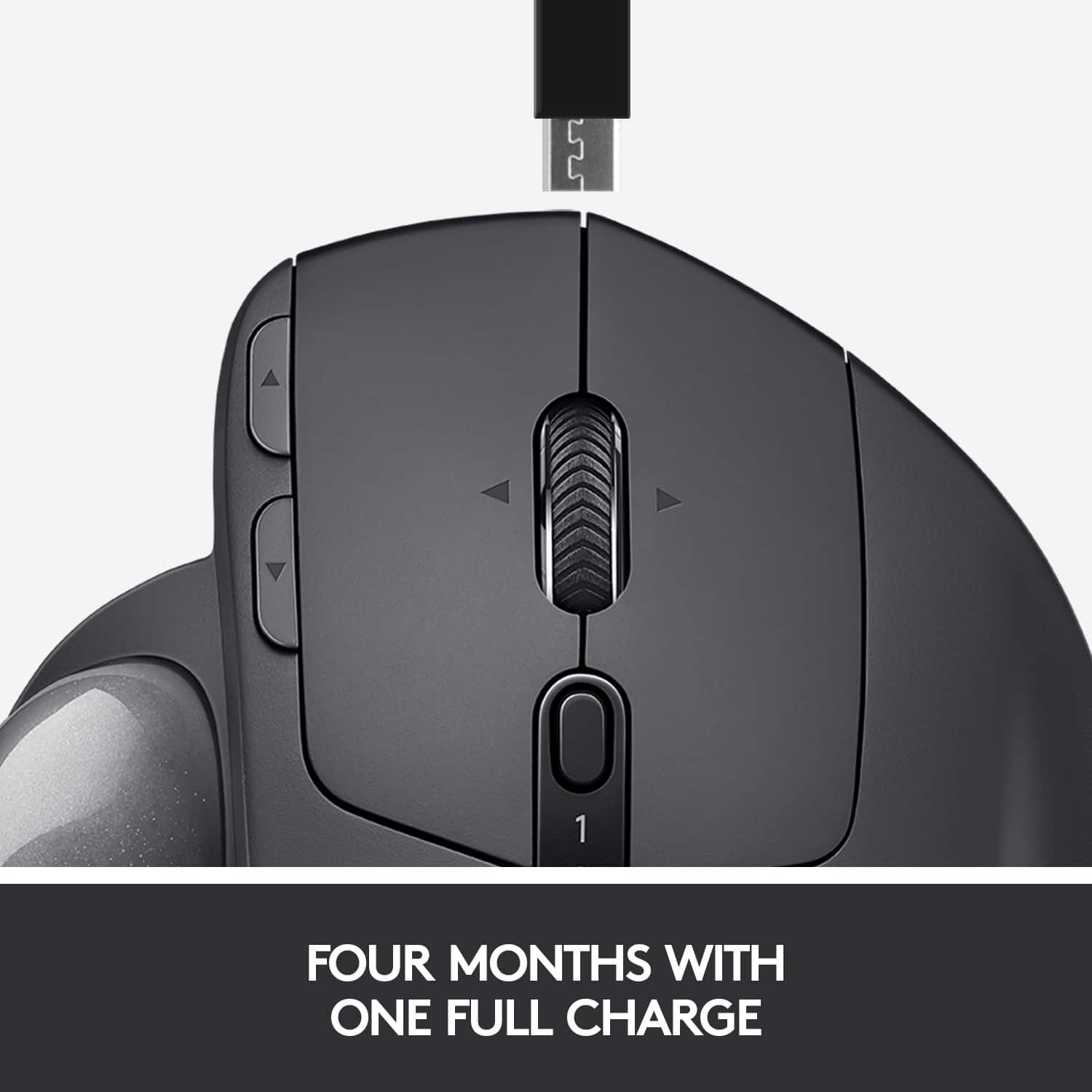
A:AnswerIt takes about 4 hrs for a full charge that can last up to 4 months. A 4 minute charge will last the day. You can use the device while it's charging, which means zero down time!
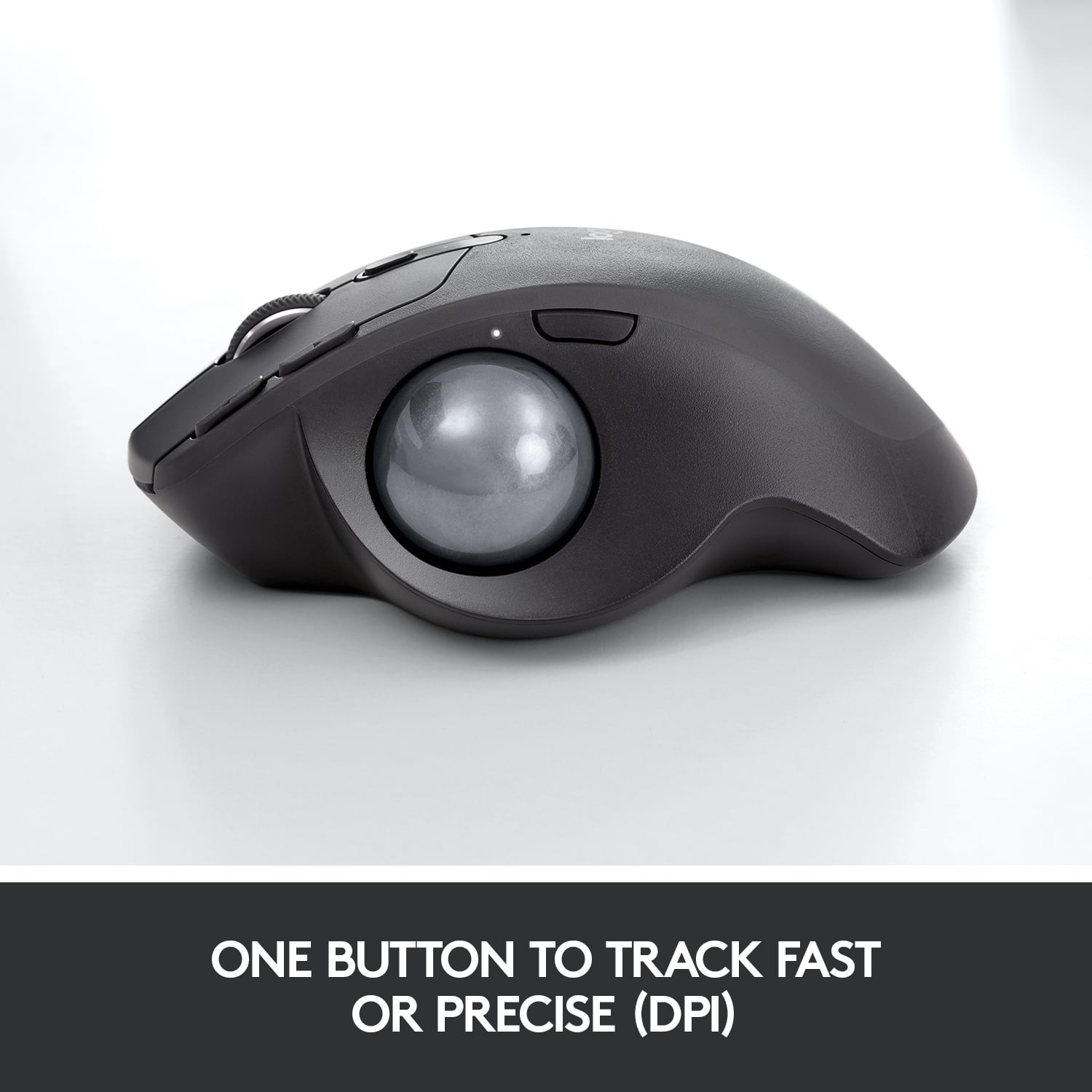
A:AnswerI think this mouse in particular is your best option. I personally have forearm issues and needed to switch to this mouse to save the ability to use my hands in the next several decades of my work life. I use this with excel everyday and I have not had an issue adapting to the change or getting frustrated with it not being accurate enough. There’s a learning curve, but you can learn to get really good at it. It has a button next to the trackball that puts it in precision mode, so if you needed to select the small space in between 2 letters in a cell formula, just hit that button and the cursor will move really slow and smooth relative to the speed of the ball. The software allows you to customize the cursor speed (and the speed of the precision mode) in addition.
A:AnswerThis item was released on October 5th and is available on-line for shipping or store pick-up. However it seems there are a limited number of stores with this product available at the moment. Best Buy does not publish when they will have stock for this item available in the physical store locations.
A:AnswerIf you r computer supports USB and Bluetooth, then it will work.
Verify that you have Bluetooth capability built in to your machine. If you do not, then you will need to buy a plug and play Bluetooth dongle.
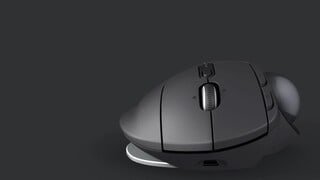
A:AnswerIt depends on preference, really. I, personally, could never get accustomed to the vertical style. There's two big changes there: the vertical hand placement itself and getting used to navigating the mouse in that way. With the MX Ergo Plus, your thumb does all the work, so you don't ever have to worry about moving your hand around. The magnetic metal plate that comes with the MX Ergo Plus allows for just the right amount of upright positioning with my hand, or a more flat positioning if preferred. It's nice to have two different comfort options.
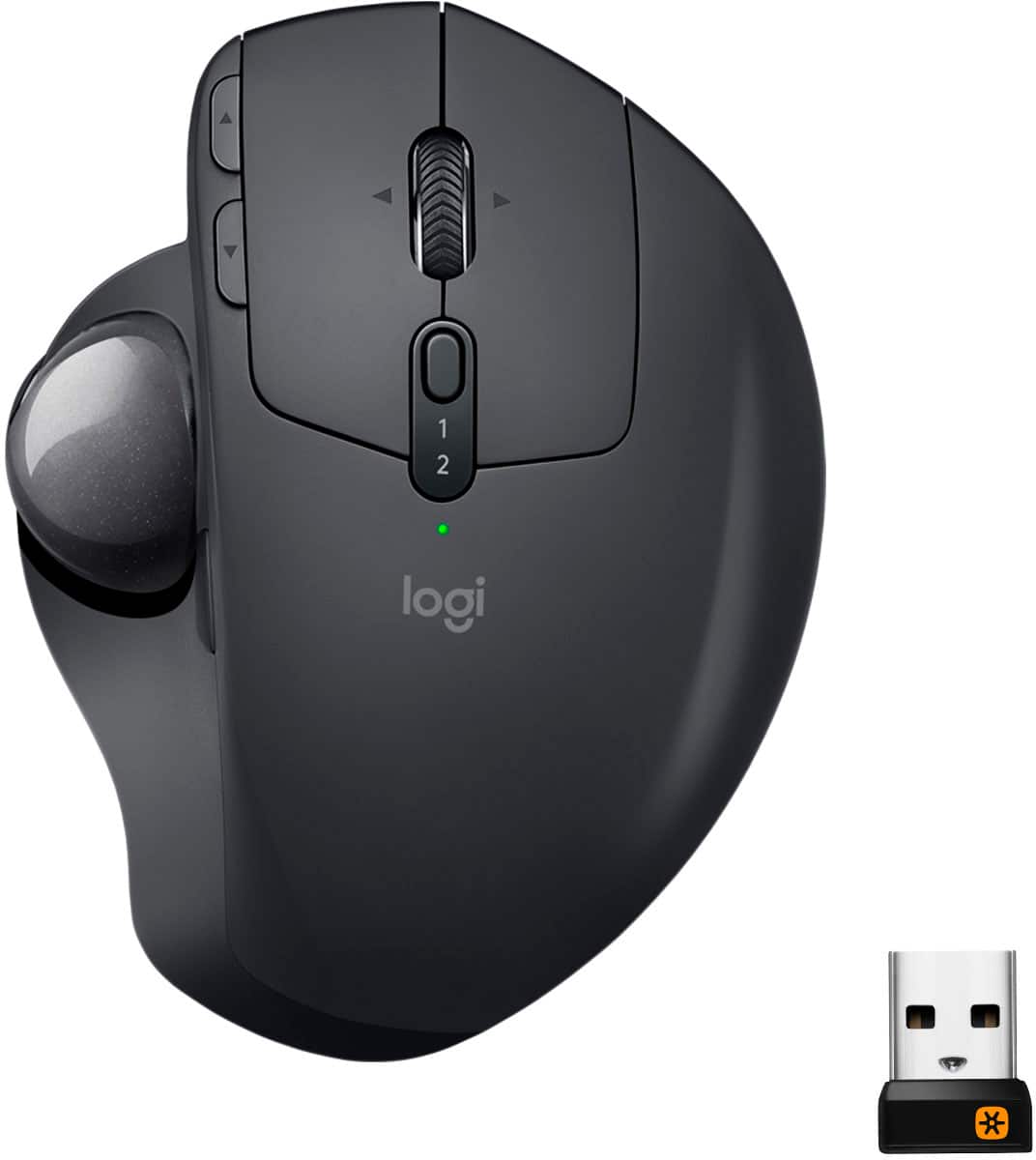
A:AnswerYou may want to go to the Logitech service website and download the most recent drivers for both the keyboard and it’s USB dongle. Then, connect the keyboard via the dongle and run all the installations. The instructions would be clear on-screen. Just in case, your dongle may need to forget the device to re-setup it (will be available in the Advanced setting of the dongle)